Skip to content
TechBone
Realme

Realme: Change the Alarm Sound

If the default alarm tone on your Realme phone barely wakes you up, swapping in a louder or more personal sound is often the fix. Realme UI keeps alarm sounds separate from your general ringtone and notification tone, so changing those settings elsewhere does nothing for your alarms. Each alarm can use its own built-in tone or a custom song stored on your phone.

5 min6 steps
VersionAndroid 11 · Realme UI 2

Step by step

1 / 6

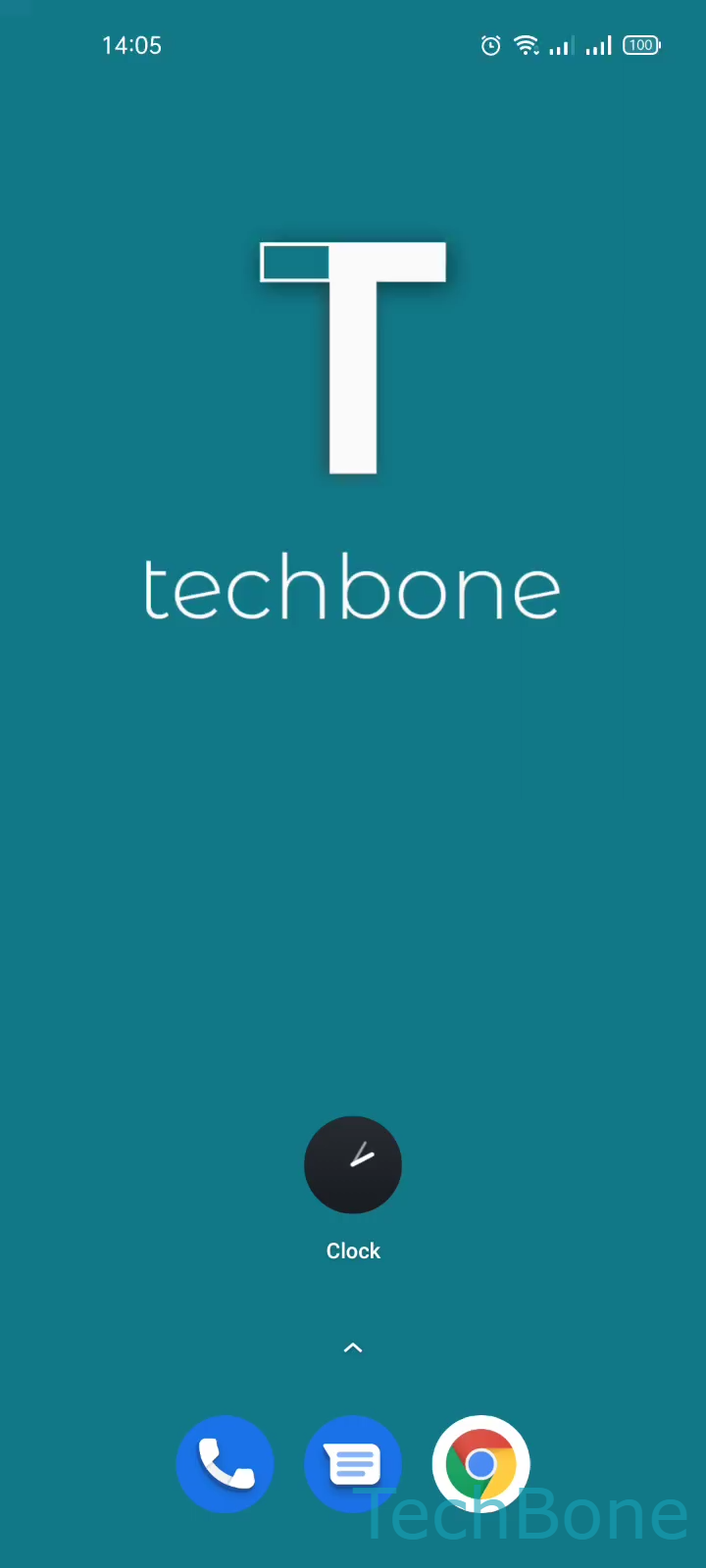
Step 1 of 6: Tap on **Clock**

1

Tap on Clock

Live simulator

Android 11 · Realme UI 2
Change Alarm Sound – Realme UI 2: step 1 – Tap on Clock
Tap on Clock
1 / 6

Scroll or use the buttons for the next step

Feedback

Was the guide correct?

Help others: confirm the path or report a problem.

18

Confirmations

Forum verified this path

Realme

Change Alarm Sound auf Realme

Realme UI treats the alarm sound as its own category, independent from the ringtone and notification tone you set in the general sound settings. Changing the ringtone has no effect on how your alarms sound, which is why many users end up looking in the wrong menu first.

Every alarm you create in the Clock app stores its own sound setting. That means one alarm can use a built-in tone while another plays a song from your music library, which is useful if you need a louder or more distinct sound to actually wake up.

Where to change it

Open the Clock app and go to Tap on ClockChoose an AlarmTap on RingtoneSelect from files or choose a RingtoneTap on BackTap on Save.

Picking a song or MP3 file works the same way as selecting a built-in tone, just tap Select from files instead of one of the preset ringtones. Confirm with Tap on Save so the new sound is applied to that specific alarm only.

Frequently asked questions

No. On Realme phones the ringtone, notification tone, and alarm sound are stored separately. You have to open the alarm itself under Tap on Ringtone to change what it plays.