Skip to content
TechBone
Realme

Realme: Adjust Smart Sidebar Opacity

When the Smart Sidebar floating bar sits on top of an app, the home screen, or a submenu, it can cover buttons, text, or icons you actually need. On Realme phones this happens because the floating bar renders at full opacity by default, no matter what is showing behind it. Lowering the transparency keeps quick access to the sidebar without losing sight of the content underneath.

3 min4 steps
VersionAndroid 11 · Realme UI 2

Step by step

1 / 4

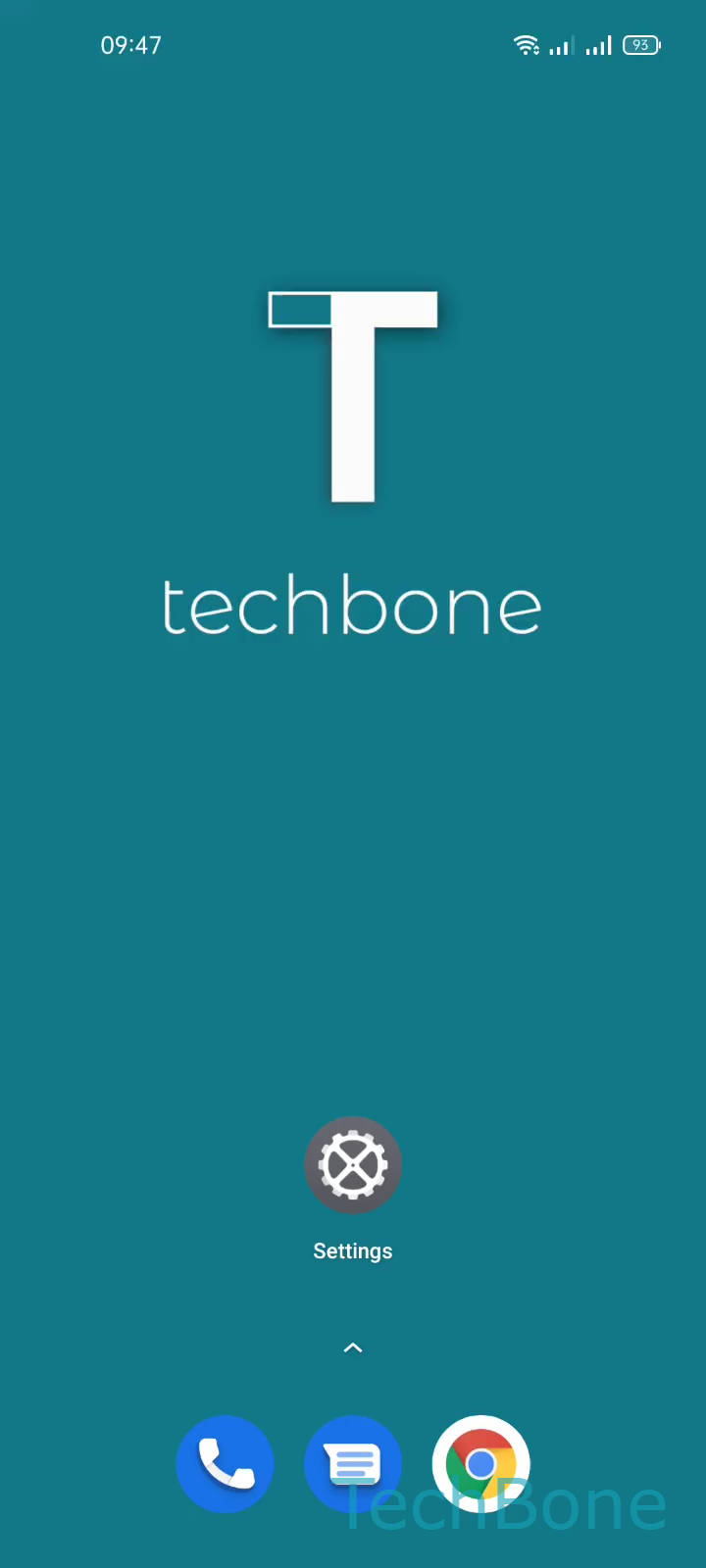
Step 1 of 4: Tap on **Settings**

1

Tap on Settings

Live simulator

Android 11 · Realme UI 2
Adjust Smart Sidebar Opacity – Realme UI 2: step 1 – Tap on Settings
Tap on Settings
1 / 4

Scroll or use the buttons for the next step

Feedback

Was the guide correct?

Help others: confirm the path or report a problem.

11

Confirmations

Forum verified this path

Realme

Adjust Smart Sidebar Opacity auf Realme

The Smart Sidebar on Realme phones adds a floating bar for quick access to apps and tools. By default it appears at full opacity, which can hide part of the screen behind it, especially in fullscreen apps, games, or narrow submenus.

You control this through a dedicated opacity slider in the system settings. Go to Tap on SettingsTap on Convenience toolsTap on Smart SidebarSet the Floating Bar Opacity. Dragging the slider lower makes the bar blend into the background while it is idle, so it interferes less with what you are reading or tapping.

The bar still returns to normal visibility once you touch it, so lowering opacity does not make it harder to open. If you rarely use the Smart Sidebar, disabling it entirely from the same screen is usually a cleaner fix than tuning transparency. Keep in mind that opacity changes apply system-wide and are not adjustable per app.

Frequently asked questions

The icons fade along with the bar background, but the whole bar returns to full visibility as soon as you tap or drag it, so this only affects the idle state.