Skip to content
TechBone
Realme

Realme: Turn Off TalkBack Accessibility Mode

Once TalkBack is running on your Realme phone, a single tap no longer opens anything - it only selects the item and reads it aloud. Opening an app or button needs a double-tap instead, which throws off the usual way of tapping through Settings. That is why just navigating to Accessibility the normal way does not switch TalkBack off.

10 min13 steps
VersionAndroid 11 · Realme UI 2

Step by step

1 / 13

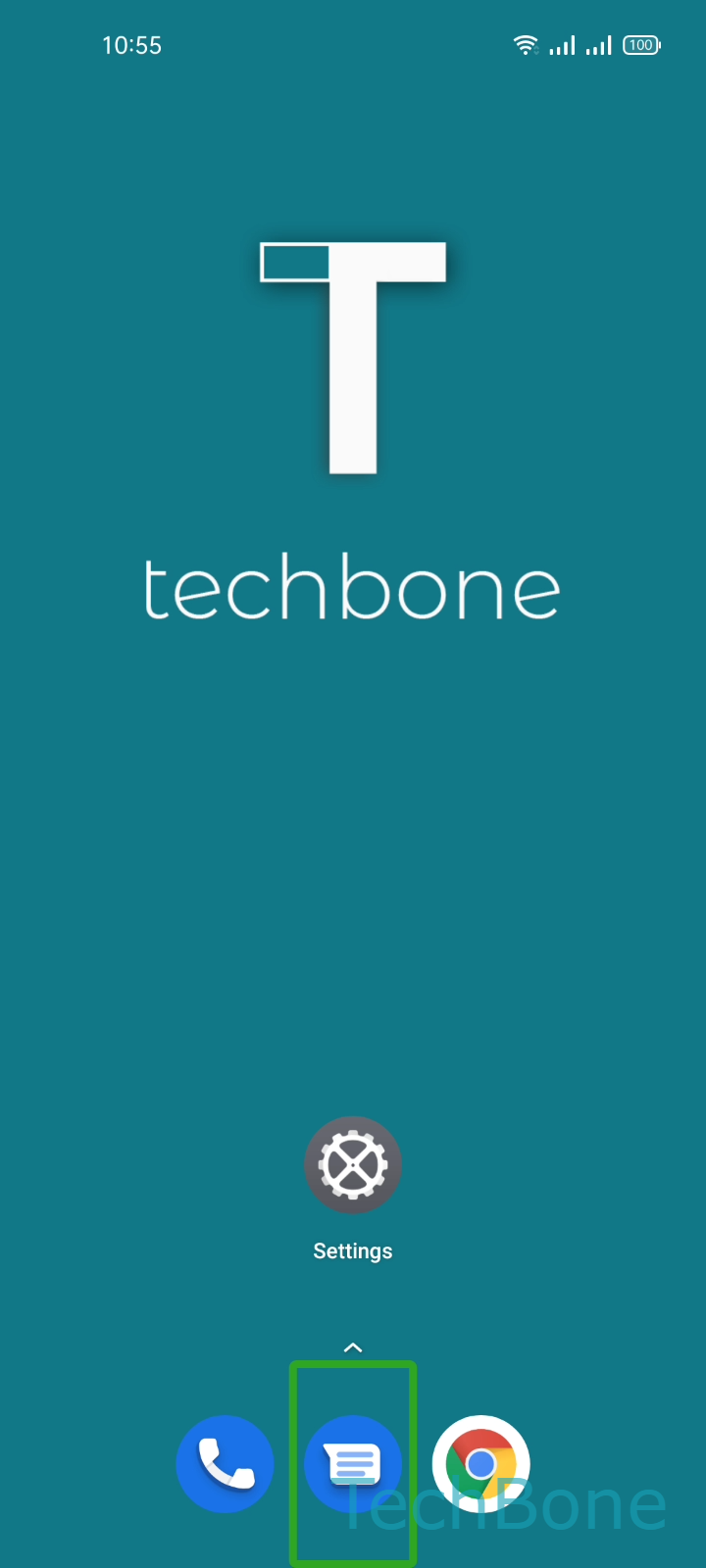
Step 1 of 13: Tap on **Settings**

1

Tap on Settings

Live simulator

Android 11 · Realme UI 2
Disable TalkBack Accessibility Mode – Realme UI 2: step 1 – Tap on Settings
Tap on Settings
1 / 13

Scroll or use the buttons for the next step

Feedback

Was the guide correct?

Help others: confirm the path or report a problem.

83

Confirmations

Forum verified this path

Realme

Disable TalkBack Accessibility Mode auf Realme

TalkBack replaces normal touch control with screen-reader gestures. A single tap now only selects an item and reads it aloud, a double-tap activates it, and a two-finger swipe scrolls a list instead of one finger. This is why tapping through Settings the way you normally would does not get you to the toggle - every step needs the TalkBack gesture, not the regular one.

To reach the switch, use the same gesture pattern all the way through: SettingsAdditional settingsAccessibilityTalkBackTalkBack (Button)Stop. Tap once on each entry to select it, then tap a second time to open it. On the final screen, tap once on the Stop button and confirm with a second tap to shut TalkBack down.

If you lose track of where the focus is while scrolling, use two fingers instead of one to move the list - a single-finger swipe only jumps between items on the current screen. Once TalkBack stops, gestures return to normal immediately and you can navigate with regular single taps again.

Frequently asked questions

The first tap only selects the Stop button and TalkBack reads its label aloud. A second tap on the same spot actually triggers the action, since TalkBack treats every tap as a selection first and an activation second.