Skip to content
TechBone
Realme

Realme: Turn Spell Check On or Off

Autocorrect on your Realme phone silently rewrites typos while you type, but it does not flag words it is unsure about. Spell check works differently: it underlines suspicious words in red instead of changing them, so you decide how to fix a mistake. If the red underlining feels distracting, or you rely on it and it has disappeared, the setting lives inside the keyboard app, not the general typing menu.

5 min6 steps
VersionAndroid 11 · Realme UI 2

Step by step

1 / 6

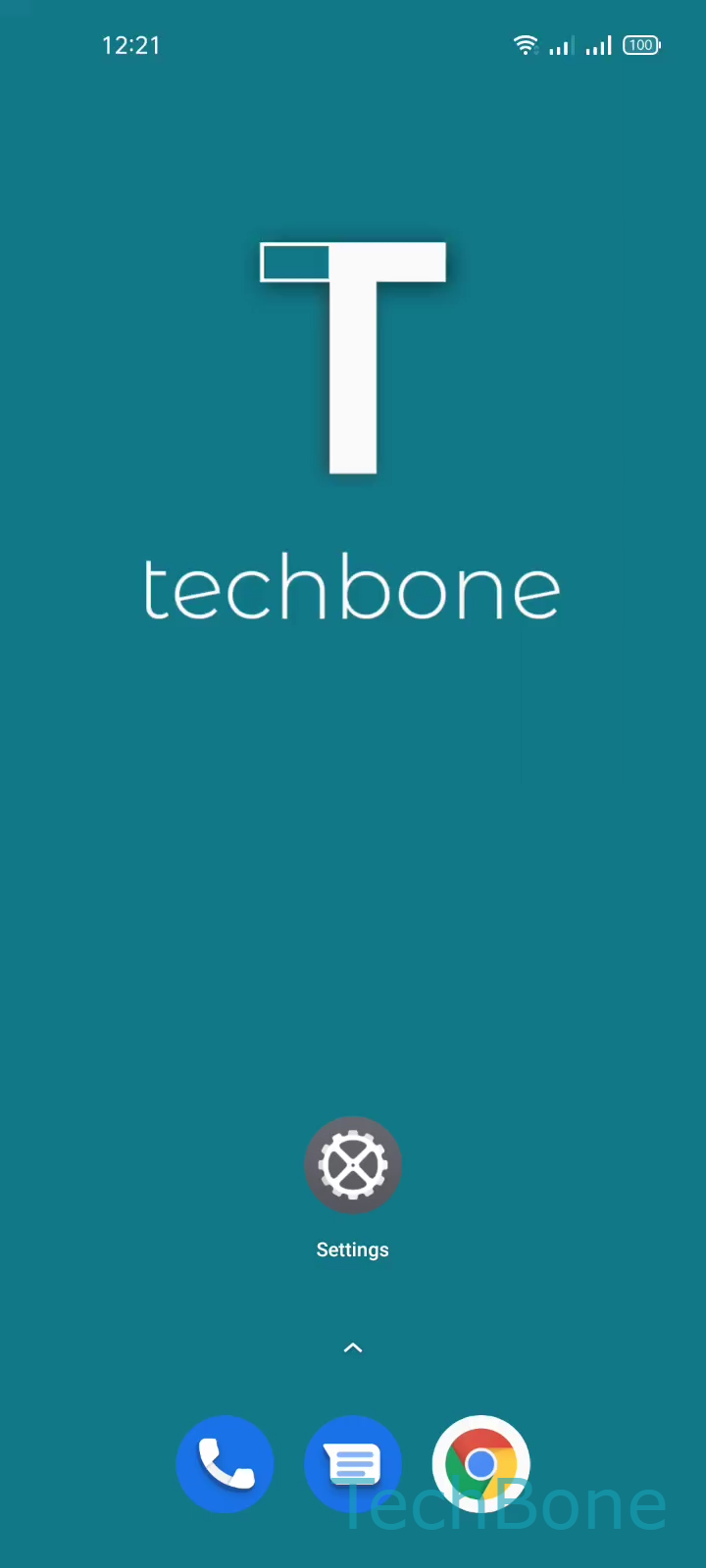
Step 1 of 6: Tap on **Settings**

1

Tap on Settings

Live simulator

Android 11 · Realme UI 2
Turn On/Off Spell Check – Realme UI 2: step 1 – Tap on Settings
Tap on Settings
1 / 6

Scroll or use the buttons for the next step

Feedback

Was the guide correct?

Help others: confirm the path or report a problem.

13

Confirmations

Forum verified this path

Realme

Turn On/Off Spell Check auf Realme

Spell check on Realme phones runs inside the Gboard keyboard, separate from the general autocorrect feature. Autocorrect quietly rewrites words it recognizes as typos, while spell check leaves your text untouched and instead underlines unrecognized words in red. This is useful when you type names, technical terms, or a second language that autocorrect keeps mangling.

The option sits under the keyboard settings, not the general text input menu, which is why it is easy to overlook. Open Tap on SettingsTap on Additional settingsTap on Keyboard & input methodTap on GboardTap on Text correction and then Enable or disable Spell check depending on what you need.

Turn spell check on if you want a visual warning without automatic changes to your text. Turn it off if the red underlines distract you while typing, or if you already rely on autocorrect to fix mistakes on its own. Disabling spell check does not affect autocorrect, since both settings work independently of each other.

Frequently asked questions

No. Autocorrect keeps rewriting recognized typos on its own. Spell check only controls the red underlines under words Gboard does not recognize, and switching it off leaves autocorrect untouched.