Skip to content
TechBone
Realme

Realme: Turn Touch Vibration On or Off

Every tap on a menu, button or option on your Realme phone triggers a short vibration by default. During calls, gaming or one-handed typing, that constant buzz starts to feel like unwanted haptic noise. It also fires on the on-screen navigation buttons, not just inside apps.

3 min4 steps
VersionAndroid 11 · Realme UI 2

Step by step

1 / 4

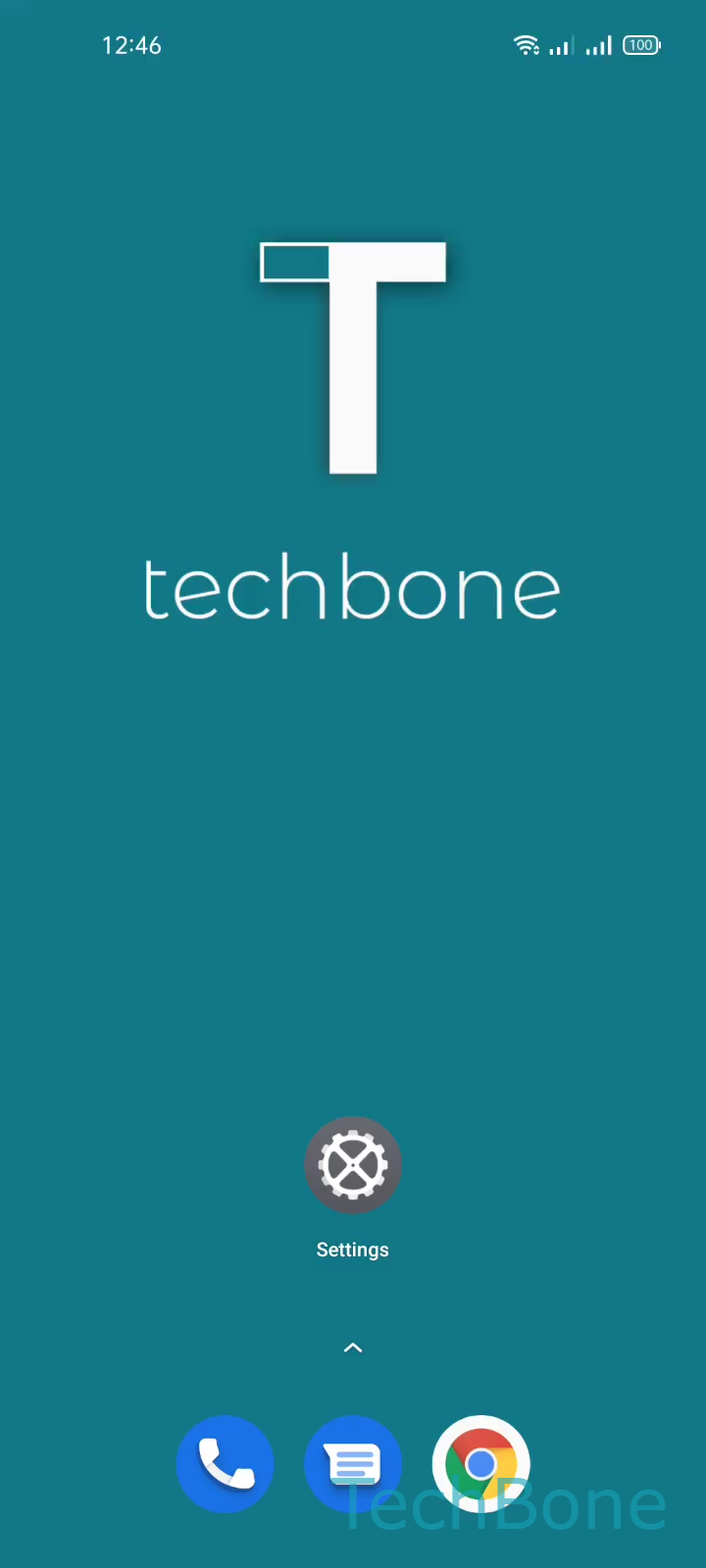
Step 1 of 4: Tap on **Settings**

1

Tap on Settings

Live simulator

Android 11 · Realme UI 2
Turn Touch Vibration On or Off – Realme UI 2: step 1 – Tap on Settings
Tap on Settings
1 / 4

Scroll or use the buttons for the next step

Feedback

Was the guide correct?

Help others: confirm the path or report a problem.

46

Confirmations

Forum verified this path

Realme

Turn Touch Vibration On or Off auf Realme

Realme UI confirms almost every tap with a short vibration. This behavior comes from the touch vibration setting, which is separate from ringtone vibration and notification vibration.

Open Settings, then tap Sound & vibration. Select More sounds & haptics and toggle Vibrate on touch off to disable the buzz, or back on to restore it.

Turning it off stops the feedback on menu items, toggles and also on the on-screen navigation buttons, since those count as touch input too. This helps during gaming sessions, video calls or when you simply prefer a quieter phone.

Switching it back on restores the confirmation buzz for every tap, which some people rely on to feel that an input registered without looking at the screen.

If your phone still vibrates for calls, alarms or notifications after disabling touch vibration, that is expected. Those use separate settings inside the same Sound & vibration menu and are not affected by this toggle.

Frequently asked questions

No. Keyboard vibration is usually a separate toggle inside your keyboard app settings. Disabling Vibrate on touch in SettingsSound & vibrationMore sounds & haptics only removes the feedback for system menus and buttons, not typing.