Skip to content
TechBone
Realme

Realme: Set a Custom Lock Screen Wallpaper

If you pick a new photo as wallpaper on your Realme phone, it sometimes replaces the lock screen image too, even though you only wanted to update the home screen. This happens because the Wallpapers menu applies images to both screens unless you tell it otherwise. Realme UI lets you assign a separate picture, live wallpaper, or gallery photo just for the lock screen.

6 min7 steps
VersionAndroid 11 · Realme UI 2

Step by step

1 / 7

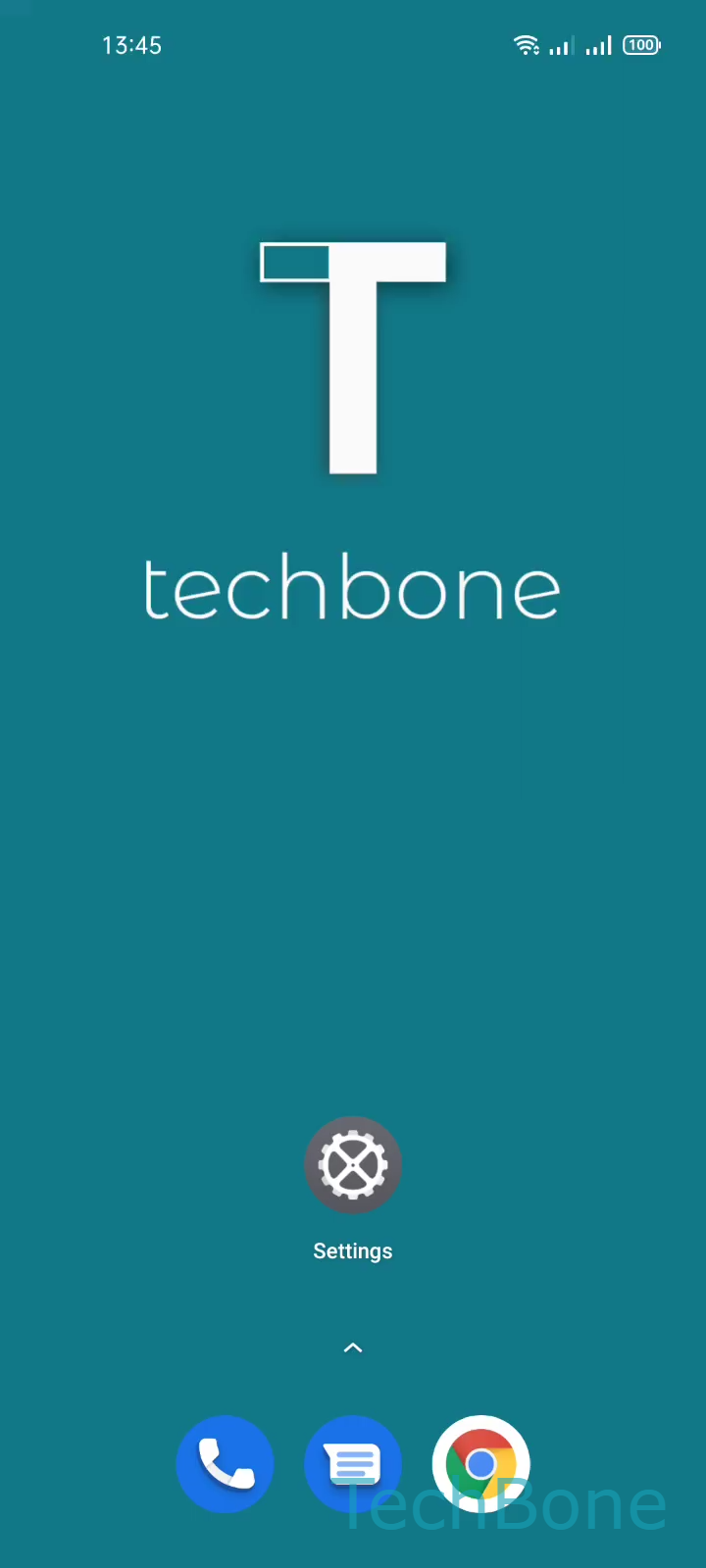
Step 1 of 7: Tap on **Settings**

1

Tap on Settings

Live simulator

Android 11 · Realme UI 2
Lock Screen Wallpaper – Realme UI 2: step 1 – Tap on Settings
Tap on Settings
1 / 7

Scroll or use the buttons for the next step

Feedback

Was the guide correct?

Help others: confirm the path or report a problem.

77

Confirmations

Forum verified this path

Realme

Lock Screen Wallpaper auf Realme

The lock screen wallpaper on Realme phones is stored separately from the home screen background, even though both are managed from the same menu.

Open SettingsPersonalizationsWallpapers. From there you can choose a preinstalled static or live wallpaper, or tap Photos to pick an image from your own gallery.

Once you have selected a picture, tap Apply. Realme UI then asks where the wallpaper should be used, so tap Lock screen to leave the home screen untouched.

Choosing Lock screen only updates the image shown before you unlock the phone. It does not affect the home screen background or any widgets placed there. Selecting the combined option instead applies the new picture to both screens at once.

Live wallpapers work on the lock screen too, but they can use more battery since the animation keeps rendering while the screen is locked. If battery life matters more than motion effects, a static photo is the safer pick for this screen.

Frequently asked questions

Yes. Go to SettingsPersonalizationsWallpapers, pick a live wallpaper, tap Apply, then choose Lock screen so the home screen keeps its current image.