
Skip to content
TechBone
Realme

Realme: Share a Wi-Fi Password as a QR Code

Reading out a long Wi-Fi password letter by letter to a guest wastes time and often ends in a typo on their end. Realme UI can turn the password of the network your phone is currently connected to into a scannable QR code, so any other phone with a camera joins in seconds. This only works for the active connection, not for networks that are merely saved on your phone.

3 min4 steps
VersionAndroid 11 · Realme UI 2

Step by step

1 / 4

Step 1 of 4: Tap on **Settings**

1

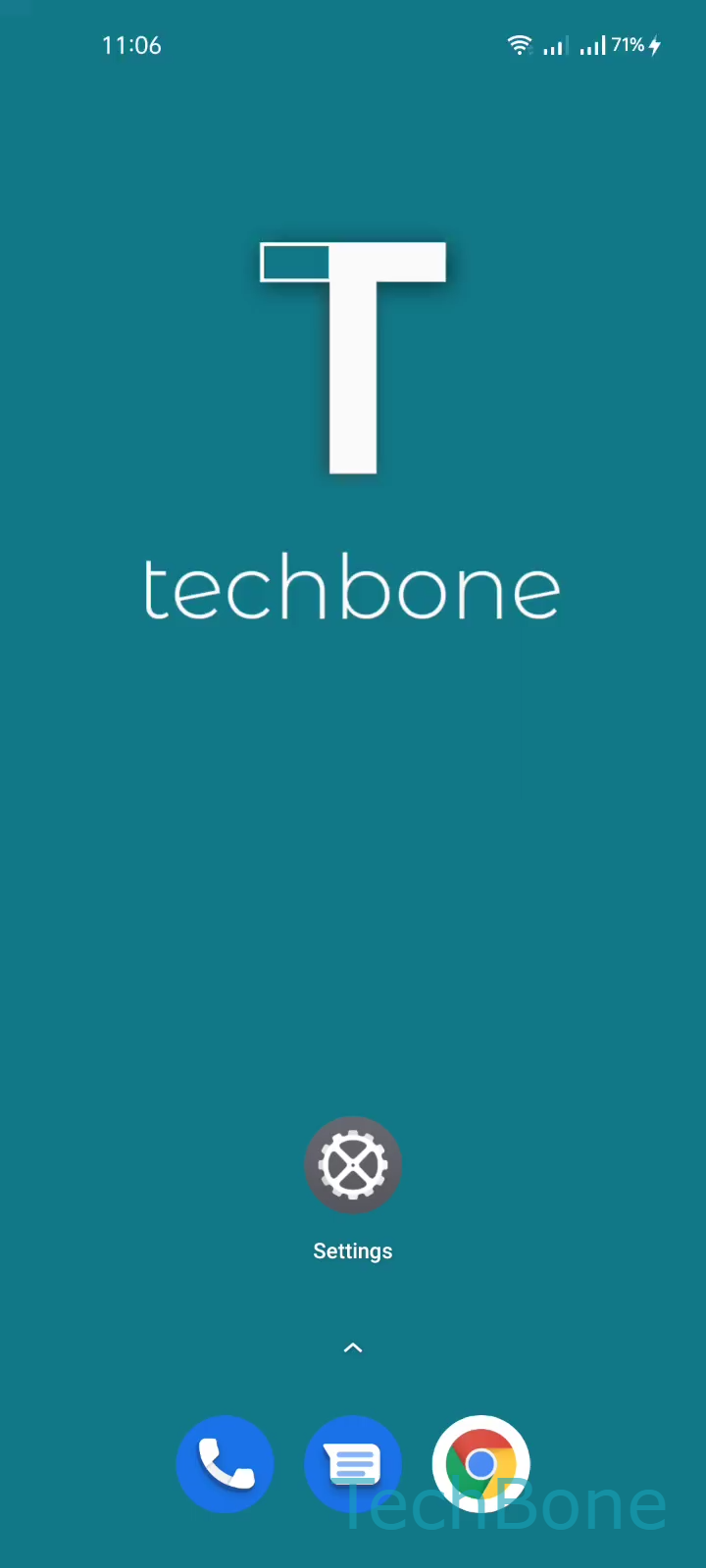
Tap on Settings

Live simulator

Android 11 · Realme UI 2
Share Wi-Fi Password via QR Code – Realme UI 2: step 1 – Tap on Settings
Tap on Settings
1 / 4

Scroll or use the buttons for the next step

Feedback

Was the guide correct?

Help others: confirm the path or report a problem.

36

Confirmations

Forum verified this path

Realme

Share Wi-Fi Password via QR Code auf Realme

Sharing a Wi-Fi password as a QR code works because Realme UI stores the credentials of the network your phone is currently connected to and encodes them into a scannable image. Any camera app or QR scanner on the guest device reads that code and connects automatically, without anyone typing the password.

This function only shows up for an active connection. If your phone is connected to mobile data or a different network, the QR code option will not display the credentials you want to share.

Menu path

Open SettingsWi-FiMenuWi-Fi QR code. Realme UI generates the code instantly and displays it full-screen, ready to be scanned by the other device.

The guest device needs a working camera and a QR scanner, either built into the camera app or a third-party scanner app. Once scanned, it joins the network without any manual password entry.

If the other device does not support QR-based Wi-Fi joining, sharing the password as plain text or using a different transfer method is the more reliable fix.

Frequently asked questions

No. Realme UI only generates a QR code for the network shown as connected under SettingsWi-Fi. For a saved but inactive network, connect to it first, then repeat the steps to reach Wi-Fi QR code.