Skip to content
TechBone
Samsung

Samsung: Switch Between 12- and 24-Hour Time Format

Samsung phones show the clock in 24-hour format out of the box, which throws off anyone used to reading AM and PM. If your lock screen, status bar, and alarms all display times like 14:30 instead of 2:30 PM, the format toggle in your date and time settings is responsible. Switching it affects the whole system, including notifications and the calendar.

3 min4 steps
Version

Step by step

1 / 4

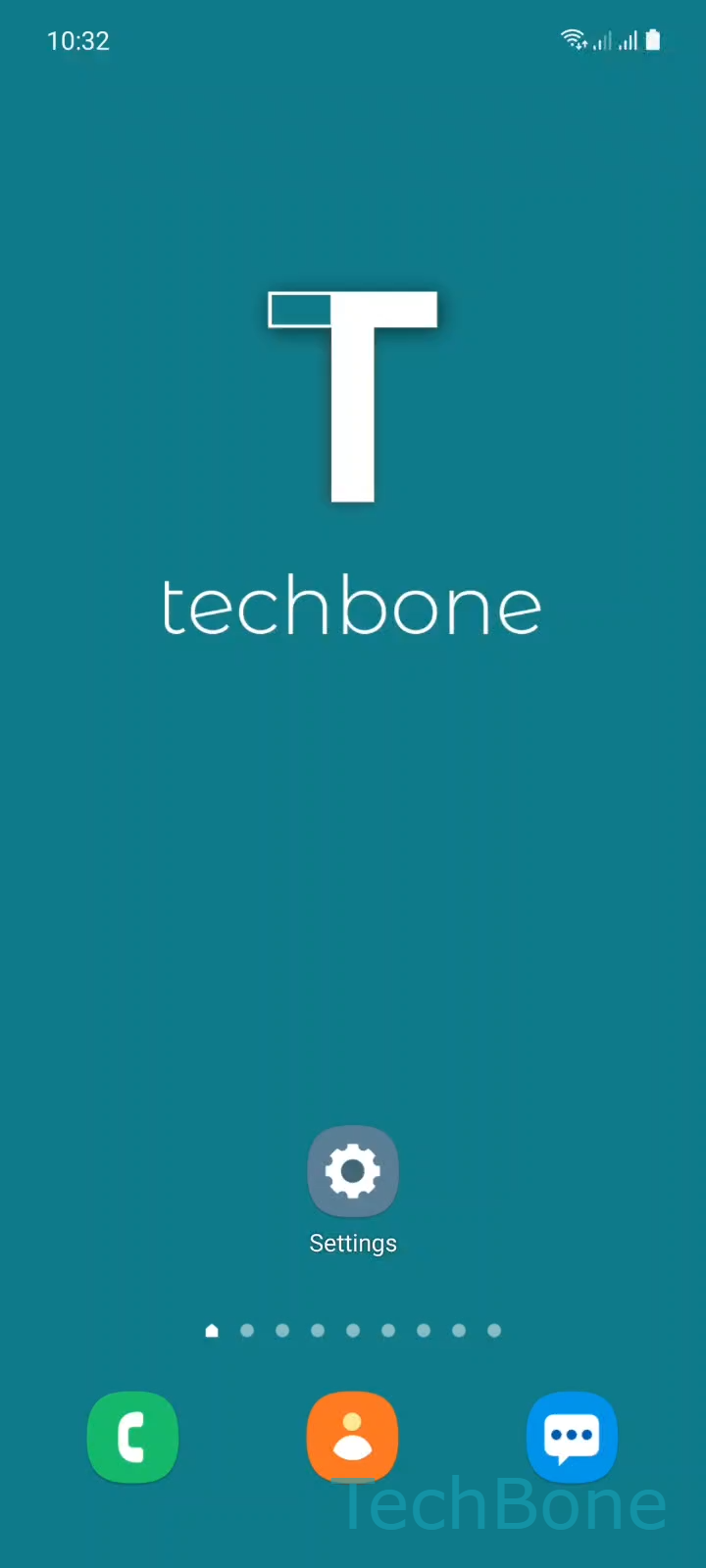
Step 1 of 4: Tap on **Settings**

1

Tap on Settings

Live simulator

Android 11 · One UI 3
Switch Between 12-Hour and 24-Hour Time Format – One UI 3: step 1 – Tap on Settings
Tap on Settings
1 / 4

Scroll or use the buttons for the next step

Feedback

Was the guide correct?

Help others: confirm the path or report a problem.

43

Confirmations

Forum verified this path

Samsung

Switch Between 12-Hour and 24-Hour Time Format auf Samsung

Samsung's One UI defaults to 24-hour time on most devices, even when the phone language or region normally uses a 12-hour clock. This setting is tied to the system-wide date and time configuration, not to individual apps, so it changes the clock everywhere at once: lock screen, status bar, calendar, and alarms.

The toggle sits under a single dedicated option, separate from automatic time zone settings. Switching it does not affect automatic date and time syncing or your selected time zone, only the way hours are displayed.

Menu path

Tap on SettingsTap on General managementTap on Date and timeEnable or disable Use 24-hour format

Turn the switch off to show times as 1:00 PM instead of 13:00, or turn it on for the 24-hour display. The change applies immediately across the system, no restart needed.

If the option is greyed out, automatic date and time syncing is usually the cause. Turn off automatic sync first, then the 24-hour toggle becomes selectable again.

Frequently asked questions

This usually happens when Automatic date and time is active and locked to a carrier or network source. Disable that option first in SettingsGeneral managementDate and time, then the 24-hour switch becomes selectable.

Compatible devices

Tap your device — opens its hub with matching guides.

Android 11 · One UI 3

No compatible devices are listed for this version.