
Samsung
Add Widgets to the Home Screen auf Samsung
On Samsung phones and tablets running One UI, widgets do not appear automatically next to your app icons. They sit in a separate widget picker that only opens once you trigger it from the home screen itself, which is why many users assume a widget is missing entirely.
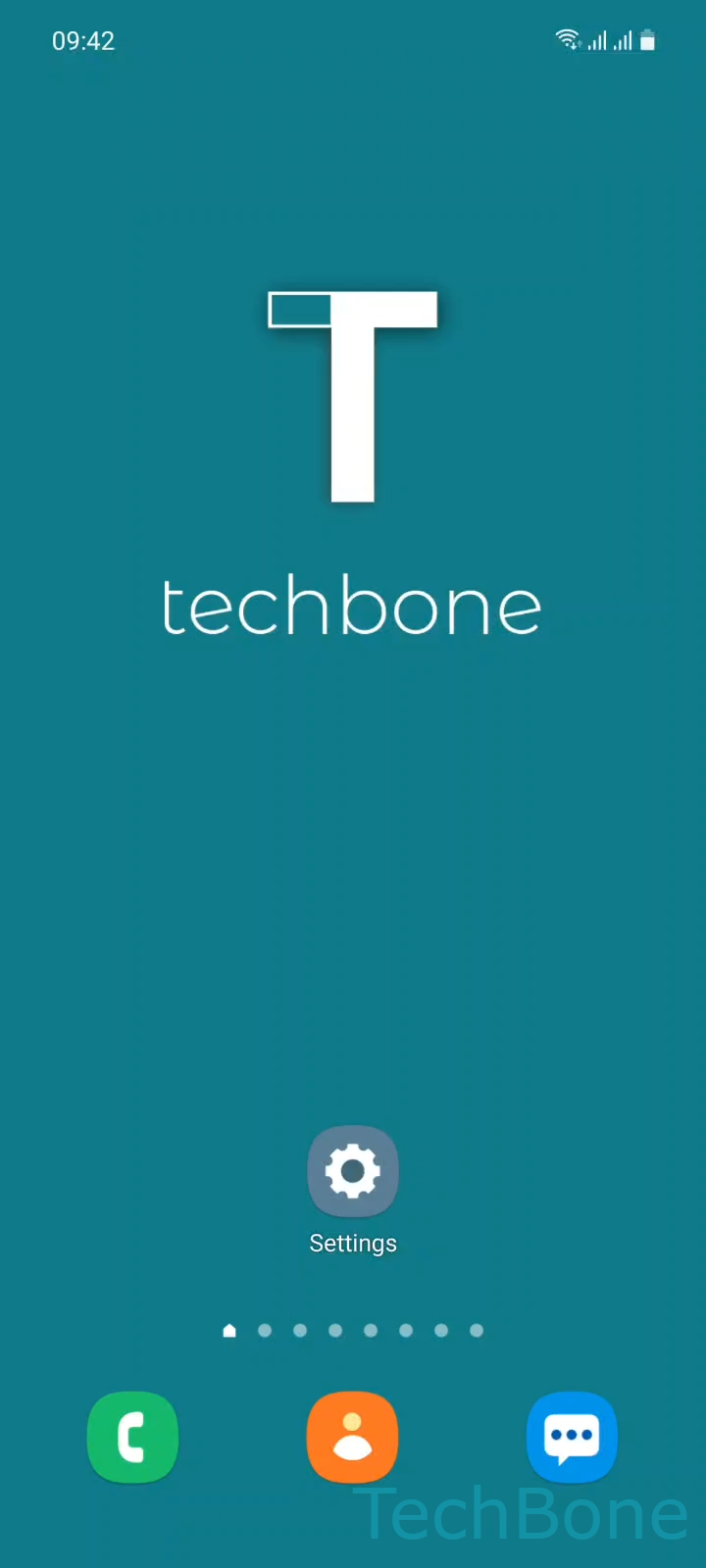
To reach it, use this Menüpfad: Tap and hold a Free area on Home screen ➔ Tap on Widgets ➔ Choose a Widget ➔ Tap on Add. The picker groups widgets by app, so a widget only shows up here if the related app is installed and supports one.
Some widgets offer multiple sizes or layouts before you tap Add, for example a compact clock versus a larger one with weather info. If a widget you expect is missing from the list, the app itself usually needs to be updated or reinstalled rather than the home screen settings.
This method works the same for stock Samsung widgets and third-party ones once an app is installed, so it is worth checking the widget picker again after installing new apps.