Skip to content
TechBone
Samsung

Samsung: Change the Edge Panel Handle Color and Size

On Samsung phones, the Edge panel opens through a small black bar sitting at the screen edge, and that handle is not always easy to see or grab depending on your wallpaper. Some people find it too dark, too large, or just distracting when watching videos or playing games. The handle color, size, and transparency are separate settings from the panel content itself, so changing your wallpaper or theme will not fix how it looks.

4 min5 steps
Version

Step by step

1 / 5

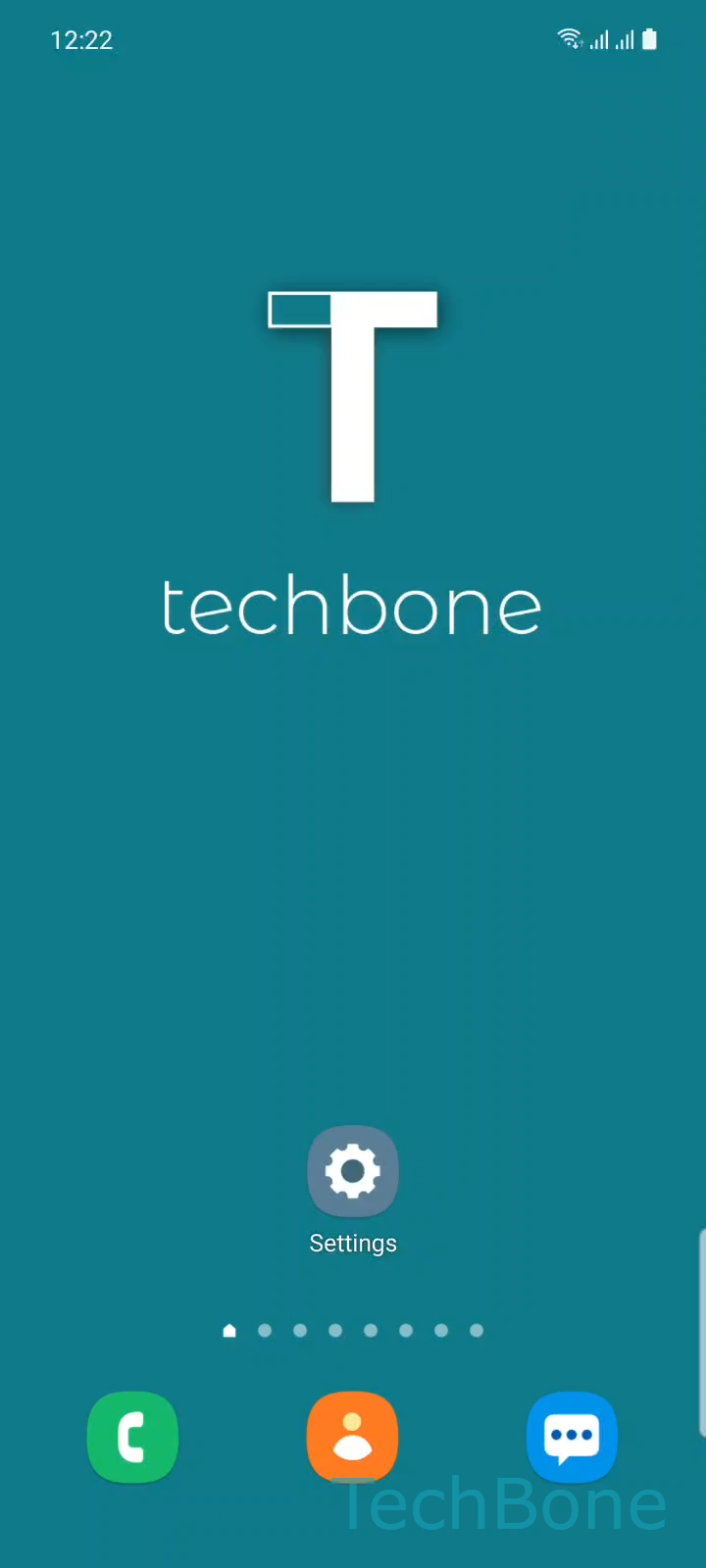
Step 1 of 5: Tap on **Settings**

1

Tap on Settings

Live simulator

Android 11 · One UI 3
Change the Edge Panel Handle Style – One UI 3: step 1 – Tap on Settings
Tap on Settings
1 / 5

Scroll or use the buttons for the next step

Feedback

Was the guide correct?

Help others: confirm the path or report a problem.

51

Confirmations

Forum verified this path

Samsung

Change the Edge Panel Handle Style auf Samsung

The Edge panel handle is the small bar you drag from the screen edge to open Edge panels. Samsung sets it to a plain black bar by default, which can clash with bright wallpapers or feel too small to grab reliably.

This handle is a display setting, independent from the panels themselves. Changing your theme, wallpaper, or the panel content will not move, resize, or recolor it, because the setting lives under the Edge panel display options.

To adjust it, go to Tap on SettingsTap on DisplayTap on Edge panelsTap on HandleSet a Color, Transparency or Size. From there you can pick a handle color that stands out against your wallpaper, increase the size for an easier grab, or lower the transparency so it blends in more.

If the handle still does not respond well after adjusting these values, check that Edge panels are still enabled at all, since a disabled feature can make the handle disappear entirely rather than just look wrong. This setting only affects the handle itself, not which panels appear or their order.

Frequently asked questions

The transparency slider under Tap on Handle lets you lower visibility significantly, but it does not offer a fully hidden option. For a completely invisible trigger, you would need to disable the handle position setting if your device offers one, or rely on the swipe gesture without a visible marker.

Compatible devices

Tap your device — opens its hub with matching guides.

Android 11 · One UI 3

No compatible devices are listed for this version.