Skip to content
TechBone
Samsung

Samsung: Change the Alarm Sound for a Single Alarm

If every alarm on your Samsung phone still plays the same default tone, you probably haven't discovered that each alarm can carry its own sound. Many users only ever adjust the general alarm tone and miss the option hidden inside a single alarm entry. This means the loudest, most jarring tone often wakes you every morning even when a gentler option is available.

6 min8 steps
Version

Step by step

1 / 8

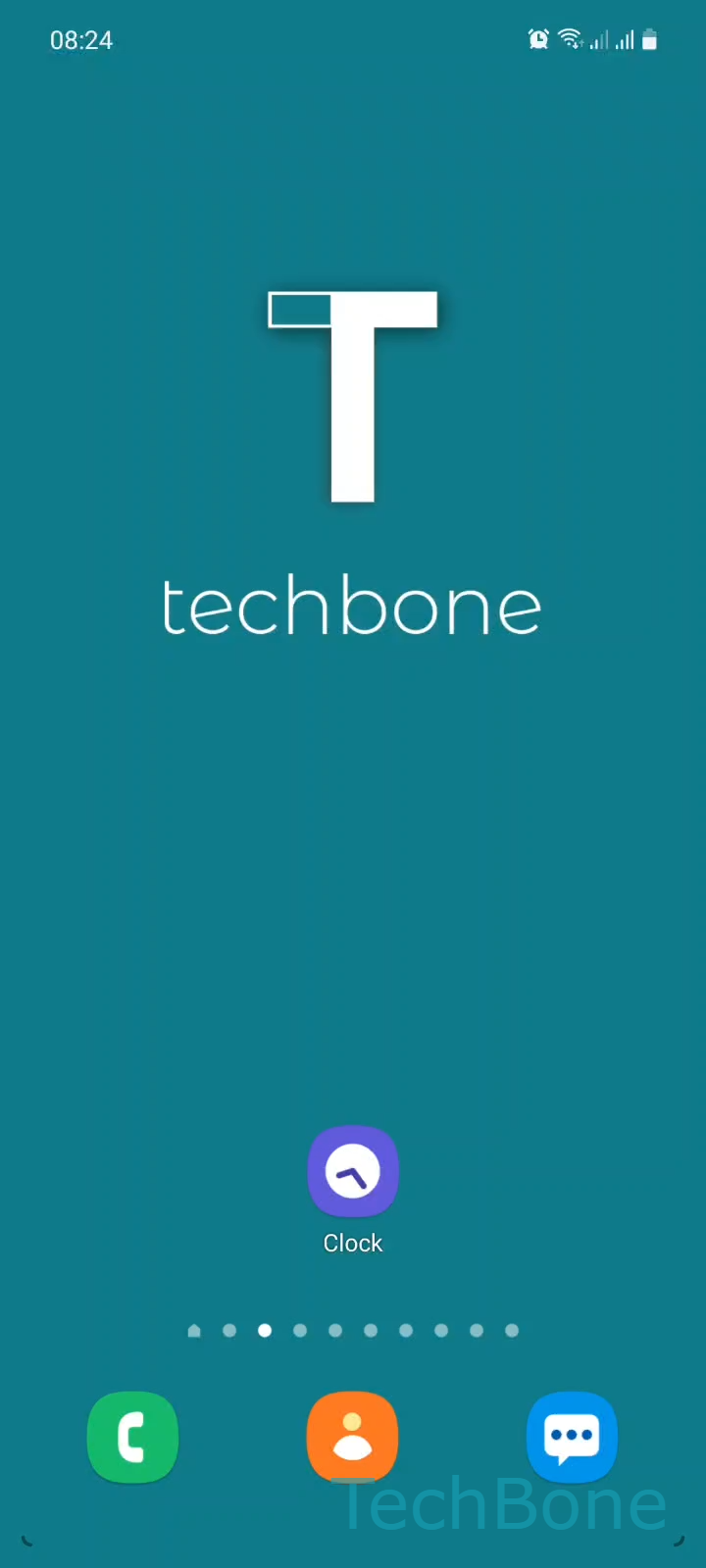
Step 1 of 8: Tap on **Clock**

1

Tap on Clock

Live simulator

Android 11 · One UI 3
Change Alarm Sound – One UI 3: step 1 – Tap on Clock
Tap on Clock
1 / 8

Scroll or use the buttons for the next step

Feedback

Was the guide correct?

Help others: confirm the path or report a problem.

12

Confirmations

Forum verified this path

Samsung

Change Alarm Sound auf Samsung

On older Samsung phones, the alarm tone was a single global setting. In Samsung One UI, every alarm you create keeps its own sound, so you can assign a soft tone to a weekday wake-up alarm and a louder one to a backup alarm.

The setting lives inside the Clock app, not in the general sound settings of the phone. This trips up a lot of users, because changing the tone under SettingsSounds and vibration only affects notifications and ringtones, not alarms.

To change the sound for one specific alarm, open Tap on ClockChoose an AlarmTap on Alarm soundTap on RingtoneSet an Alarm sound. Confirm with Tap on BackTap on BackTap on Save to store the change.

Alongside the built-in ringtones, you can also add a custom alarm tone from your own audio files, which is useful if none of the standard sounds work for you. If you want to change the volume or vibration pattern instead of the sound, those options sit in the same alarm edit screen, right next to Alarm sound.

If an alarm still plays the wrong tone after saving, check whether you edited the correct alarm entry, since Samsung One UI allows several alarms with similar labels and times.

Frequently asked questions

Alarm sounds are managed separately from ringtones and notifications. Changing SettingsSounds and vibration has no effect on alarms. You need to edit the sound inside the specific alarm through Tap on ClockChoose an AlarmTap on Alarm sound.

Compatible devices

Tap your device — opens its hub with matching guides.

Android 11 · One UI 3

No compatible devices are listed for this version.