Skip to content
TechBone
Samsung

Samsung: Set Alarm Volume for Individual Alarms

If your alarm sounds too quiet or too loud, the fix is not in your general sound settings. On Samsung phones, alarm volume is controlled separately for each alarm inside the Clock app, not through the main volume slider. Without knowing this, many people assume the alarm volume is stuck at one level.

5 min6 steps
Version

Step by step

1 / 6

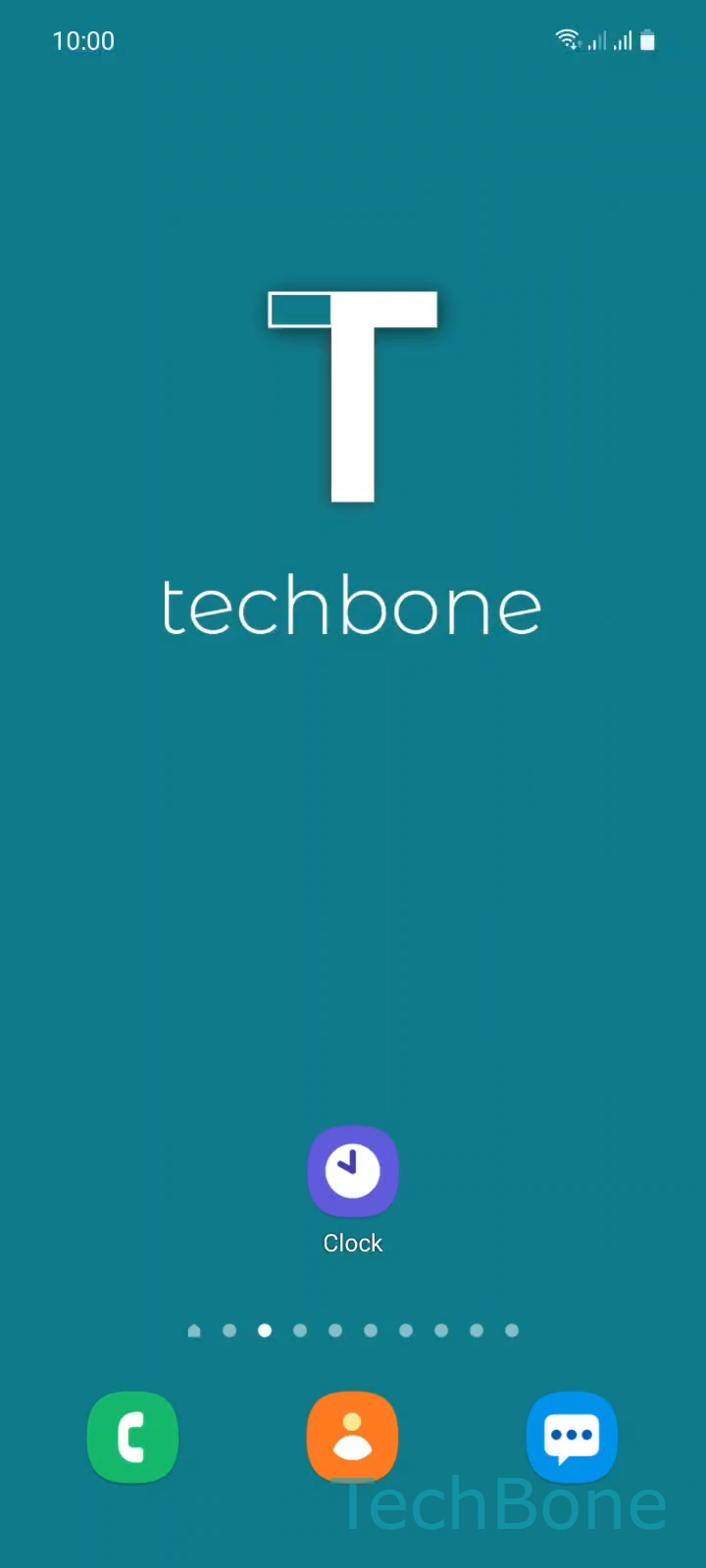
Step 1 of 6: Tap on **Clock**

1

Tap on Clock

Live simulator

Android 11 · One UI 3
Change Alarm Volume – One UI 3: step 1 – Tap on Clock
Tap on Clock
1 / 6

Scroll or use the buttons for the next step

Feedback

Was the guide correct?

Help others: confirm the path or report a problem.

91

Confirmations

Forum verified this path

Samsung

Change Alarm Volume auf Samsung

Samsung phones do not use a single system-wide alarm volume. Each alarm you create in the Clock app stores its own volume level, separate from media, ringtone, or notification volume in the main sound settings.

This is why turning up your phone's overall volume has no effect on how loud an alarm rings. The volume control only appears inside that specific alarm's settings, tied to the alarm sound itself.

To change it, tap Clock, choose the alarm you want to adjust, then tap Alarm sound. Swipe left or right to adjust the alarm volume, tap Back, and confirm with Save.

Because the level is stored per alarm, you need to repeat these steps for every alarm that sounds wrong. This also lets you set a quiet volume for an early alarm and a louder one for a backup alarm later.

If an alarm stays silent even at maximum volume, check whether Do Not Disturb or a scheduled Focus mode is muting sound. That is a separate setting from the alarm volume itself and needs to be turned off or set to allow alarms.

Frequently asked questions

The main volume buttons do not control alarm sound on Samsung phones. Open Clock, select the alarm, tap Alarm sound, and adjust the volume bar directly for that alarm.

Compatible devices

Tap your device — opens its hub with matching guides.

Android 11 · One UI 3

No compatible devices are listed for this version.