Skip to content
TechBone
Samsung

Samsung: Stop Apps From Being Put to Sleep Automatically

If a messaging or fitness app stops sending notifications hours after you last opened it, Samsung's background power management is probably putting it into deep sleep. Apps in that state get delayed sync, skip background refreshes, and often miss push alerts. You can protect specific apps from this automatic sleep behavior instead of disabling battery optimization for everything.

5 min6 steps
Version

Step by step

1 / 6

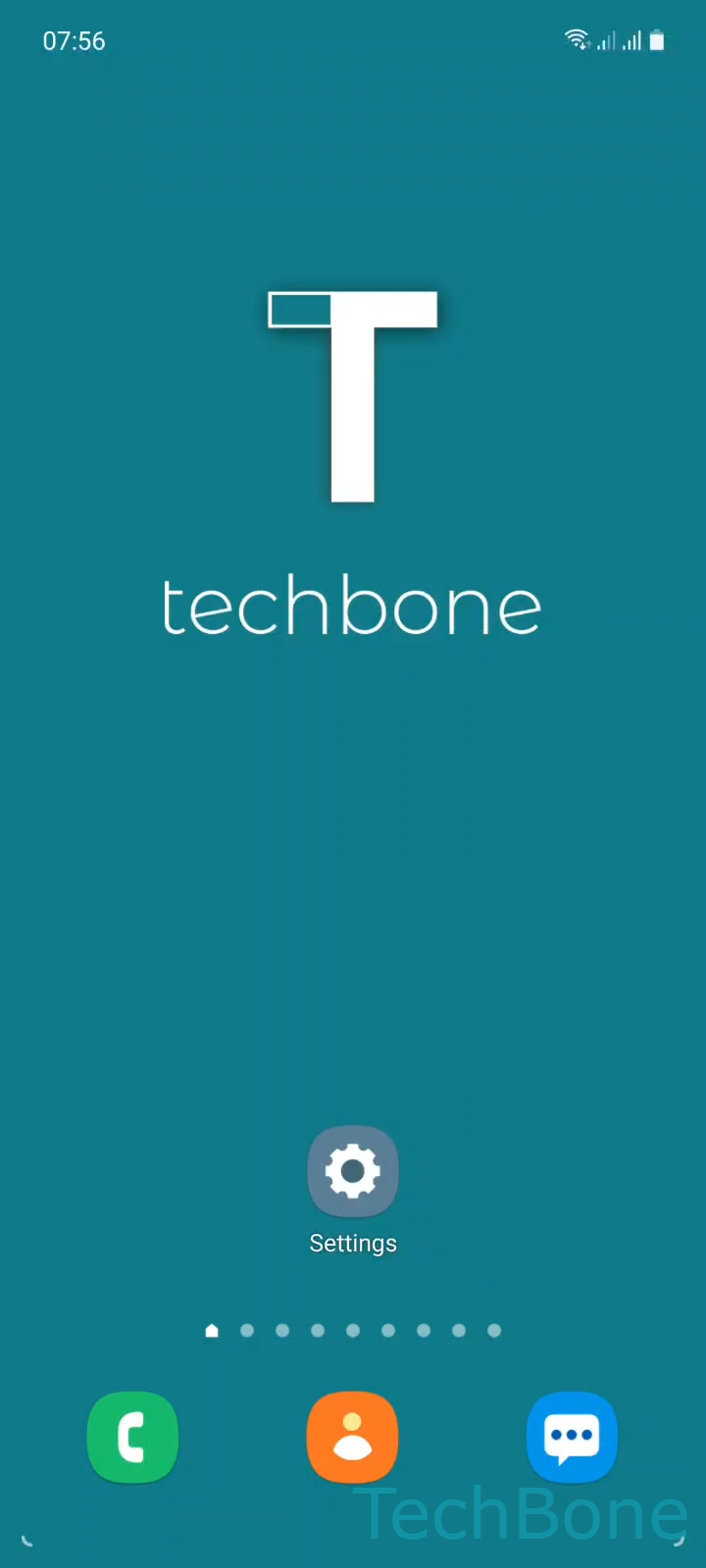
Step 1 of 6: Tap on **Settings**

1

Tap on Settings

Live simulator

Android 11 · One UI 3
Exclude Apps from Automatic Sleep Mode – One UI 3: step 1 – Tap on Settings
Tap on Settings
1 / 6

Scroll or use the buttons for the next step

Feedback

Was the guide correct?

Help others: confirm the path or report a problem.

102

Confirmations

Forum verified this path

Samsung

Exclude Apps from Automatic Sleep Mode auf Samsung

Samsung's battery management automatically moves apps you rarely open into a low-power state. Once an app lands there, the system delays or blocks background activity to save power, which is why notifications, chat messages, or fitness tracking can arrive late or not at all.

This behavior is controlled per app and can be turned off for the apps you actually rely on for timely updates.

Menu path

Open Tap on SettingsTap on Battery and device careTap on BatteryTap on Background usage limits. Here you find the categories that control automatic sleep.

Use Turn On/Off Put unused apps to sleep to enable or disable the general behavior, or pick one of the categories below it, then tap Tap on Add to place specific apps on the exclusion list.

Excluding an app stops the system from freezing its background process, so notifications and sync jobs run on schedule again. The trade-off is higher background battery use, so only add apps you actually need running continuously, like messaging or navigation apps. Leave the automatic sleep active for apps you open occasionally.

Frequently asked questions

A little, since the app can keep background processes and sync jobs running instead of being frozen. The effect is usually small unless the app pushes location or network data constantly.

Compatible devices

Tap your device — opens its hub with matching guides.

Android 11 · One UI 3

No compatible devices are listed for this version.