Skip to content
TechBone
Samsung

Samsung: Change Auto-lock Time on Lock Screen

If your Samsung phone locks the instant the screen turns off, you lose the short grace period that normally lets you wake it back up without re-entering your PIN or pattern. This behavior is controlled by a delay setting inside the lock screen security options that starts counting down the moment the display goes dark. Adjusting that delay changes how long the phone stays unlocked before it demands your credentials again.

5 min6 steps
Version

Step by step

1 / 6

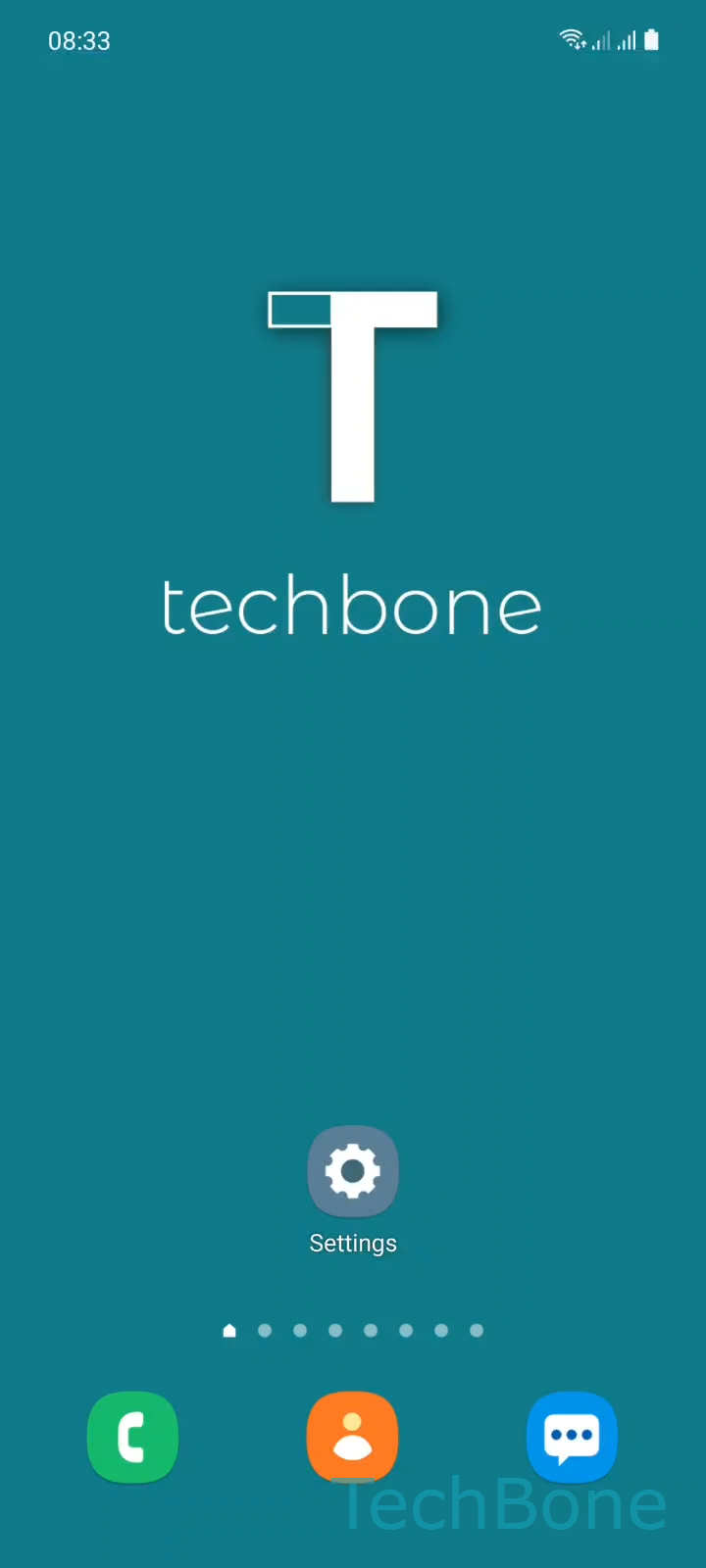
Step 1 of 6: Tap on **Settings**

1

Tap on Settings

Live simulator

Android 11 · One UI 3
Change Auto-lock Time – One UI 3: step 1 – Tap on Settings
Tap on Settings
1 / 6

Scroll or use the buttons for the next step

Feedback

Was the guide correct?

Help others: confirm the path or report a problem.

63

Confirmations

Forum verified this path

Samsung

Change Auto-lock Time auf Samsung

Samsung phones running One UI lock the screen based on a short timer that starts as soon as the display turns off. If that timer is set to a very short value, the phone can feel like it locks instantly, even if you only glanced away for a second.

The setting responsible for this is Auto lock when screen turns off, found inside the secure lock settings. It only appears once a Pattern, PIN, Password or biometric method is active, since it works together with your screen lock.

To change it, open SettingsLock screenSecure lock settings. Confirm your current Pattern, PIN or Password when asked. Then tap Auto lock when screen turns off and choose an option, ranging from immediate locking to a delay of several seconds.

A longer delay is useful if you frequently glance at your phone and turn the screen back on within a few seconds. A very short or immediate setting is the safer choice on shared or public devices, since it removes the window where the phone stays unlocked after the screen goes dark.

This setting only affects locking speed. It does not change how long the screen stays on before turning off, which is handled separately under display timeout.

Frequently asked questions

Screen timeout controls how long the display stays on before it turns off. Auto lock, set under Auto lock when screen turns off, controls how long the phone stays unlocked after the display has already gone dark.

Compatible devices

Tap your device — opens its hub with matching guides.

Android 11 · One UI 3

No compatible devices are listed for this version.