Skip to content
TechBone
Samsung

Samsung: Turn Automatic App Updates On or Off

When apps update themselves in the background without asking, mobile data can disappear fast and storage fills up overnight. On Samsung phones this behavior comes from a Play Store setting, not a system-wide toggle, so it is easy to miss if you are looking in the wrong menu. If you want full control over when apps get new versions, this setting needs to be changed directly inside the Play Store app.

5 min6 steps
Version

Step by step

1 / 6

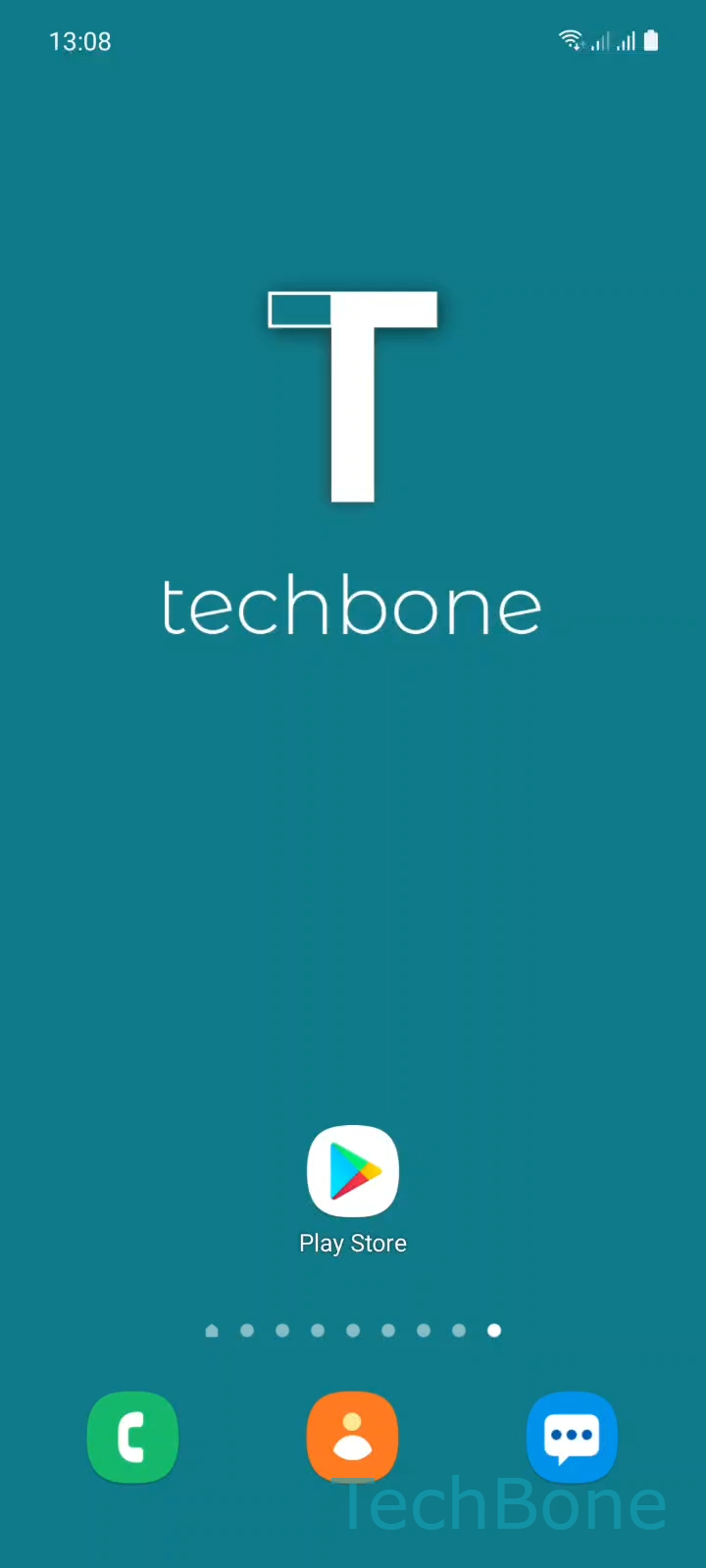
Step 1 of 6: Tap on **Play Store**

1

Tap on Play Store

Live simulator

Android 11 · One UI 3
Turn Automatic App Updates On or Off – One UI 3: step 1 – Tap on Play Store
Tap on Play Store
1 / 6

Scroll or use the buttons for the next step

Feedback

Was the guide correct?

Help others: confirm the path or report a problem.

11

Confirmations

Forum verified this path

Samsung

Turn Automatic App Updates On or Off auf Samsung

Automatic app updates run through the Google Play Store, not through Samsung's own system settings. That is why searching in Settings on the phone itself will not get you there.

The setting controls whether apps update over any connection, only over Wi-Fi, or not at all. If it is set to update over any network, background downloads can use mobile data without any warning, which explains sudden data usage spikes.

Turning updates off completely stops security patches and bug fixes from arriving automatically. That is fine for apps you rarely open, but risky for banking apps or anything handling sensitive data, since known issues stay unpatched until you update manually.

Where to change it

Open Play StoreGoogle accountSettingsNetwork preferencesAuto-update apps. Pick the option you want and confirm with Done.

The Play Store offers three choices here: update over any network, update only over Wi-Fi, or do not auto-update apps at all. Choosing Wi-Fi only is usually the safest middle ground, since it keeps apps current without touching your mobile data plan.

Frequently asked questions

Signing out of your Google account and back in, or resetting app preferences under SettingsApps, can reset the Play Store's network preferences to their default. Check Play StoreGoogle accountSettingsNetwork preferencesAuto-update apps again after any account change.

Compatible devices

Tap your device — opens its hub with matching guides.

Android 11 · One UI 3

No compatible devices are listed for this version.