Skip to content
TechBone
Samsung

Samsung: Back Up Secure Folder Data

Your Secure Folder content stays out of every regular Samsung backup, so files you drop inside it can vanish for good if the device is reset, lost, or replaced. Because the backup itself gets stored to your Samsung account rather than to the device backup, skipping this step leaves apps, photos, and documents inside Secure Folder completely unprotected.

5 min6 steps
Version

Step by step

1 / 6

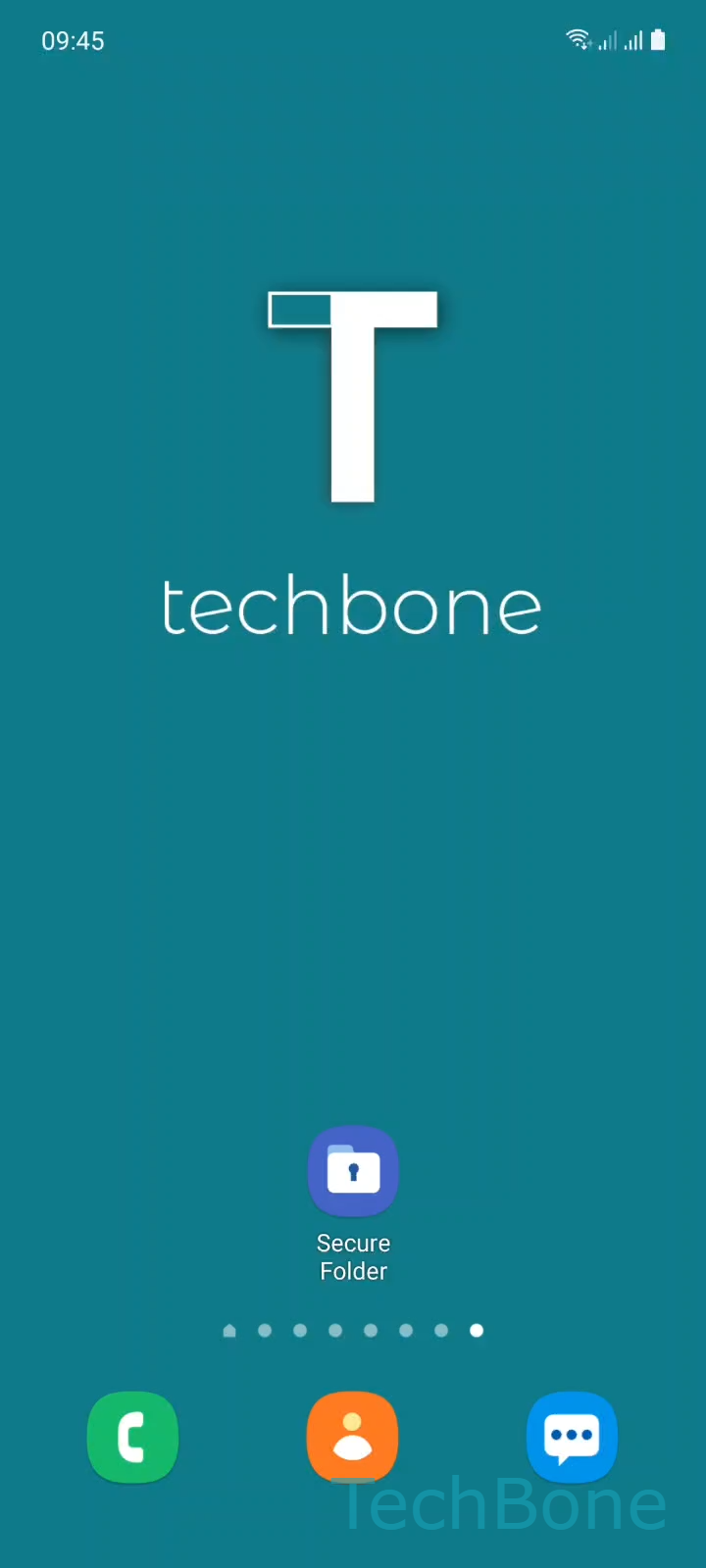
Step 1 of 6: Tap on **Secure Folder**

1

Tap on Secure Folder

Live simulator

Android 11 · One UI 3
Back Up Secure Folder Data – One UI 3: step 1 – Tap on Secure Folder
Tap on Secure Folder
1 / 6

Scroll or use the buttons for the next step

Feedback

Was the guide correct?

Help others: confirm the path or report a problem.

90

Confirmations

Forum verified this path

Samsung

Back Up Secure Folder Data auf Samsung

Secure Folder runs as an isolated space on your Samsung phone, separate from the regular storage area. A standard device backup only covers the normal storage, which is why photos, documents, and apps kept inside Secure Folder are excluded by default.

To protect that content, Samsung offers a dedicated backup routine for Secure Folder. It requires a signed-in Samsung account, since the backup file is stored on Samsung's servers rather than locally on the device.

To start the backup, open Tap on Secure FolderOpen the MenuTap on SettingsTap on Backup and restoreTap on Back up Secure Folder dataSelect the Content to back up and tap Back up.

You can choose which categories, such as apps or images, get included before starting the process. Once finished, that data can be restored to the same device after a reset or pulled onto a new Samsung phone through the same Secure Folder settings menu.

Without a signed-in Samsung account, the backup option stays greyed out, so check your account status first if the step does not proceed.

Frequently asked questions

Yes. The backup is uploaded to your Samsung account rather than saved locally, so you need to be signed in before Tap on Backup and restore becomes usable.

Compatible devices

Tap your device — opens its hub with matching guides.

Android 11 · One UI 3

No compatible devices are listed for this version.