Skip to content
TechBone
Samsung

Samsung: Turn On Automatic Backup to Samsung Cloud

If your Samsung phone only gets backed up when you remember to trigger it manually, automatic backup to Samsung Cloud is probably switched off. The Auto back up function saves selected categories like contacts, photos or app data on a schedule, but each category has its own toggle. Skip one setting and that data type stops being backed up even while the rest keeps running.

6 min8 steps
Version

Step by step

1 / 8

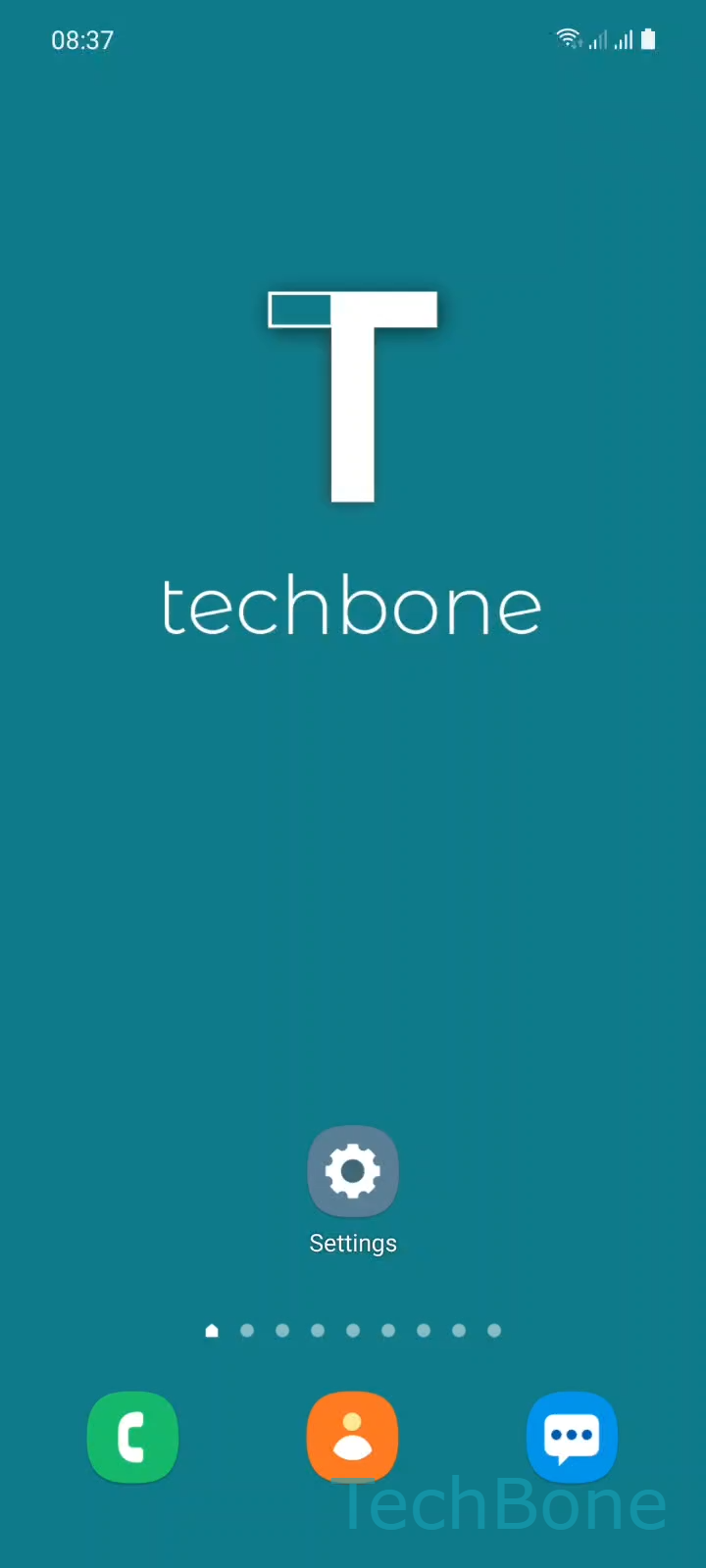
Step 1 of 8: Tap on **Settings**

1

Tap on Settings

Live simulator

Android 11 · One UI 3
Turn On Automatic Backup to Samsung Cloud – One UI 3: step 1 – Tap on Settings
Tap on Settings
1 / 8

Scroll or use the buttons for the next step

Feedback

Was the guide correct?

Help others: confirm the path or report a problem.

82

Confirmations

Forum verified this path

Samsung

Turn On Automatic Backup to Samsung Cloud auf Samsung

When photos, messages or app data are missing after switching to a new Samsung phone, automatic backup was likely never turned on for that category. Samsung Cloud only backs up what you explicitly allow under Auto back up, and this setting is separate for each data type.

To enable it, go to SettingsSamsung accountSamsung Cloud ➔ open the MenuSettingsSync and auto backup settingsAuto back up. From there, turn on the categories you want backed up automatically, such as contacts, photos or app data.

Once enabled, Samsung Cloud backs up the selected categories on its own schedule, usually while the phone is idle, charging and connected to Wi-Fi. Turning a category off stops future automatic backups for it, but does not delete backups already stored in the cloud.

If storage runs low or you only need a one-time backup, a manual backup through the same Samsung Cloud menu is faster than waiting on the automatic schedule. Automatic backup makes more sense if you regularly switch or reset devices and want data protected without extra steps.

Frequently asked questions

Some categories depend on separate app permissions or storage limits. Check the toggle again under SettingsSamsung accountSamsung CloudMenuSettingsSync and auto backup settingsAuto back up to confirm it stayed on.

Compatible devices

Tap your device — opens its hub with matching guides.

Android 11 · One UI 3

No compatible devices are listed for this version.