Skip to content
TechBone
Samsung

Samsung: Turn Screen Brighten On or Off for Face Recognition

Unlocking your Samsung phone with your face in a dark room briefly floods the display with light, and that flash can be distracting or draw attention at night. This behavior comes from the Brighten screen option tied to Face recognition, and it works independently from your normal screen brightness settings.

4 min5 steps
Version

Step by step

1 / 5

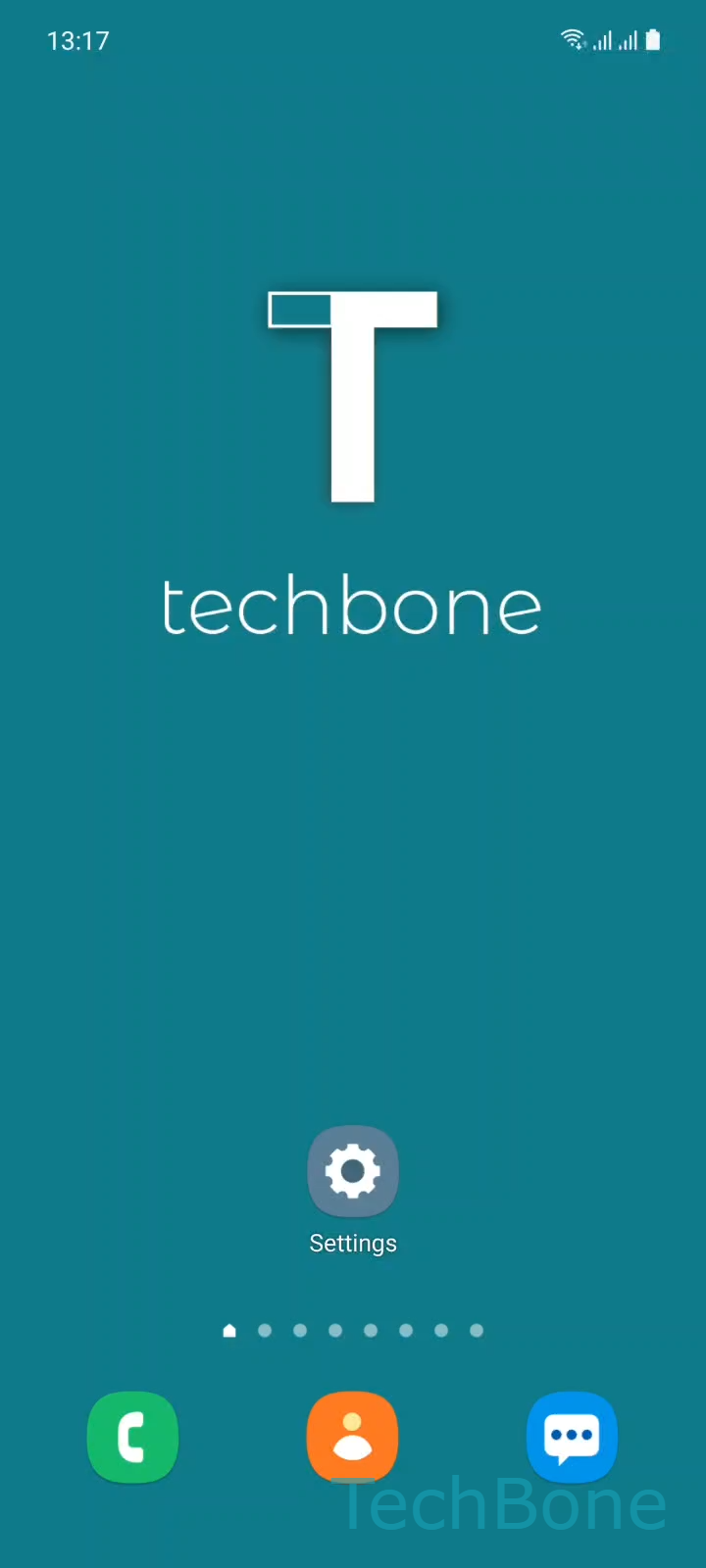
Step 1 of 5: Tap on **Settings**

1

Tap on Settings

Live simulator

Android 11 · One UI 3
Toggle Screen Brighten for Face Recognition – One UI 3: step 1 – Tap on Settings
Tap on Settings
1 / 5

Scroll or use the buttons for the next step

Feedback

Was the guide correct?

Help others: confirm the path or report a problem.

37

Confirmations

Forum verified this path

Samsung

Toggle Screen Brighten for Face Recognition auf Samsung

Face recognition on Samsung phones needs enough light on your face to work reliably. In low-light conditions, the system briefly raises the display brightness right before scanning, independent of your manual brightness slider or adaptive brightness setting.

This is controlled by a dedicated toggle called Brighten screen inside the Face recognition settings. When enabled, every face unlock attempt in the dark triggers a short flash of light from the screen. When disabled, the display stays at its current brightness during unlock attempts, which can make face recognition less accurate at night but avoids the sudden flash.

Menu path

Go to Tap on SettingsTap on Biometrics and securityTap on Face recognitionEnter the current Pattern, PIN or PasswordEnable or disable Brighten screen.

You need your current screen lock credential to enter the Face recognition menu, since this section also lets you re-register your face or remove it entirely. If face unlock struggles in the dark after disabling this option, turning it back on usually solves the issue immediately.

Frequently asked questions

That flash comes from Brighten screen under Face recognition. It temporarily raises display brightness so the front camera can see your face better before disabling it again.

Compatible devices

Tap your device — opens its hub with matching guides.

Android 11 · One UI 3

No compatible devices are listed for this version.