Skip to content
TechBone
Samsung

Samsung: Search Text on a Web Page

Scrolling through a long article to find one keyword wastes time, especially on news sites or long product pages. Samsung Internet has a built-in Find on page feature that highlights every match on the current page so you do not have to read the whole thing. Many users never notice this option because it sits inside the browser menu instead of the address bar.

4 min5 steps
Version

Step by step

1 / 5

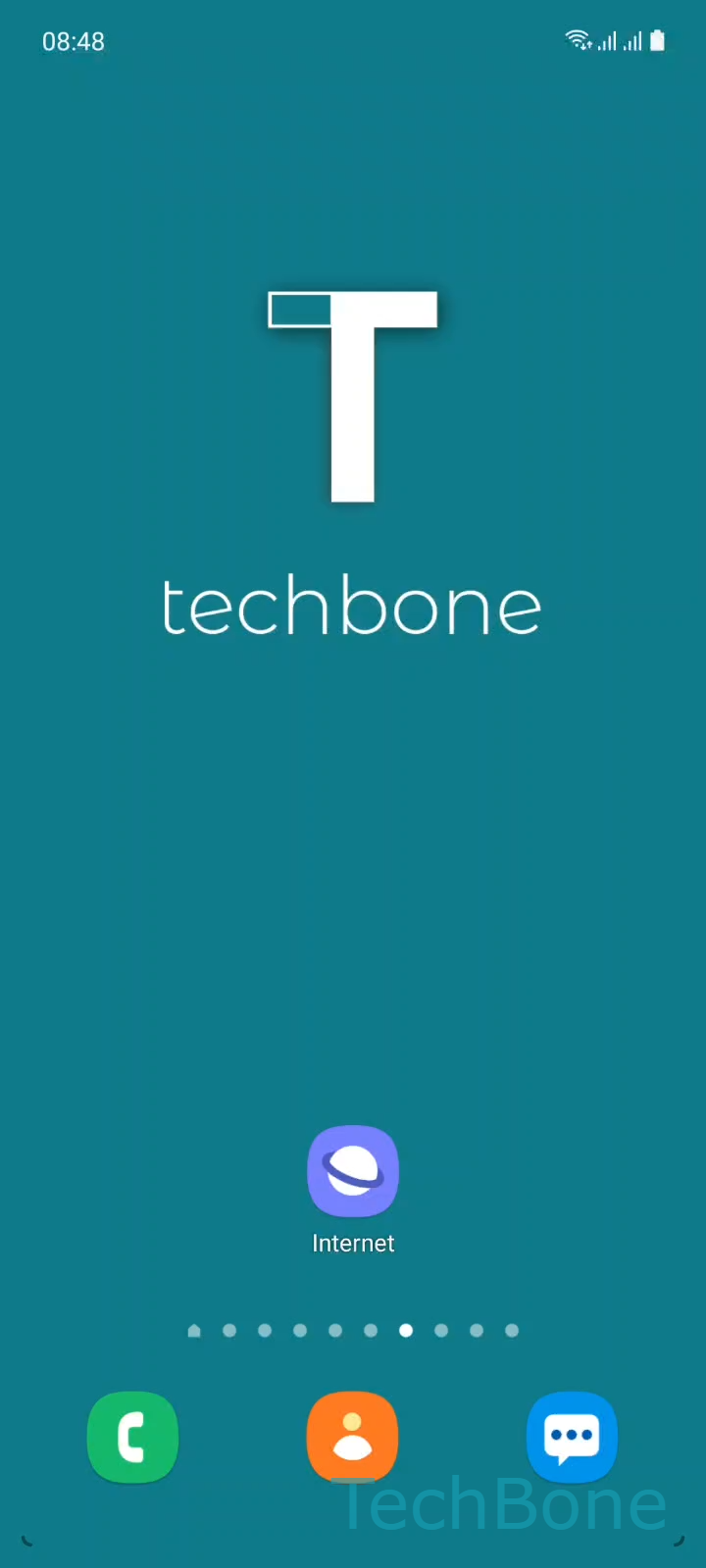
Step 1 of 5: Tap on **Internet**

1

Tap on Internet

Live simulator

Android 11 · One UI 3
Find on Page in Samsung Internet – One UI 3: step 1 – Tap on Internet
Tap on Internet
1 / 5

Scroll or use the buttons for the next step

Feedback

Was the guide correct?

Help others: confirm the path or report a problem.

49

Confirmations

Forum verified this path

Samsung

Find on Page in Samsung Internet auf Samsung

Searching a long web page manually is slow, especially on mobile screens where only a few lines are visible at once. Samsung Internet includes a page-level search function called Find on page, which scans the currently loaded page and highlights every occurrence of your search term in color.

This is different from a general web search. It only works on content that is already loaded in the browser, so it cannot find text on pages you have not opened yet. If a page uses infinite scroll or lazy-loaded content, results below the visible area may not be found until that section has loaded.

How to use it

Open the page you want to search, then tap Internet to bring up the browser. Tap Open the Menu, then select Tap on Find on page. Type your search term and tap Search. The browser highlights all matches and shows navigation arrows. Tap the Virtual arrows to jump between the highlighted results one by one.

If you are looking for a specific product, price, or name inside a long article, this saves you from scrolling through the entire page. Close the search bar once done to return to normal browsing.

Frequently asked questions

The search only checks text that has fully loaded into the page. If the page uses dynamic loading, scroll down first so the content loads, then run Tap on Find on page again.

Compatible devices

Tap your device — opens its hub with matching guides.

Android 11 · One UI 3

No compatible devices are listed for this version.