Skip to content
TechBone
Samsung

Samsung: Change Navigation Bar Button Order

If the Back and Recent apps buttons feel swapped on your Samsung phone, it is not a bug, the navigation bar just uses a layout you are not used to. Samsung only lets you mirror the whole button row, not rearrange each icon freely. Knowing this limit saves you from searching for a setting that does not exist.

3 min4 steps
Version

Step by step

1 / 4

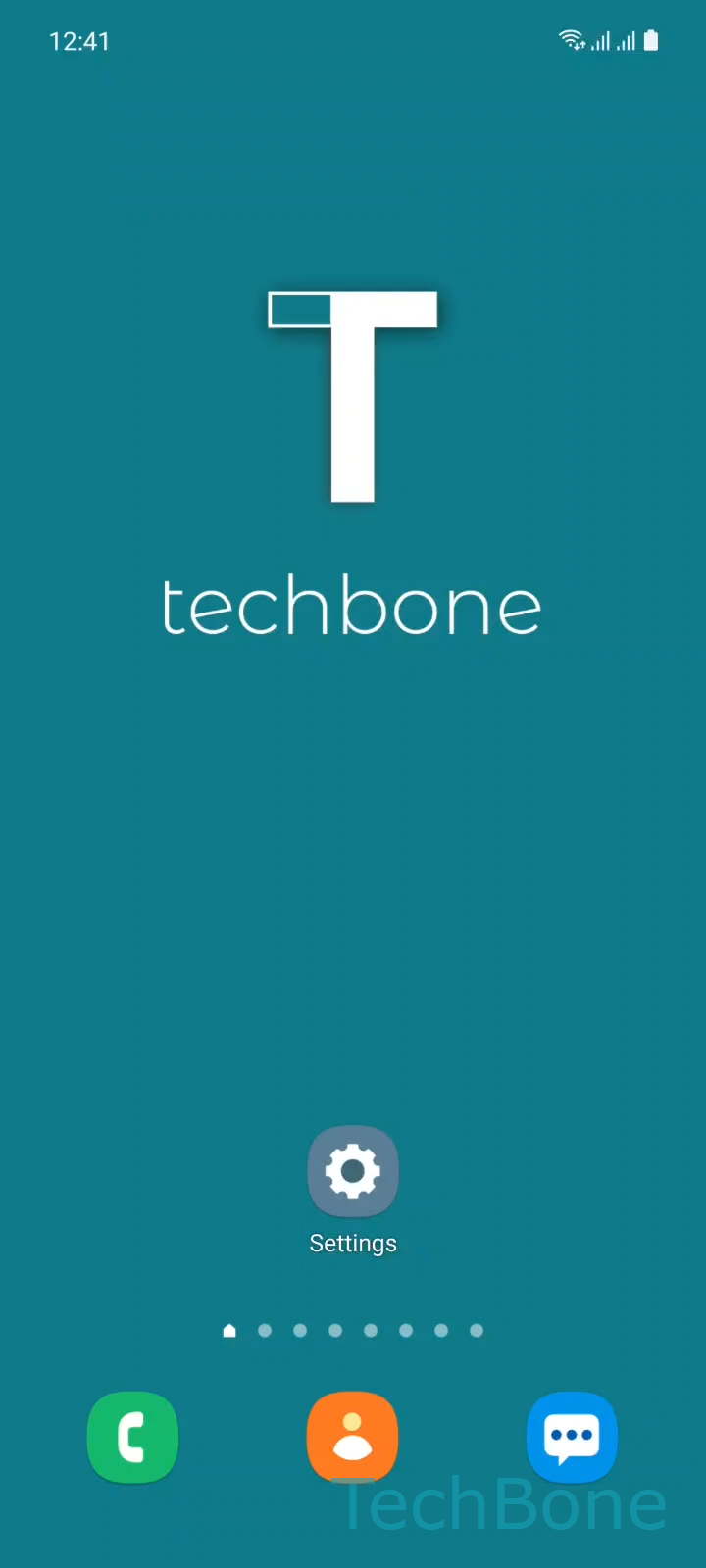
Step 1 of 4: Tap on **Settings**

1

Tap on Settings

Live simulator

Android 11 · One UI 3
Navigation Bar Button Order – One UI 3: step 1 – Tap on Settings
Tap on Settings
1 / 4

Scroll or use the buttons for the next step

Feedback

Was the guide correct?

Help others: confirm the path or report a problem.

77

Confirmations

Forum verified this path

Samsung

Navigation Bar Button Order auf Samsung

On Samsung phones running One UI, the on-screen navigation bar can feel mirrored compared to other Android phones, especially if the Back button sits on the wrong side for your habits.

The button order setting only lets you swap the position of the Back button and the Recent apps button. A fully custom arrangement, where you place each icon wherever you want, is not offered on Samsung devices.

To check or change the current layout, go to Tap on SettingsTap on DisplayTap on Navigation barSet the Button order. There you choose between the standard order and the mirrored order.

This option only affects devices using the three-button navigation bar. If you use gesture navigation instead, the button order setting has no effect, since there are no separate icons left to swap.

Switching the order changes muscle memory right away. If you regularly switch between a Samsung phone and another Android brand, keeping the default order usually cuts down on mis-taps.

Frequently asked questions

Samsung limits the Set the Button order option to swapping the Back and Recent apps buttons. A fully custom position for each icon is not available on any current Samsung model.

Compatible devices

Tap your device — opens its hub with matching guides.

Android 11 · One UI 3

No compatible devices are listed for this version.