Skip to content
TechBone
Samsung

Samsung: Change Calendar Account Colors

When several accounts sync into the Samsung Calendar app, every entry can end up in the same shade, making it hard to tell a work meeting from a personal appointment or a public holiday at a glance. This happens because each account keeps its default color until you assign a new one manually. The mix-up gets worse the more calendars you connect to your phone.

5 min6 steps
Version

Step by step

1 / 6

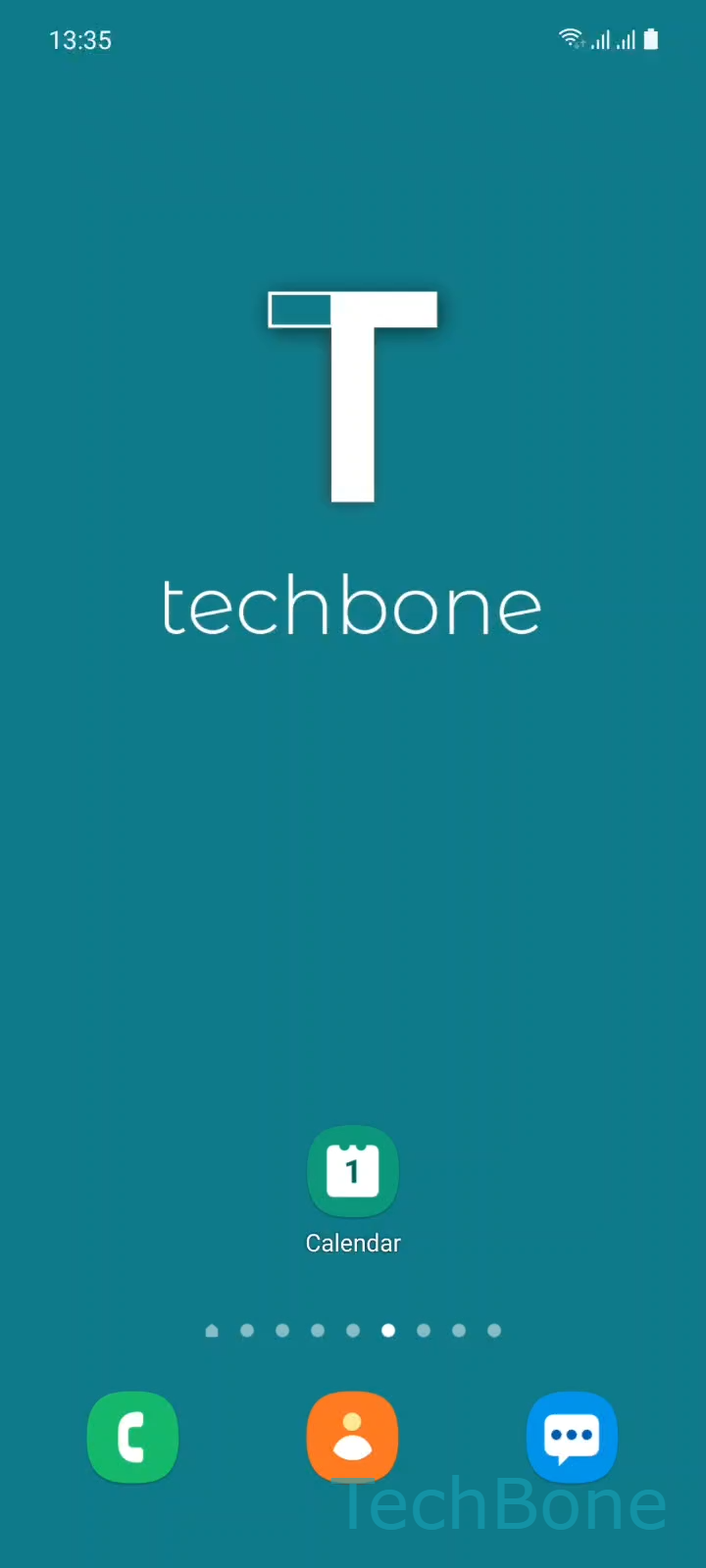
Step 1 of 6: Tap on **Calendar**

1

Tap on Calendar

Live simulator

Android 11 · One UI 3
Manage Calendar Colors – One UI 3: step 1 – Tap on Calendar
Tap on Calendar
1 / 6

Scroll or use the buttons for the next step

Feedback

Was the guide correct?

Help others: confirm the path or report a problem.

42

Confirmations

Forum verified this path

Samsung

Manage Calendar Colors auf Samsung

Samsung Calendar assigns every synced account a default color, which is why events from different sources often look identical at first glance. This becomes confusing once you connect multiple email accounts, a work calendar, and holiday entries at the same time.

The color assignment is handled in the app settings, not in the individual event, so changing it once applies to every entry tied to that account going forward. Existing events update automatically after you pick a new color.

Tap on CalendarOpen the MenuTap on SettingsTap on Manage calendar colorsChoose an AccountSet the Color

Repeat the same steps for each additional account or calendar you want to distinguish. If you only need to separate one specific event type, such as holidays, from the rest, check whether that source appears as its own entry under Manage calendar colors before changing an entire account color.

If colors still look identical after saving, the calendar view may need a manual refresh, or the account might not have finished syncing yet.

Frequently asked questions

Only accounts that are actively synced with Calendar show up in that list. Check SettingsAccounts and backup to confirm the account has calendar sync enabled.

Compatible devices

Tap your device — opens its hub with matching guides.

Android 11 · One UI 3

No compatible devices are listed for this version.