
Skip to content
TechBone
Samsung

Samsung: Move Edge Panel Handle to the Other Side

By default, the Edge panel and its handle sit on the right edge of your Samsung screen. If that spot gets in the way of your grip or another gesture, you can swap the handle to the left edge and slide it up or down instead of living with the factory position.

6 min7 steps
Version

Step by step

1 / 7

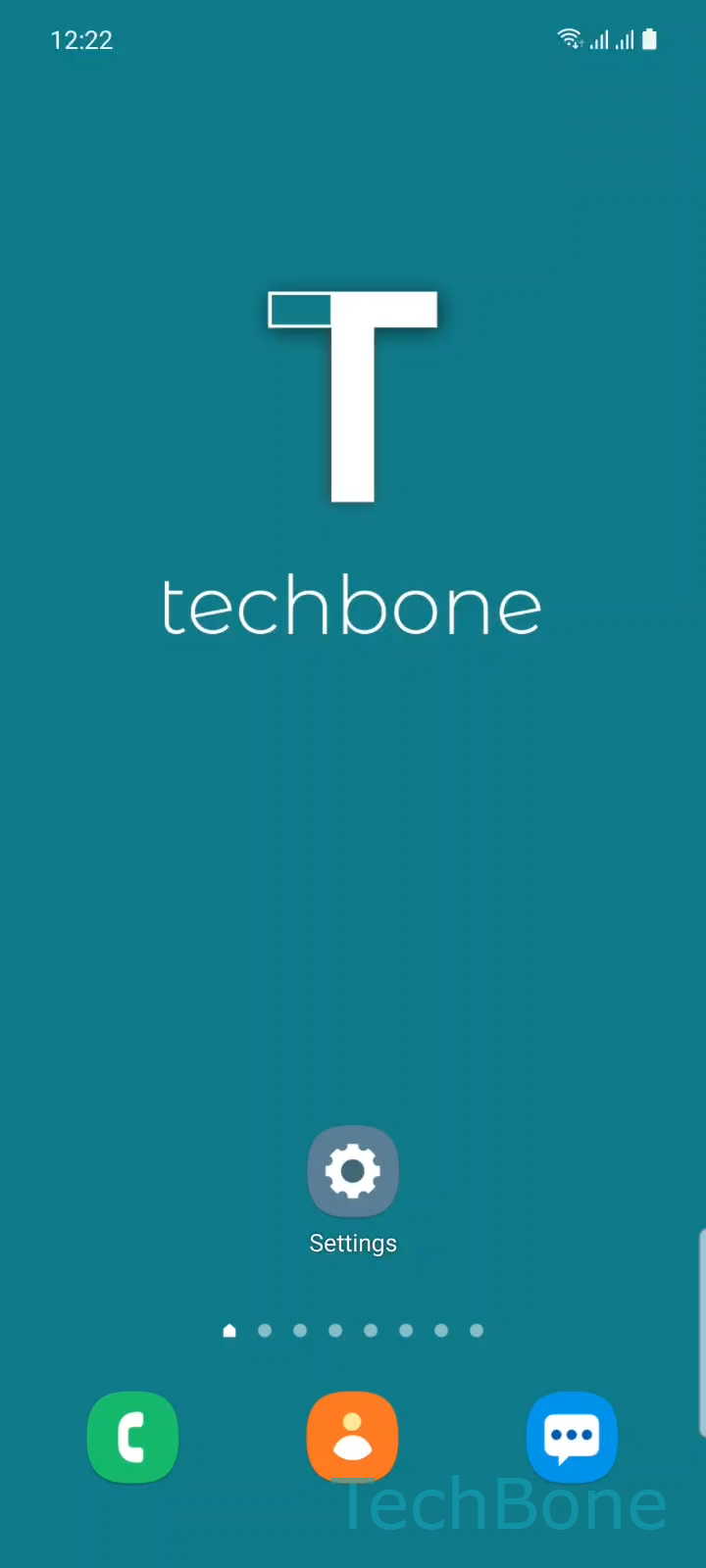
Step 1 of 7: Tap on **Settings**

1

Tap on Settings

Live simulator

Android 11 · One UI 3
Change Edge Panel Position – One UI 3: step 1 – Tap on Settings
Tap on Settings
1 / 7

Scroll or use the buttons for the next step

Feedback

Was the guide correct?

Help others: confirm the path or report a problem.

86

Confirmations

Forum verified this path

Samsung

Change Edge Panel Position auf Samsung

On Samsung phones, the Edge panel handle always starts on the right side of the screen. That works fine for most right-handed grips, but it can overlap other gestures or sit awkwardly if you hold the phone left-handed.

The handle position is controlled inside the display settings, not inside the panel itself. Moving it does not change which panels are installed or how they open, only where the trigger sits and how far up or down it appears on the edge.

Move the handle

Open Tap on SettingsTap on DisplayTap on Edge panelsTap on HandleTap on Position. Here you choose Choose Leftor Right to pick the side of the screen.

Below the side selector, use Swipe to adjust the vertical position to drag the handle up or down until it sits where your thumb naturally rests.

Changes apply immediately, so you can test the new spot right after adjusting it. If the handle becomes hard to reach again later, repeat the same steps and slide it to a different height.

Frequently asked questions

No. Adjusting the position under Tap on HandleTap on Position only changes where the trigger sits on the screen edge. The panels themselves stay exactly as configured.

Compatible devices

Tap your device — opens its hub with matching guides.

Android 11 · One UI 3

No compatible devices are listed for this version.