Skip to content
TechBone
Samsung

Samsung: Change the Ringtone for Calls

If every call on your Samsung phone still uses the same generic ringtone, the setting is hiding under sound options rather than notifications. On dual-SIM phones this gets more confusing, since each SIM line can carry its own separate ringtone. Custom tracks also will not show up in the ringtone list until they are copied onto the phone storage first.

4 min5 steps
Version

Step by step

1 / 5

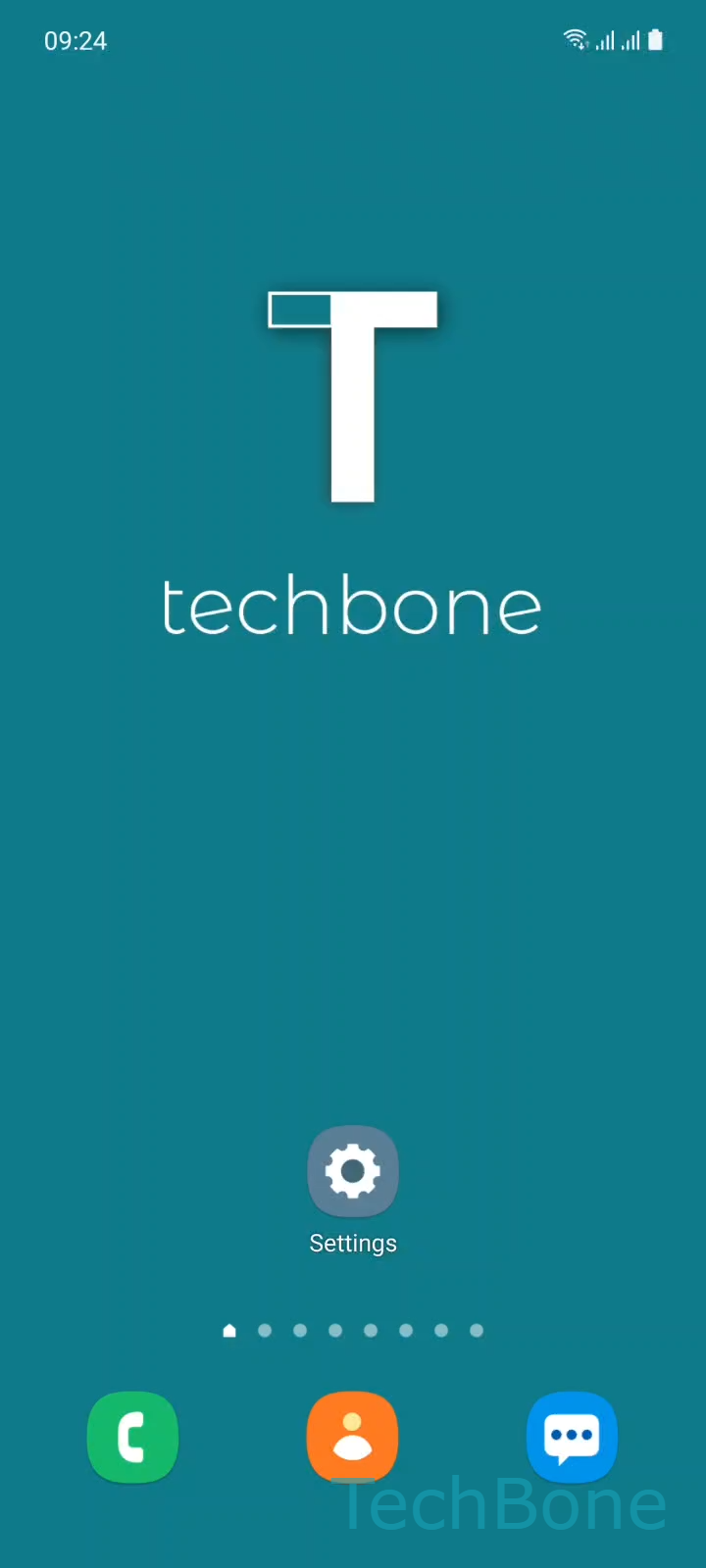
Step 1 of 5: Tap on **Settings**

1

Tap on Settings

Live simulator

Android 11 · One UI 3
Change Ringtone for Calls – One UI 3: step 1 – Tap on Settings
Tap on Settings
1 / 5

Scroll or use the buttons for the next step

Feedback

Was the guide correct?

Help others: confirm the path or report a problem.

24

Confirmations

Forum verified this path

Samsung

Change Ringtone for Calls auf Samsung

The default call ringtone on Samsung phones is buried in the sound settings, not in notification settings, which is why many people never find it.

To change it, go to SettingsSounds and vibrationRingtone. This screen lists all built-in ringtones and lets you preview each one before applying it.

On a dual-SIM device, Samsung shows a SIM picker first: Choose a SIM card (Dual SIM). Each SIM line keeps its own ringtone, so switching the tone for SIM 1 will not affect calls coming in on SIM 2. This is useful if you want to hear instantly which number is ringing without looking at the screen.

After picking the card, tap Set a Ringtone to confirm your choice. Custom audio files do not appear in this list automatically. They need to be copied to the phone storage first, usually into a Ringtones or Music folder, before the system recognizes them as selectable tones.

If the ringtone still does not play during incoming calls after this, check that the ringer volume is turned up and that Do Not Disturb or a Focus mode is not muting calls separately.

Frequently asked questions

Yes. On dual-SIM Samsung phones, the ringtone screen asks you to Choose a SIM card (Dual SIM) before you pick a tone. Repeat the steps for the second SIM to give it its own sound.

Compatible devices

Tap your device — opens its hub with matching guides.

Android 11 · One UI 3

No compatible devices are listed for this version.