Skip to content
TechBone
Samsung

Samsung: Turn Off Developer Options

Once Developer options are enabled on a Samsung phone, they stay in Settings even if you never touch them again. The extra menu entry does not affect performance or battery life, but some users prefer a clean settings list without it.

3 min4 steps
Version

Step by step

1 / 4

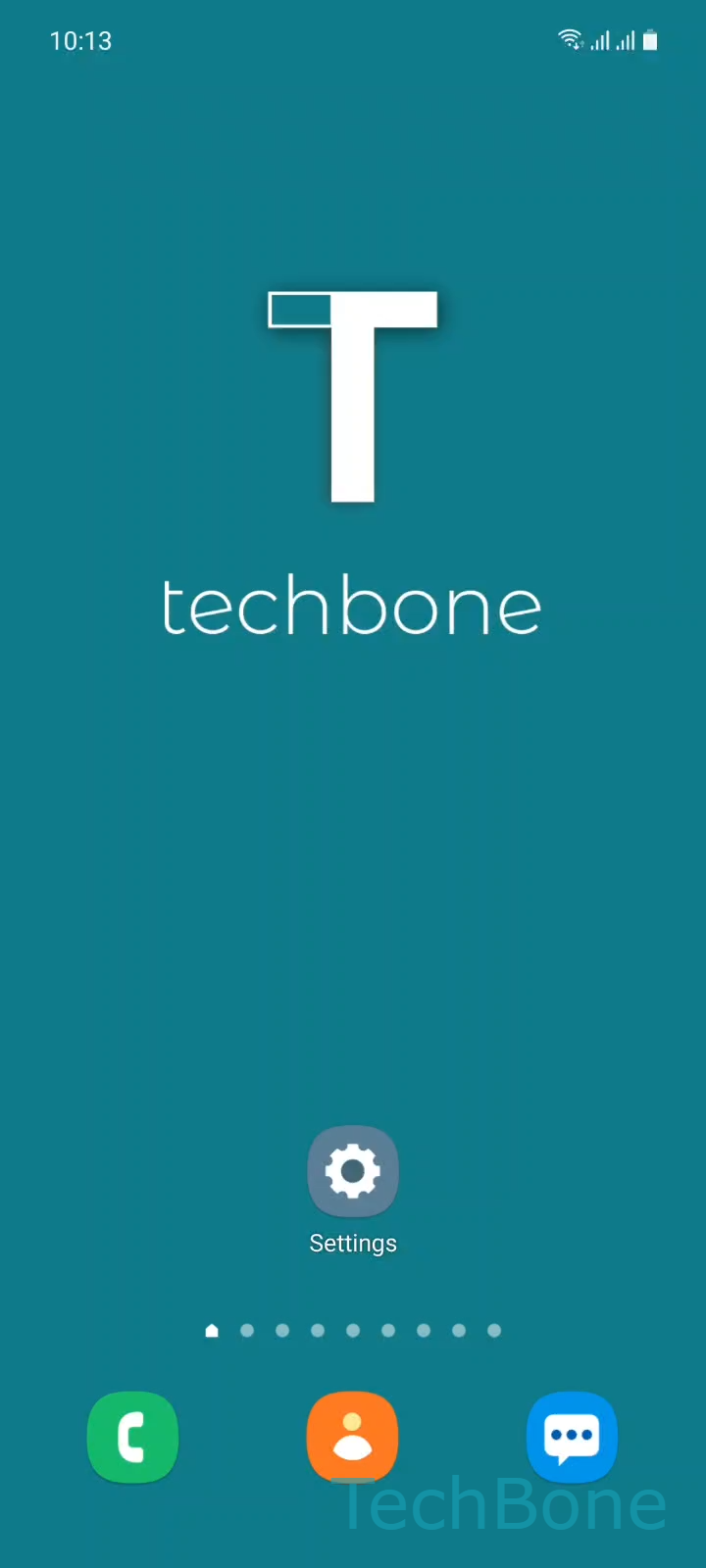
Step 1 of 4: Tap on **Settings**

1

Tap on Settings

Live simulator

Android 11 · One UI 3
Turn Off Developer Options – One UI 3: step 1 – Tap on Settings
Tap on Settings
1 / 4

Scroll or use the buttons for the next step

Feedback

Was the guide correct?

Help others: confirm the path or report a problem.

87

Confirmations

Forum verified this path

Samsung

Turn Off Developer Options auf Samsung

Developer options appear in Samsung Settings after you tap the build number several times. Once active, the menu stays visible even if you never use any of its toggles.

Having Developer options enabled does not slow down your phone or drain the battery. The only real effect is one extra entry inside Settings, which some people find unnecessary clutter.

Turning it off does not delete anything. Samsung simply hides the menu again and resets none of your other settings.

Where to disable it

Go to SettingsDeveloper options, then use the switch at the top to turn the menu off. Confirm the prompt if one appears, then tap Back to leave the screen.

If you ever need the menu again, tap the build number in About phone several times to bring it back.

Frequently asked questions

No. Switching off Developer options only hides the menu. Your individual toggles inside it stay as they were if you turn the menu back on later.

Compatible devices

Tap your device — opens its hub with matching guides.

Android 11 · One UI 3

No compatible devices are listed for this version.