Skip to content
TechBone
Samsung

Samsung: Turn Off TalkBack Voice Assistant

If TalkBack is reading every icon aloud instead of opening it, a single tap on your Samsung phone no longer does what you expect. The screen reader changes tap behavior across the whole device, so finding and hitting the right switch to turn it off feels almost impossible with normal gestures. This guide shows the exact tap pattern you need to reach the TalkBack switch and shut it down again.

9 min11 steps
Version

Step by step

1 / 11

Step 1 of 11: Tap on **Settings**

1

Tap on Settings

Live simulator

Android 11 · One UI 3
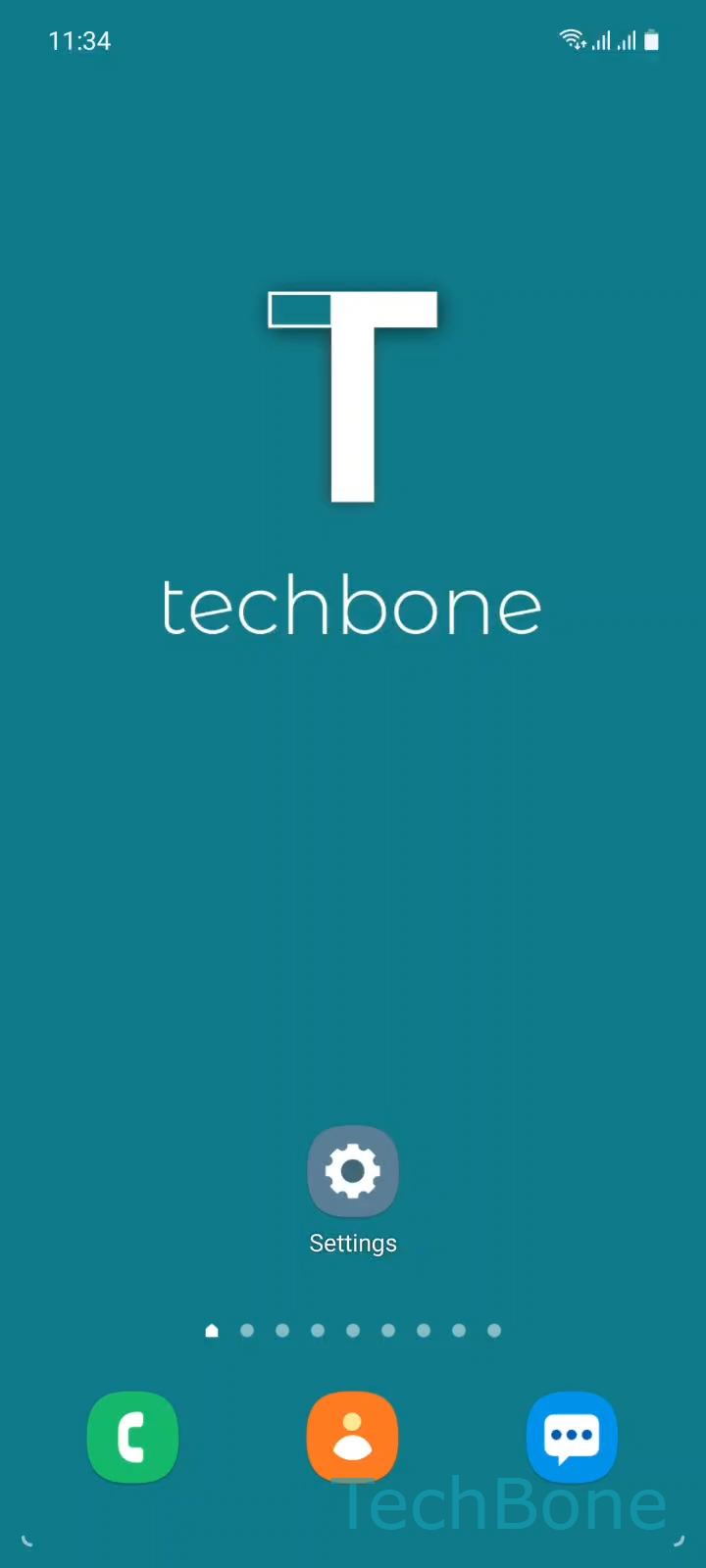
Turn Off TalkBack (Voice Assistant) – One UI 3: step 1 – Tap on Settings
Tap on Settings
1 / 11

Scroll or use the buttons for the next step

Feedback

Was the guide correct?

Help others: confirm the path or report a problem.

43

Confirmations

Forum verified this path

Samsung

Turn Off TalkBack (Voice Assistant) auf Samsung

Once TalkBack is active on a Samsung phone, the touchscreen stops behaving normally. A single tap only selects an item and reads it aloud, while a second tap actually opens or activates it. This changed gesture is the main reason people get stuck trying to reach the toggle that turns TalkBack off again.

To disable it, follow the same select-then-activate pattern all the way to the switch. From the home screen or app drawer, tap once on Settings to select it, then tap again to open it. Inside Settings, swipe with two fingers to scroll down until Accessibility is on screen. Tap once to select it, then tap again to open it. Repeat this for TalkBack: tap once to select it, tap again to open it. On the TalkBack screen you find an On switch. Tap once to select it, then tap again to actually flip it. A confirmation dialog appears with a Turn off button - tap once to select it, then tap again to confirm and switch TalkBack off.

If any tap seems to do nothing, check whether you tapped once or twice. Every action inside TalkBack needs that select-then-confirm double tap, including the final confirmation button.

Frequently asked questions

That is TalkBack's focus behavior. A single tap selects and reads the item, a second tap on the same spot actually opens it. This applies to every icon, switch, and button while TalkBack is running, including Settings and Accessibility.

Compatible devices

Tap your device — opens its hub with matching guides.

Android 11 · One UI 3

No compatible devices are listed for this version.