
Skip to content
TechBone
Samsung

Samsung: Turn Dynamic Lock Screen On or Off

If your lock screen keeps switching to unfamiliar photos instead of the picture you picked from your gallery, a wallpaper service like Dynamic Lock Screen is likely running in the background. This feature cycles through curated images on its own and can override your personal wallpaper choice. Turning it off restores full control over what appears when you wake your phone.

4 min5 steps
Version

Step by step

1 / 5

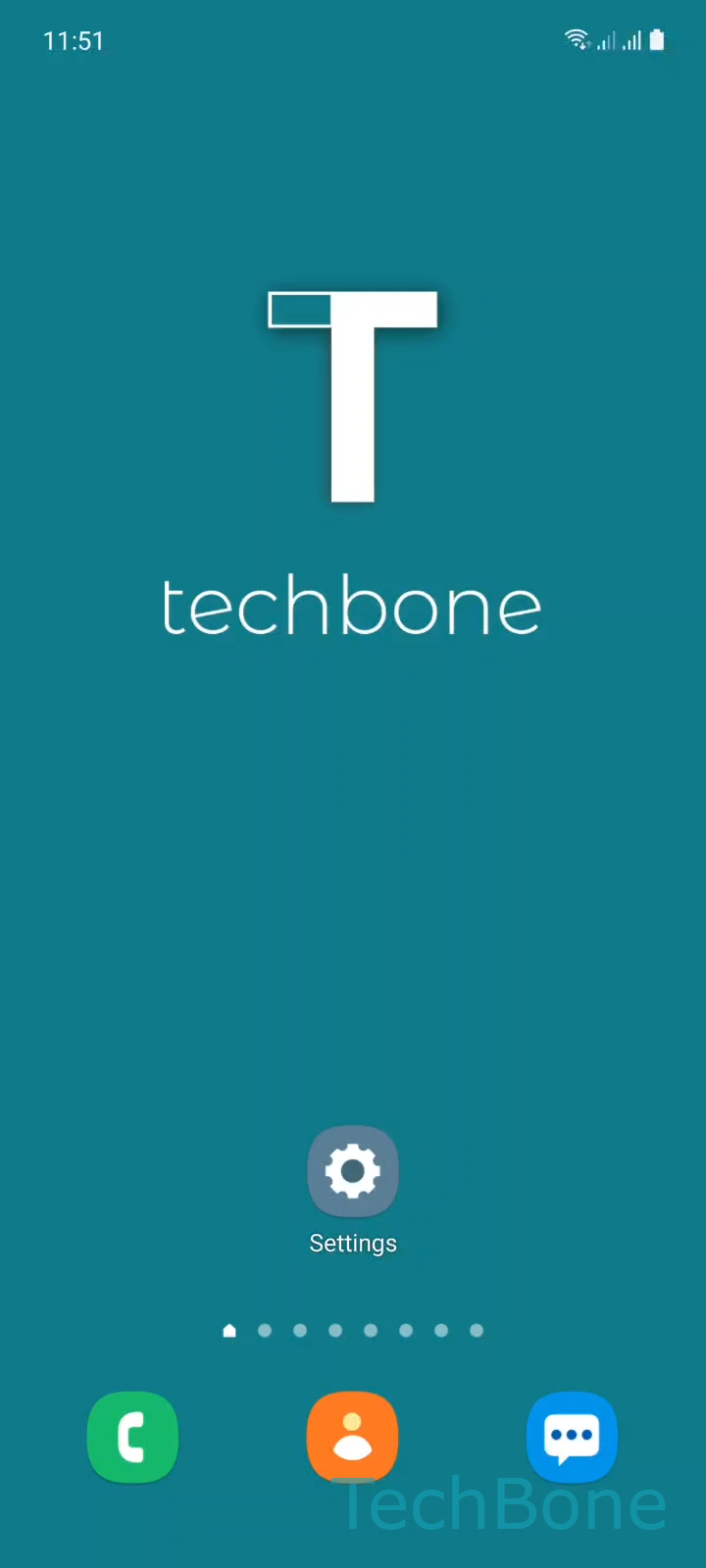
Step 1 of 5: Tap on **Settings**

1

Tap on Settings

Live simulator

Android 11 · One UI 3
Turn Dynamic Lock Screen On or Off – One UI 3: step 1 – Tap on Settings
Tap on Settings
1 / 5

Scroll or use the buttons for the next step

Feedback

Was the guide correct?

Help others: confirm the path or report a problem.

29

Confirmations

Forum verified this path

Samsung

Turn Dynamic Lock Screen On or Off auf Samsung

Samsung's lock screen supports two different ways to show a changing background. You can pick photos manually from your own gallery, or let a wallpaper service such as Dynamic Lock Screen or Samsung Global Goals rotate images automatically.

When Dynamic Lock Screen is active, it replaces your manually selected wallpaper with a stream of curated photos that change on a schedule. This can look like your custom picture disappeared, even though it is only hidden behind the active service.

To switch the feature on or off, open SettingsLock screenWallpaper services. Choose Dynamic Lock screen to enable automatic rotation, or select None to disable it and return to a static or gallery-based wallpaper. Confirm with Apply.

Disabling Dynamic Lock Screen also stops the background downloads the service uses to fetch new images, which can save mobile data if wallpapers were updating over a cellular connection. Turn it back on whenever you want a screen that refreshes itself without picking new photos manually.

Frequently asked questions

Dynamic Lock screen downloads new images periodically, which can use mobile data if you are not connected to Wi-Fi. Selecting None under Wallpaper services stops these downloads.

Compatible devices

Tap your device — opens its hub with matching guides.

Android 11 · One UI 3

No compatible devices are listed for this version.