
Skip to content
TechBone
Samsung

Samsung: Turn On TalkBack Voice Assistant

If someone with low vision struggles to read tiny menu text or find buttons on a Samsung phone, spoken feedback for every tap can help more than zooming in. TalkBack reads out labels, states and actions as soon as an item is touched or selected, but it also changes how the whole touchscreen behaves. Turning it on the right way avoids getting stuck with gestures that suddenly work differently.

4 min5 steps
Version

Step by step

1 / 5

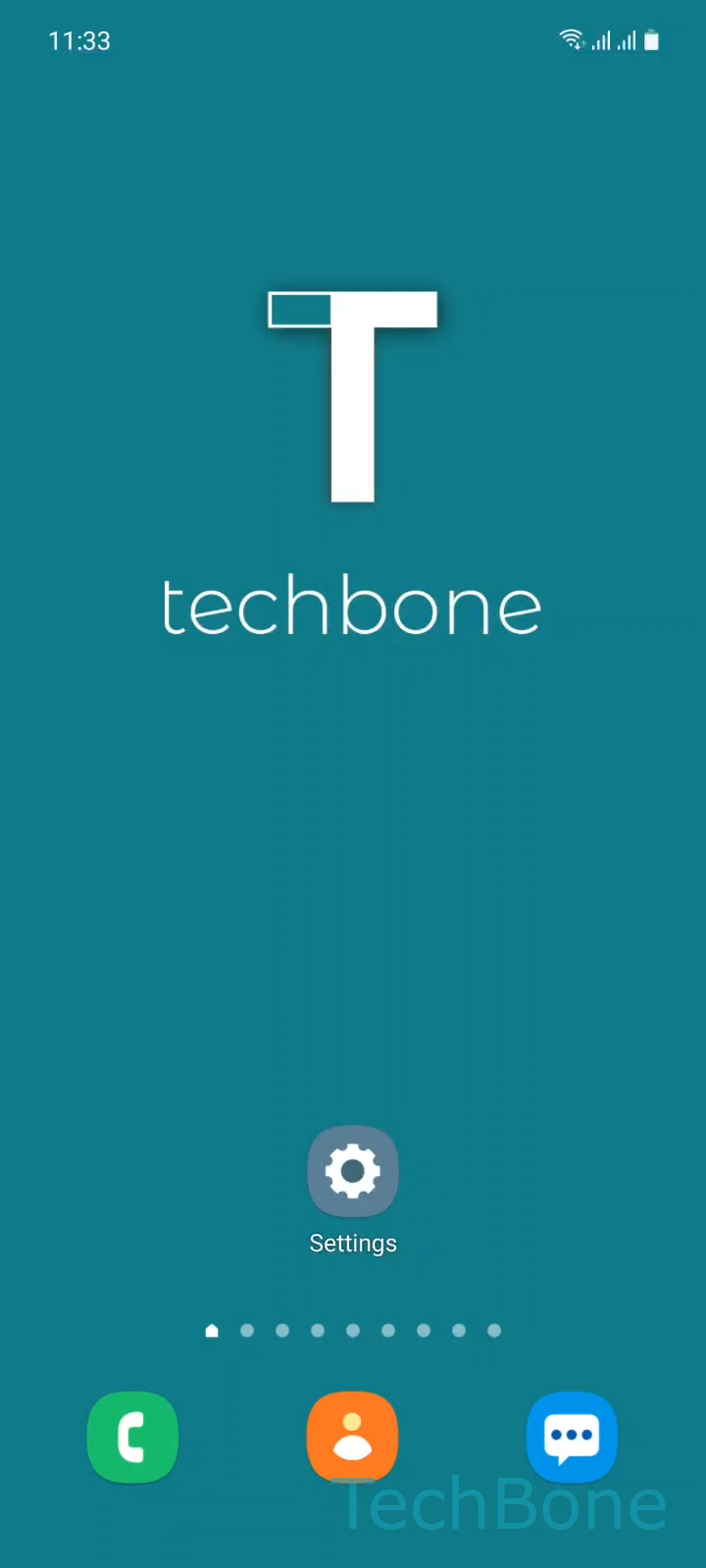
Step 1 of 5: Tap on **Settings**

1

Tap on Settings

Live simulator

Android 11 · One UI 3
Turn On TalkBack (Voice Assistant) – One UI 3: step 1 – Tap on Settings
Tap on Settings
1 / 5

Scroll or use the buttons for the next step

Feedback

Was the guide correct?

Help others: confirm the path or report a problem.

37

Confirmations

Forum verified this path

Samsung

Turn On TalkBack (Voice Assistant) auf Samsung

TalkBack is the screen reader built into Samsung's Accessibility settings. Once active, it takes over touch input: a single tap describes an item out loud instead of opening it, and a double tap is needed to actually activate something.

This is different from features like Select to Speak, which only reads selected text on demand without changing gesture behavior everywhere. If someone just wants occasional text read aloud, Select to Speak is usually the better fit. TalkBack makes sense when full, continuous spoken feedback across the whole system is needed, for example for blind or visually impaired users.

Where to turn it on

Go to Tap on SettingsTap on AccessibilityTap on TalkBackTurn On TalkBackTap on Allow.

After confirming, the phone runs a short tutorial explaining the new gestures. It is worth going through it once, since normal navigation (tapping icons, swiping between screens) no longer works the same way afterward.

A side effect worth knowing: some third-party apps are not fully labeled for screen readers, so certain buttons may only announce as unlabeled. If that happens often in one specific app, it is an app issue, not a TalkBack setting problem.

Frequently asked questions

Go back to SettingsAccessibilityTalkBack and switch it off there. On many Samsung phones, pressing and holding both volume keys for a few seconds also toggles it, but this shortcut has to be enabled first inside the TalkBack menu.

Compatible devices

Tap your device — opens its hub with matching guides.

Android 11 · One UI 3

No compatible devices are listed for this version.