Skip to content
TechBone
Samsung

Samsung: Set Up Focus Mode to Block Distracting Apps

If your phone keeps buzzing with app notifications while you are trying to work or unwind, the culprit is usually that every app has free access to your screen. Focus mode on Samsung phones can shut off everything except the apps you actually need for a set stretch of time. Without setting it up properly, you either lock too much or nothing at all, which makes the feature feel useless.

6 min7 steps
Version

Step by step

1 / 7

Step 1 of 7: Tap on **Settings**

1

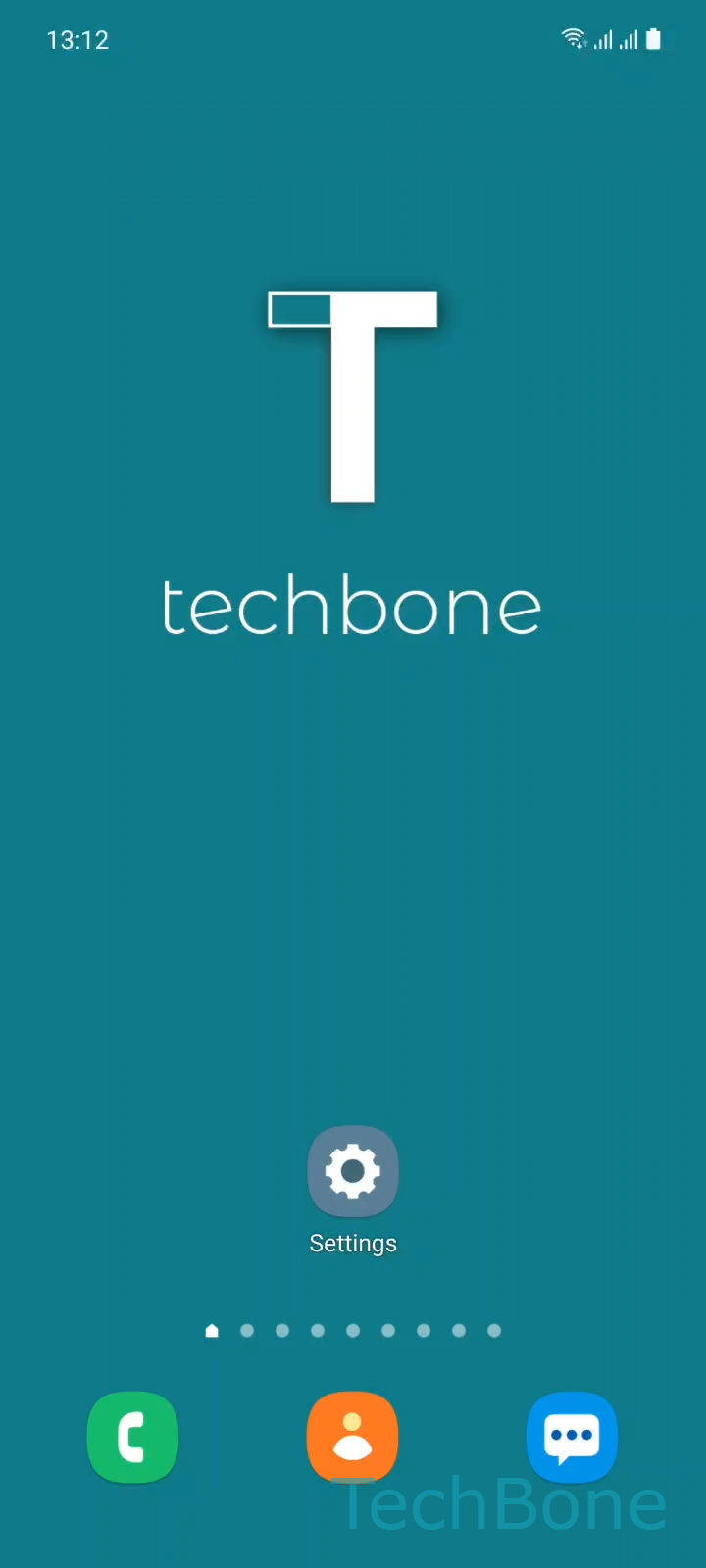
Tap on Settings

Live simulator

Android 11 · One UI 3
Set Up Focus Mode – One UI 3: step 1 – Tap on Settings
Tap on Settings
1 / 7

Scroll or use the buttons for the next step

Feedback

Was the guide correct?

Help others: confirm the path or report a problem.

99

Confirmations

Forum verified this path

Samsung

Set Up Focus Mode auf Samsung

Focus mode sits inside Samsung's Digital Wellbeing tools and works by temporarily locking every app on the phone except the ones you explicitly allow. Notifications, badges and app icons for blocked apps go quiet until you end the session or the timer runs out.

Samsung ships two ready-made modes, usually labeled Work and Me time, but you are not limited to those. You can rename either one, delete it, or create a completely new mode with its own name, app list and duration.

To set it up, go to SettingsDigital Wellbeing and parental controlsWork/Me time or tap Add to build a new mode. Enter a Name and tap Save, then tap Edit to choose which apps stay usable. Select one or more Apps and tap Done, then set the Duration and tap Start.

Once active, only the apps you picked as exceptions will open normally; everything else gets its icon grayed out and its alerts held back. This is different from Do Not Disturb, which mutes sounds but still lets any app run in the foreground.

Use Focus mode when specific apps are the distraction, not all notifications. If the goal is just silence during a meeting or at night, a scheduled Do Not Disturb rule is the simpler fix.

Frequently asked questions

Blocked apps stay installed but their icons appear grayed out on the home screen and their notifications are held back until the session ends or you stop it early from Digital Wellbeing and parental controls.

Compatible devices

Tap your device — opens its hub with matching guides.

Android 11 · One UI 3

No compatible devices are listed for this version.