Skip to content
TechBone
Samsung

Samsung: Format an SD Card on Your Phone

If your Samsung phone shows a damaged SD card message or won't read a memory card at all, the card usually needs to be formatted before it works with your device storage. This happens with brand-new cards straight out of the package and with cards that were previously used in a camera or another phone. No computer is needed - the format runs directly on the phone through Battery and device care.

6 min8 steps
Version

Step by step

1 / 8

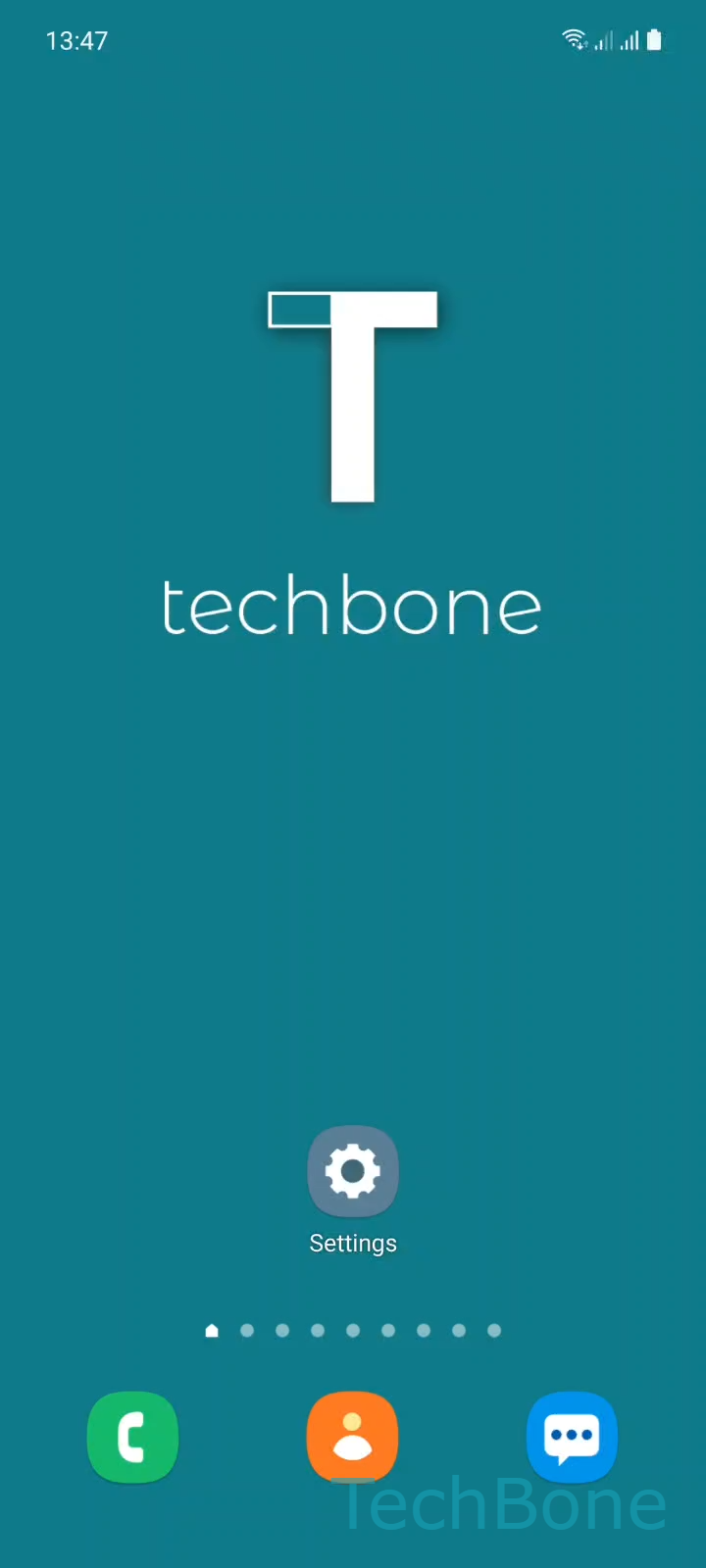
Step 1 of 8: Tap on **Settings**

1

Tap on Settings

Live simulator

Android 11 · One UI 3
Format SD Card – One UI 3: step 1 – Tap on Settings
Tap on Settings
1 / 8

Scroll or use the buttons for the next step

Feedback

Was the guide correct?

Help others: confirm the path or report a problem.

104

Confirmations

Forum verified this path

Samsung

Format SD Card auf Samsung

A newly purchased memory card, or one previously used in a camera or another phone, often shows up as unreadable or triggers a damaged card warning on a Samsung phone. This happens when the card carries a file system the phone does not recognize, or when old partitions conflict with how Samsung One UI manages storage.

Formatting resets the card to a file system the phone accepts and removes any leftover partitions causing the conflict. No computer is required. Samsung phones format an SD card directly from Battery and device care.

Formatting erases every file on the card, including photos, videos, and app data stored there. Back up anything you need before starting.

Format path

Open SettingsBattery and device careStorage ➔ open the menu ➔ AdvancedSD cardFormatFormat SD card.

Let the process finish without removing the card. Once done, the card mounts as an empty drive ready for photos, files, or app storage.

If the phone still does not detect the card afterward, try reseating it in the slot, clean the contacts, or test the card in another device to rule out physical damage.

Frequently asked questions

A card that stays unreadable after using Format SD card in Battery and device care often has a physical or contact problem rather than a software one. Try cleaning the metal contacts, reseating the card, or testing it in a card reader on a computer to check if it mounts at all.

Compatible devices

Tap your device — opens its hub with matching guides.

Android 11 · One UI 3

No compatible devices are listed for this version.