Skip to content
TechBone
Samsung

Samsung: Turn Google Play Protect On or Off

If Google Play Protect keeps flagging or automatically disabling an app you trust, the built-in scanner has classified it as suspicious. This often happens with sideloaded APKs or niche tools that Google has not verified, even when the app runs fine. Repeated warning notifications or a greyed-out app icon are the clearest sign that Play Protect is intervening in the background.

5 min6 steps
Version

Step by step

1 / 6

Step 1 of 6: Tap on **Settings**

1

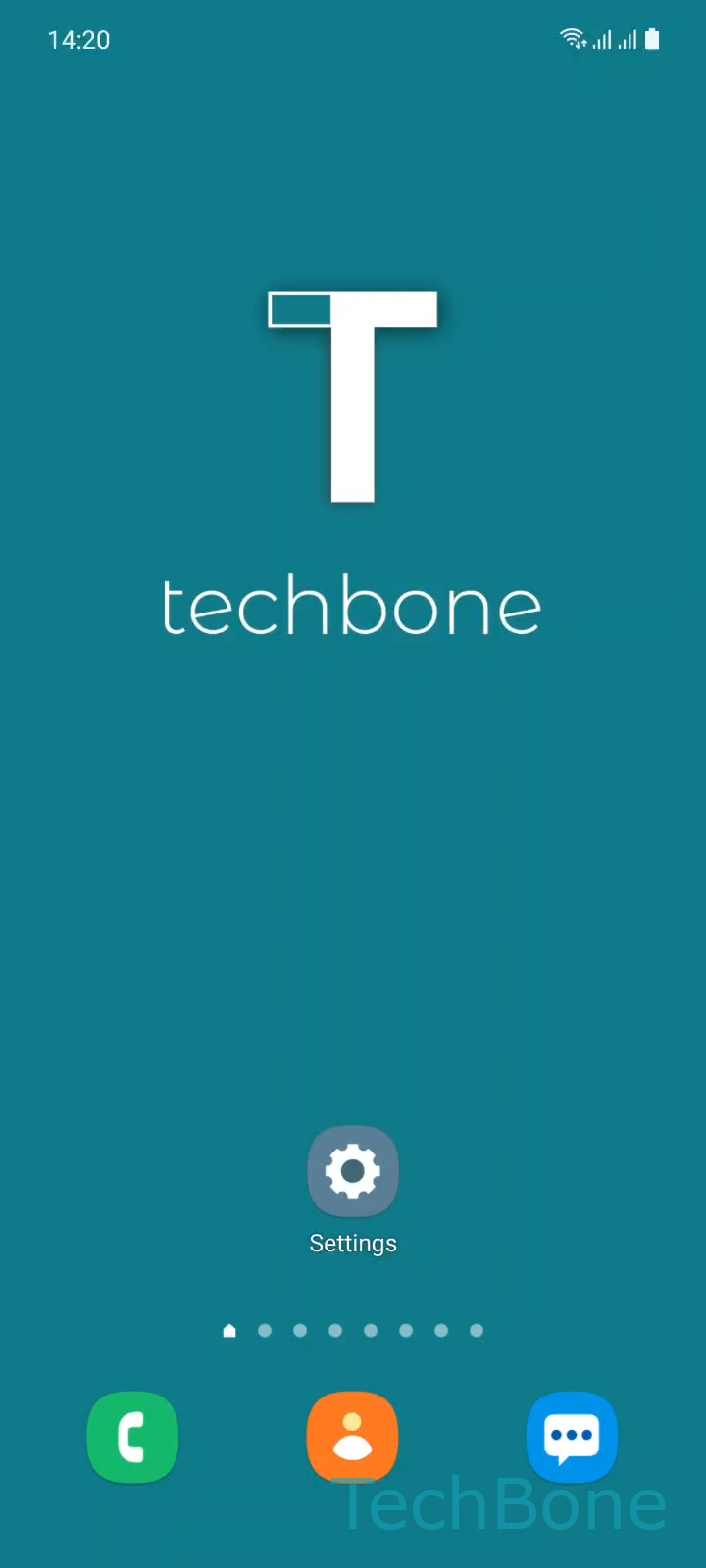
Tap on Settings

Live simulator

Android 11 · One UI 3
Turn Google Play Protect On or Off – One UI 3: step 1 – Tap on Settings
Tap on Settings
1 / 6

Scroll or use the buttons for the next step

Feedback

Was the guide correct?

Help others: confirm the path or report a problem.

46

Confirmations

Forum verified this path

Samsung

Turn Google Play Protect On or Off auf Samsung

Google Play Protect is active by default on Samsung phones. It scans installed apps and anything you add afterward, comparing them against Google's database of known malicious behavior.

When it finds a match, it sends a notification naming the affected app. In more serious cases, it disables the app automatically instead of just warning you, which is what usually triggers support requests when a trusted app suddenly stops opening.

To change the setting, go to Tap on SettingsTap on Biometrics and securityTap on Google Play ProtectTap on SettingsEnable or disable Scan apps with Play ProtectTap on Turn off to confirm.

Turning scanning off removes the periodic background checks, which can help if a specific app you trust keeps getting misidentified. It also means new sideloaded apps will not be checked automatically anymore.

Leave Play Protect enabled if you regularly install apps from outside the Play Store or share the device with other users. The background scan adds negligible battery or performance impact on current Samsung hardware.

Frequently asked questions

It stops the periodic background scanning done through Google Play Protect. Other Samsung security layers, like app permission controls and Knox integrity checks, keep running independently.

Compatible devices

Tap your device — opens its hub with matching guides.

Android 11 · One UI 3

No compatible devices are listed for this version.