
Skip to content
TechBone
Samsung

Samsung: Change Home Screen Grid Size

If icons on your Samsung home screen look too large or too small, or too few apps fit per row, the Home screen grid setting is likely still on its default layout. Switching between 4x5, 4x6, 5x5, and 5x6 changes how many app shortcuts appear per screen and how big each icon renders. This also affects spacing on the app screen, not just the home screen.

3 min4 steps
Version

Step by step

1 / 4

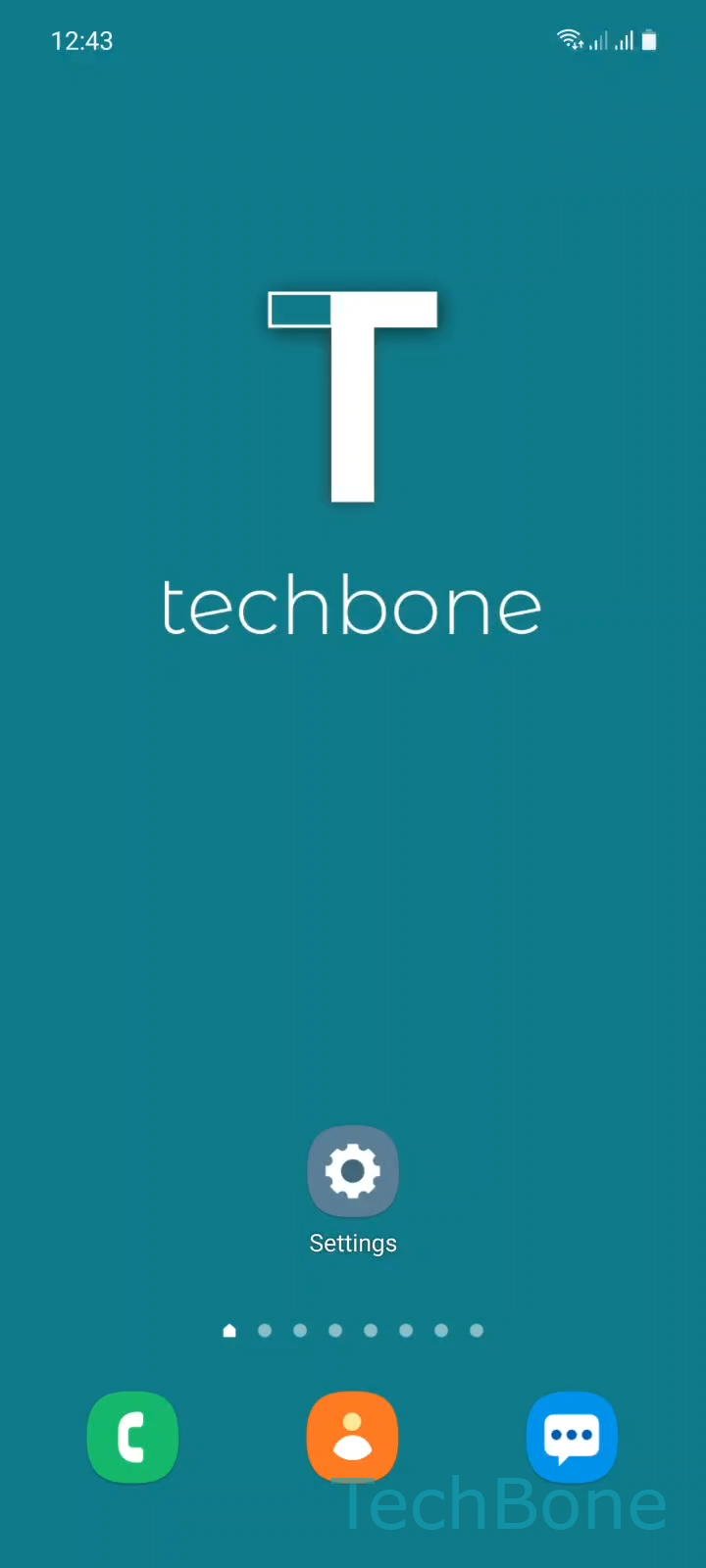
Step 1 of 4: Tap on **Settings**

1

Tap on Settings

Live simulator

Android 11 · One UI 3
Change Home Screen Grid Size – One UI 3: step 1 – Tap on Settings
Tap on Settings
1 / 4

Scroll or use the buttons for the next step

Feedback

Was the guide correct?

Help others: confirm the path or report a problem.

37

Confirmations

Forum verified this path

Samsung

Change Home Screen Grid Size auf Samsung

Samsung's Home screen grid controls how many app icons and widgets fit per row and column on your home screen. On One UI, four presets are available: 4x5, 4x6, 5x5, and 5x6. A denser grid like 5x6 fits more shortcuts per screen but shrinks each icon and its label. A looser grid like 4x5 enlarges icons but reduces how many apps show without swiping to another page.

This setting lives inside the Home screen settings menu and is separate from display resolution or font size. Changing it does not affect wallpaper resolution or widget content, only how icons and shortcuts are arranged and sized.

To change it:

Tap on SettingsTap on Home screenTap on Home screen gridSet the Home screen grid and tap Save

If icons still look too small after switching to a larger grid, check the display size and font size settings separately, since those scale text and UI elements independently from the icon grid. If widgets shift position after changing the grid, that is expected: fewer or more columns can push widgets onto a new row or page.

Frequently asked questions

Yes. Switching between 4x5, 4x6, 5x5, and 5x6 can shift icon positions, especially for widgets that span multiple cells. Icons usually reflow to fill the new layout, so check each home screen page afterward.

Compatible devices

Tap your device — opens its hub with matching guides.

Android 11 · One UI 3

No compatible devices are listed for this version.