Skip to content
TechBone
Samsung

Samsung: Hide Status and Navigation Bar on Screenshots

Every screenshot on your Samsung phone captures the status bar and navigation bar by default, so battery icons, the clock, and nav buttons end up in the shot. This happens because the screenshot tool grabs the full screen including both bars. Turning that behavior off gives you clean, edge-to-edge captures without extra cropping afterward.

3 min4 steps
VersionAndroid 11 · One UI 3

Step by step

1 / 4

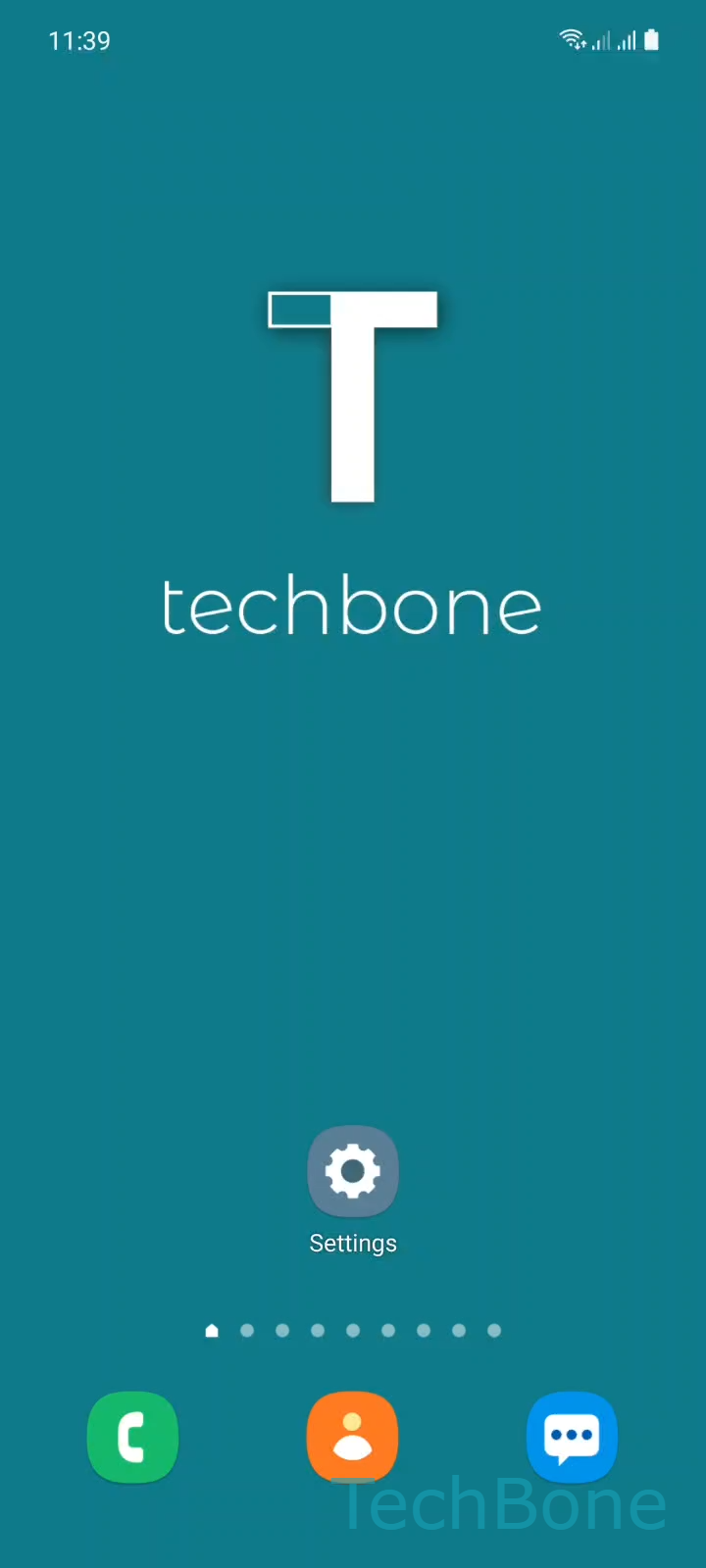
Step 1 of 4: Tap on **Settings**

1

Tap on Settings

Live simulator

Android 11 · One UI 3
Show or Hide Status and Navigation Bars on Screenshots – One UI 3: step 1 – Tap on Settings
Tap on Settings
1 / 4

Scroll or use the buttons for the next step

Feedback

Was the guide correct?

Help others: confirm the path or report a problem.

97

Confirmations

Forum verified this path

Samsung

Show or Hide Status and Navigation Bars on Screenshots auf Samsung

By default, Samsung's screenshot tool captures the whole screen, including the status bar at the top and the navigation bar at the bottom. Every screenshot shows the clock, battery percentage, and network icons, plus the back, home, and recent apps buttons if you use on-screen navigation.

This behavior is controlled by a dedicated option inside the screenshot settings in Samsung One UI. Turning it off trims both bars automatically from every screenshot you take afterward, leaving only the app content visible.

To change it, open Tap on SettingsTap on Advanced featuresTap on Screenshots and screen recorder and toggle Enable or disable Hide status and navigation bars. Enable it to remove both bars from future screenshots, or disable it if you need the time, battery level, or navigation buttons visible for support requests or tutorials.

The setting only applies to screenshots taken after you change it. Anything you already captured keeps its original look, so you may need to retake older screenshots if you want them without the bars.

Frequently asked questions

No. The toggle only applies going forward. Screenshots taken before the change keep the status and navigation bars as they were captured.

Compatible devices

Tap your device — opens its hub with matching guides.

Android 11 · One UI 3

No compatible devices are listed for this version.