Skip to content
TechBone
Samsung

Samsung: Turn Ignore Repeated Touches On or Off

If a single tap on your Samsung device sometimes registers as two or three taps, or a light touch triggers extra input, the screen may be reacting to accidental double contact. The Ignore repeated touches feature controls how long the display waits before accepting another tap after the first one. Adjusting it helps if you have shaky hands, a cracked screen, or a case that causes phantom touches.

3 min4 steps
Version

Step by step

1 / 4

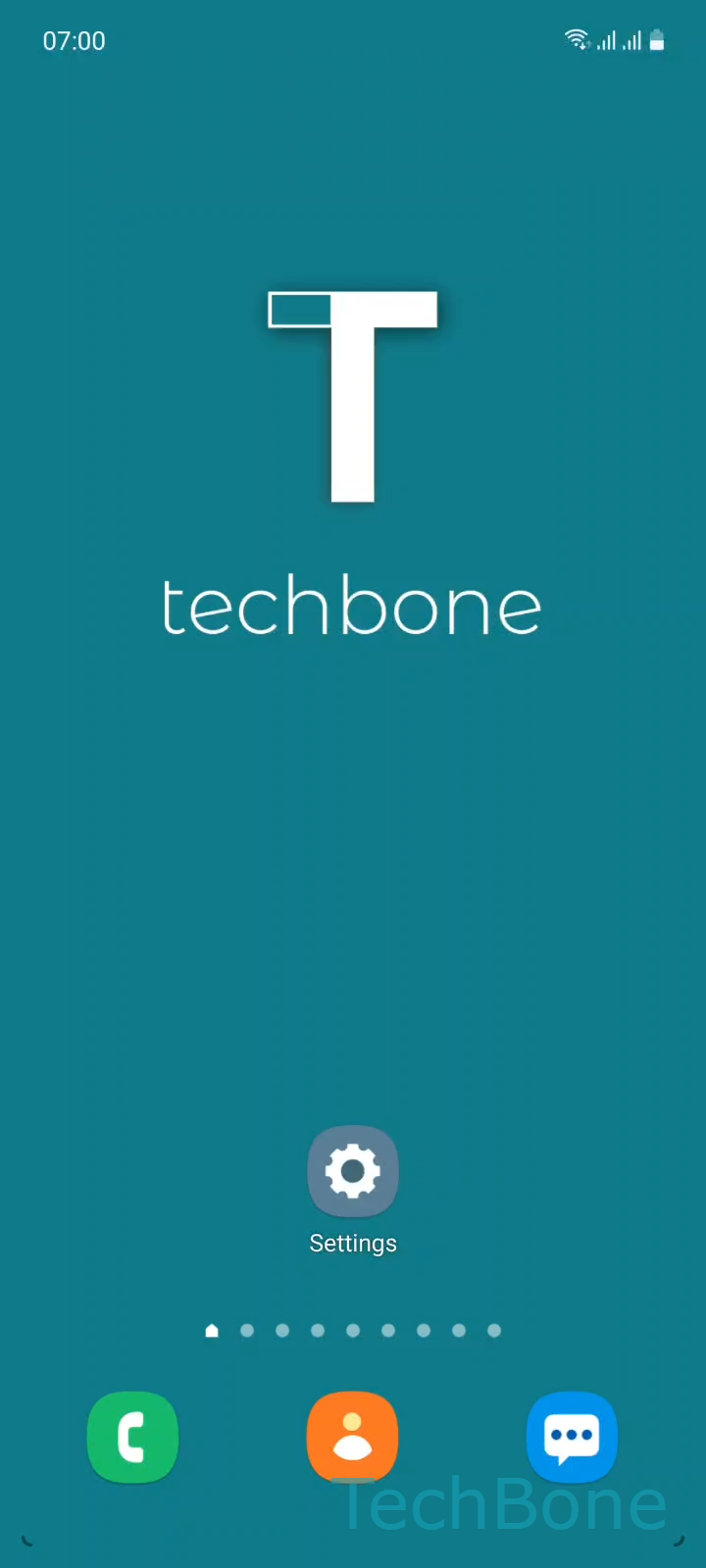
Step 1 of 4: Tap on **Settings**

1

Tap on Settings

Live simulator

Android 11 · One UI 3
Ignore Repeated Touches: Turn On or Off – One UI 3: step 1 – Tap on Settings
Tap on Settings
1 / 4

Scroll or use the buttons for the next step

Feedback

Was the guide correct?

Help others: confirm the path or report a problem.

13

Confirmations

Forum verified this path

Samsung

Ignore Repeated Touches: Turn On or Off auf Samsung

On Samsung phones, a single tap can accidentally register twice if your finger lingers slightly or the screen surface reacts to a light bounce. The Ignore repeated touches feature blocks any additional tap that lands within a set time frame after the first one, so only the initial touch counts.

By default this window is set to 0.1 seconds, but you can extend it up to 4 seconds if accidental double taps still slip through, for example with shaky hands or a screen protector that adds friction. A longer window filters out more unwanted touches but can also make fast double-taps, like in games or when double-tapping to wake the screen, less reliable.

To turn the feature on, off, or change the delay:

Tap on SettingsTap on AccessibilityTap on Interaction and dexterityEnable or disable Ignore repeated touches

If you rely on quick successive taps for accessibility switches or assistive tools, keep the delay short. If your device frequently misreads single taps as multiple inputs, increase the time span gradually until the behavior disappears without slowing down normal use.

Frequently asked questions

A very light touch or a slightly bouncy screen surface can trigger two signals from a single finger contact. The Ignore repeated touches setting under SettingsAccessibilityInteraction and dexterity filters out that second signal within a short time window.

Compatible devices

Tap your device — opens its hub with matching guides.

Android 11 · One UI 3

No compatible devices are listed for this version.