Skip to content
TechBone
Samsung

Samsung: Turn JavaScript On or Off in Internet Browser

If buttons, menus, or forms suddenly stop reacting on a website in Samsung Internet, JavaScript has often been switched off. Some pages refuse to load content at all without it, since most modern sites rely on the scripting language for interactive elements. The toggle for this sits buried inside the browser's site permissions and is easy to overlook.

5 min6 steps
Version

Step by step

1 / 6

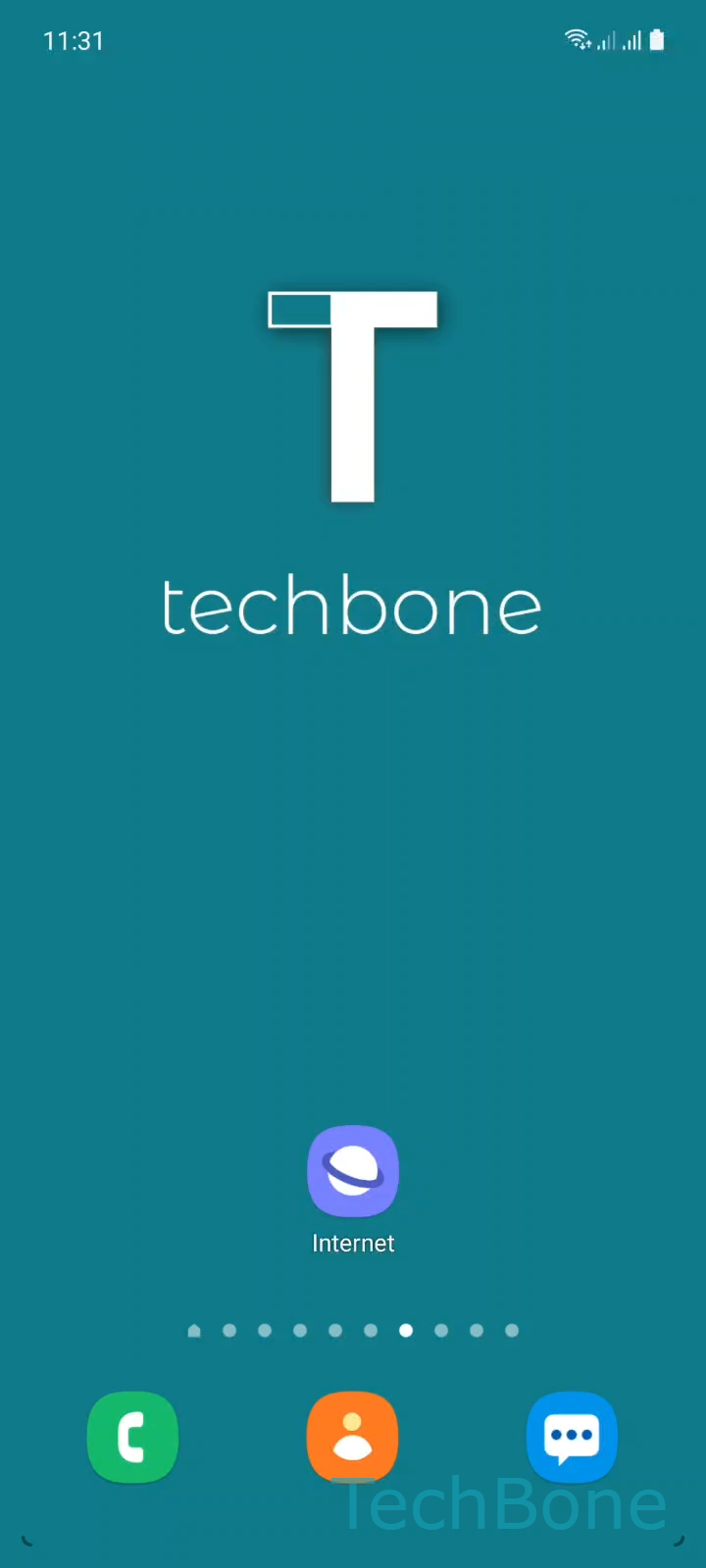
Step 1 of 6: Tap on **Internet**

1

Tap on Internet

Live simulator

Android 11 · One UI 3
Turn JavaScript On or Off in Samsung Internet – One UI 3: step 1 – Tap on Internet
Tap on Internet
1 / 6

Scroll or use the buttons for the next step

Feedback

Was the guide correct?

Help others: confirm the path or report a problem.

42

Confirmations

Forum verified this path

Samsung

Turn JavaScript On or Off in Samsung Internet auf Samsung

JavaScript runs inside the browser and lets a website change its content without reloading the page. Dropdown menus, live forms, video players, and interactive maps all depend on it. When JavaScript is disabled in Samsung Internet, these elements often stay blank, freeze, or fail to respond to taps.

The setting lives in the browser's site permissions, separate from the general Android system settings. Samsung Internet controls it independently, so switching JavaScript off in another browser has no effect here.

Where to change it

Open the setting through this path:

Tap on InternetOpen the MenuTap on SettingsTap on Sites and downloadsTap on Site permissionsEnable or disable Allow JavaScript

Turning JavaScript off can reduce tracking scripts and slightly speed up loading on text-heavy pages. The tradeoff is that many shops, banking portals, and social platforms will show incomplete pages or stop working entirely until it is turned back on.

If only one specific site misbehaves, clearing that site's stored data or checking for a separate content blocker is usually a faster fix than touching this global switch.

Frequently asked questions

Simple pages built mostly from static HTML and CSS do not need scripts to display text or images. Sites with logins, checkouts, or dynamic feeds almost always require Allow JavaScript to be enabled.

Compatible devices

Tap your device — opens its hub with matching guides.

Android 11 · One UI 3

No compatible devices are listed for this version.