Skip to content
TechBone
Samsung

Samsung: Turn Keep Screen On While Viewing On or Off

If your Samsung display refuses to dim or lock even though you are not touching it, the front camera is probably detecting your face and keeping the screen awake. This happens through a gesture feature called Keep screen on while viewing, which reads your gaze to stop the display from timing out. It can look like a battery drain issue if you never switched it on knowingly.

3 min4 steps
VersionAndroid 11 · One UI 3

Step by step

1 / 4

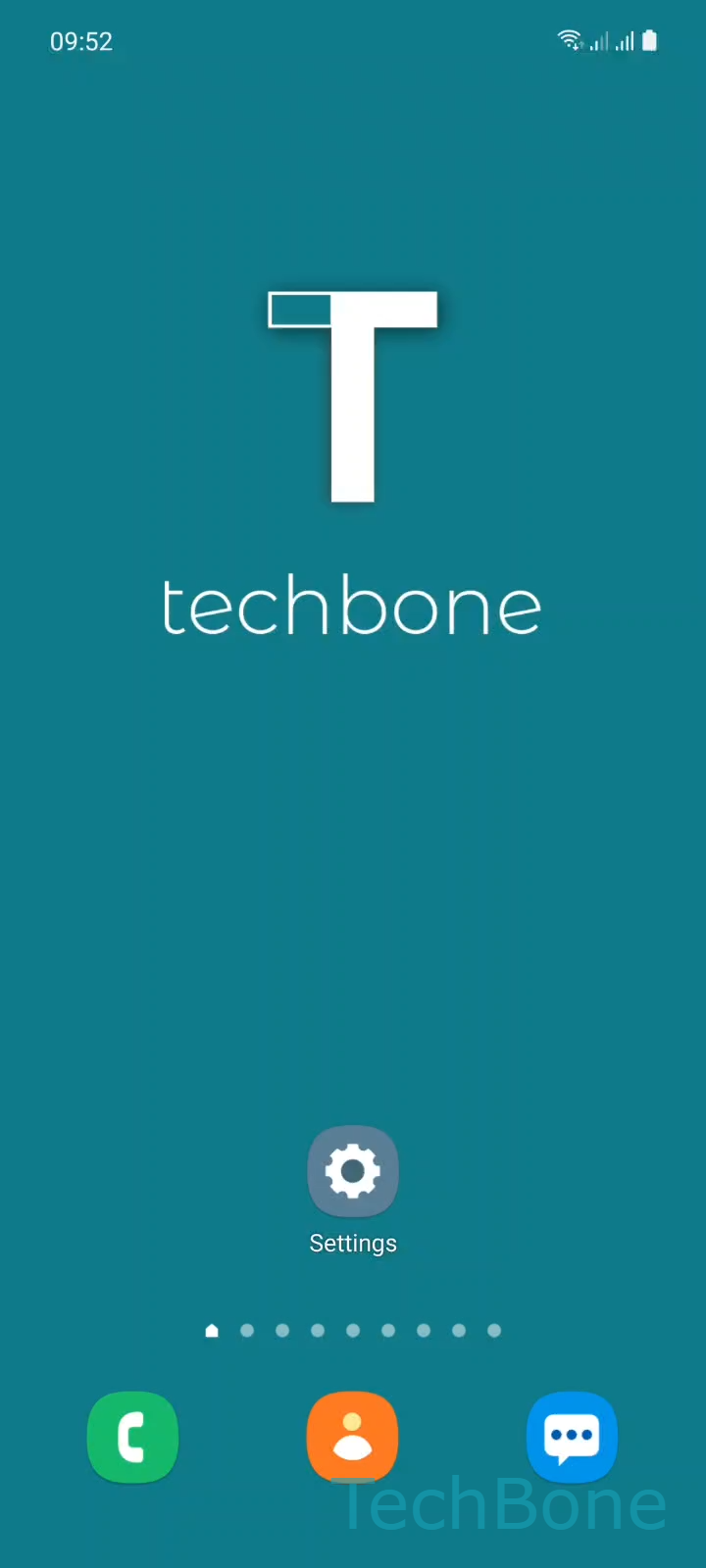
Step 1 of 4: Tap on **Settings**

1

Tap on Settings

Live simulator

Android 11 · One UI 3
Keep Screen On While Viewing: Turn On or Off – One UI 3: step 1 – Tap on Settings
Tap on Settings
1 / 4

Scroll or use the buttons for the next step

Feedback

Was the guide correct?

Help others: confirm the path or report a problem.

51

Confirmations

Forum verified this path

Samsung

Keep Screen On While Viewing: Turn On or Off auf Samsung

Keep screen on while viewing is part of the Motions and gestures options inside Advanced features on Samsung phones. It relies on the front camera to check whether you are looking at the display, and keeps it lit as long as it detects your face.

This is useful when you are reading a long article or following a recipe and do not want the screen to lock every few seconds. It becomes annoying when the camera misreads a face in low light or through glasses, keeping the display on longer than needed and using extra battery.

Where to find the setting

Open Tap on SettingsTap on Advanced featuresTap on Motions and gesturesEnable or disable Keep screen on while viewing. Toggle the switch to turn the feature on or off, depending on whether you want the camera to keep tracking your gaze.

If your screen keeps timing out too fast even with this feature enabled, check your regular screen timeout setting separately, since both work together to decide when the display locks.

Turn the feature off if you notice the front camera activating often for no reason, or if you prefer to save battery over convenience. Turn it back on if you frequently lose your place while reading because the screen locks too quickly.

Frequently asked questions

If Keep screen on while viewing is enabled, the front camera may briefly detect a face-like shape and keep the display lit a bit longer before it locks. Disable it under SettingsAdvanced featuresMotions and gestures if this happens too often.

Compatible devices

Tap your device — opens its hub with matching guides.

Android 11 · One UI 3

No compatible devices are listed for this version.