Skip to content
TechBone
Samsung

Samsung: Turn On or Off the Large Mouse Pointer

Once you connect a mouse or touchpad to your Samsung device, the on-screen pointer often stays tiny and hard to track, especially on larger displays. This gets worse if you also use a stylus or have reduced vision, since the default pointer size was built for touch input, not precise cursor tracking.

3 min4 steps
Version

Step by step

1 / 4

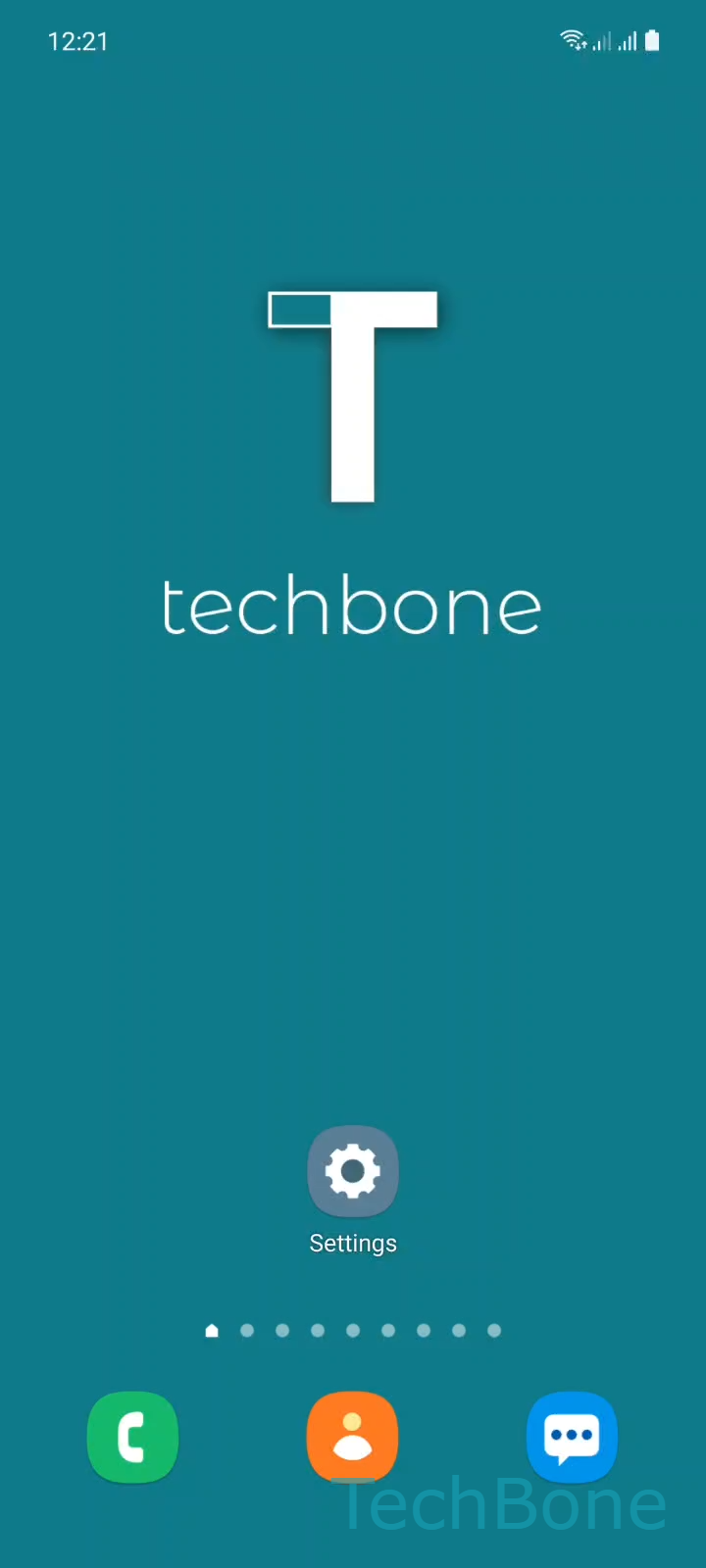
Step 1 of 4: Tap on **Settings**

1

Tap on Settings

Live simulator

Android 11 · One UI 3
Enlarge the Mouse Pointer – One UI 3: step 1 – Tap on Settings
Tap on Settings
1 / 4

Scroll or use the buttons for the next step

Feedback

Was the guide correct?

Help others: confirm the path or report a problem.

65

Confirmations

Forum verified this path

Samsung

Enlarge the Mouse Pointer auf Samsung

When you plug in a mouse or touchpad, Samsung devices display a standard pointer sized for typical screen resolutions. On larger tablets or foldables, or if you have limited vision, that pointer can be difficult to spot, especially against busy backgrounds.

This setting lives inside the accessibility tools built for visibility, not inside general display settings, so it is easy to miss on first look.

Where to find the setting

Open Tap on SettingsTap on AccessibilityTap on Visibility enhancementsEnable or disable Large mouse/touchpad pointer. Toggling it on immediately resizes the cursor for any connected mouse or touchpad, no restart needed.

If you disconnect the accessory later, the setting stays saved and applies again the next time you connect a pointer device.

If your issue is actually about touch response or a stuck on-screen cursor rather than pointer size, check the connection quality of your accessory first, since a loose Bluetooth pairing or worn USB cable can cause similar visual glitches.

Frequently asked questions

No. It only changes the size of the cursor shown when a mouse or touchpad is connected. Direct touch gestures on the screen are unaffected.

Compatible devices

Tap your device — opens its hub with matching guides.

Android 11 · One UI 3

No compatible devices are listed for this version.