Skip to content
TechBone
Samsung

Samsung: Change Auto Lock Settings for Secure Folder

By default, Secure Folder on Samsung phones only locks once the screen turns off, which leaves your private apps and files exposed for longer than expected if someone grabs the phone while it's still active. If you want it to lock immediately, right after a restart, or after a fixed amount of time instead, that behavior sits in a setting most people never touch.

4 min5 steps
Version

Step by step

1 / 5

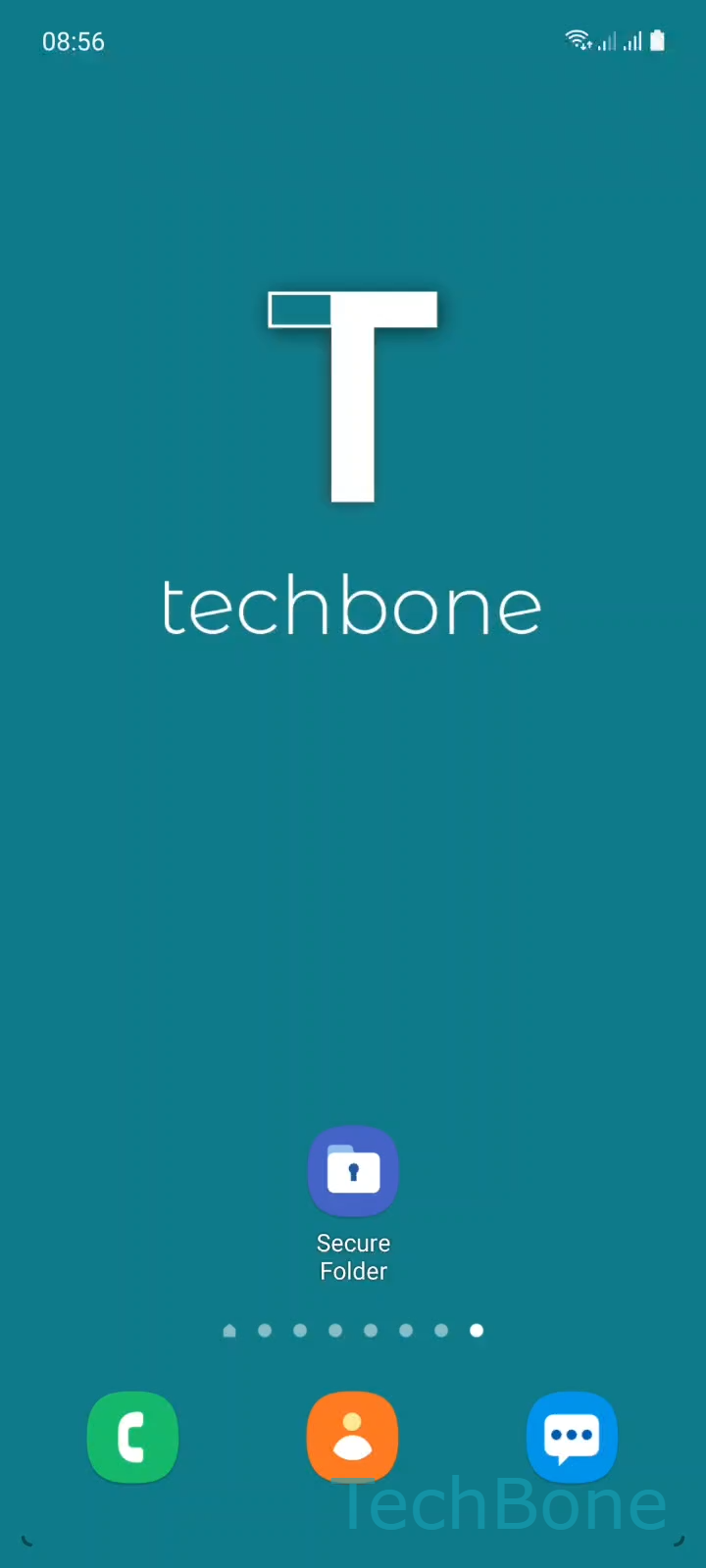
Step 1 of 5: Tap on **Secure Folder**

1

Tap on Secure Folder

Live simulator

Android 11 · One UI 3
Auto-Lock Secure Folder Settings – One UI 3: step 1 – Tap on Secure Folder
Tap on Secure Folder
1 / 5

Scroll or use the buttons for the next step

Feedback

Was the guide correct?

Help others: confirm the path or report a problem.

80

Confirmations

Forum verified this path

Samsung

Auto-Lock Secure Folder Settings auf Samsung

On most Samsung phones, Secure Folder locks automatically only when the display turns off. Until then, anyone holding the unlocked phone can open it without extra authentication.

This behavior comes from a dedicated auto-lock setting inside Secure Folder itself, separate from your regular screen lock timeout. You can change it to lock the folder immediately after you leave it, every time the device restarts, or after it has been idle for a set period.

Where to change it

Open the path below to see the available options: Tap on Secure FolderOpen the MenuTap on SettingsTap on Auto lock Secure FolderChoose an option.

Pick Immediately if you want the folder to require authentication the moment you switch to another app. Pick On restart if you mainly worry about the phone being rebooted by someone else. A timed option is useful if you go in and out of Secure Folder frequently and do not want to re-authenticate every few seconds.

If your main concern is battery drain or lock screen delay in general, adjusting the regular screen timeout is a separate setting and will not affect Secure Folder on its own.

Frequently asked questions

No. Secure Folder has its own auto-lock setting under Tap on Secure FolderOpen the MenuTap on SettingsTap on Auto lock Secure Folder, independent from the device screen timeout.

Compatible devices

Tap your device — opens its hub with matching guides.

Android 11 · One UI 3

No compatible devices are listed for this version.