Skip to content
TechBone
Samsung

Samsung: Show or Hide Lock Screen Pattern Trail

If you swipe a pattern to unlock your Samsung phone, the line you draw stays visible on screen the whole time, which means anyone glancing over your shoulder can trace it. This visible trail is a separate setting from the pattern itself and can be switched off for more privacy. Nothing about your actual pattern shape or length changes when you hide the line.

3 min4 steps
Version

Step by step

1 / 4

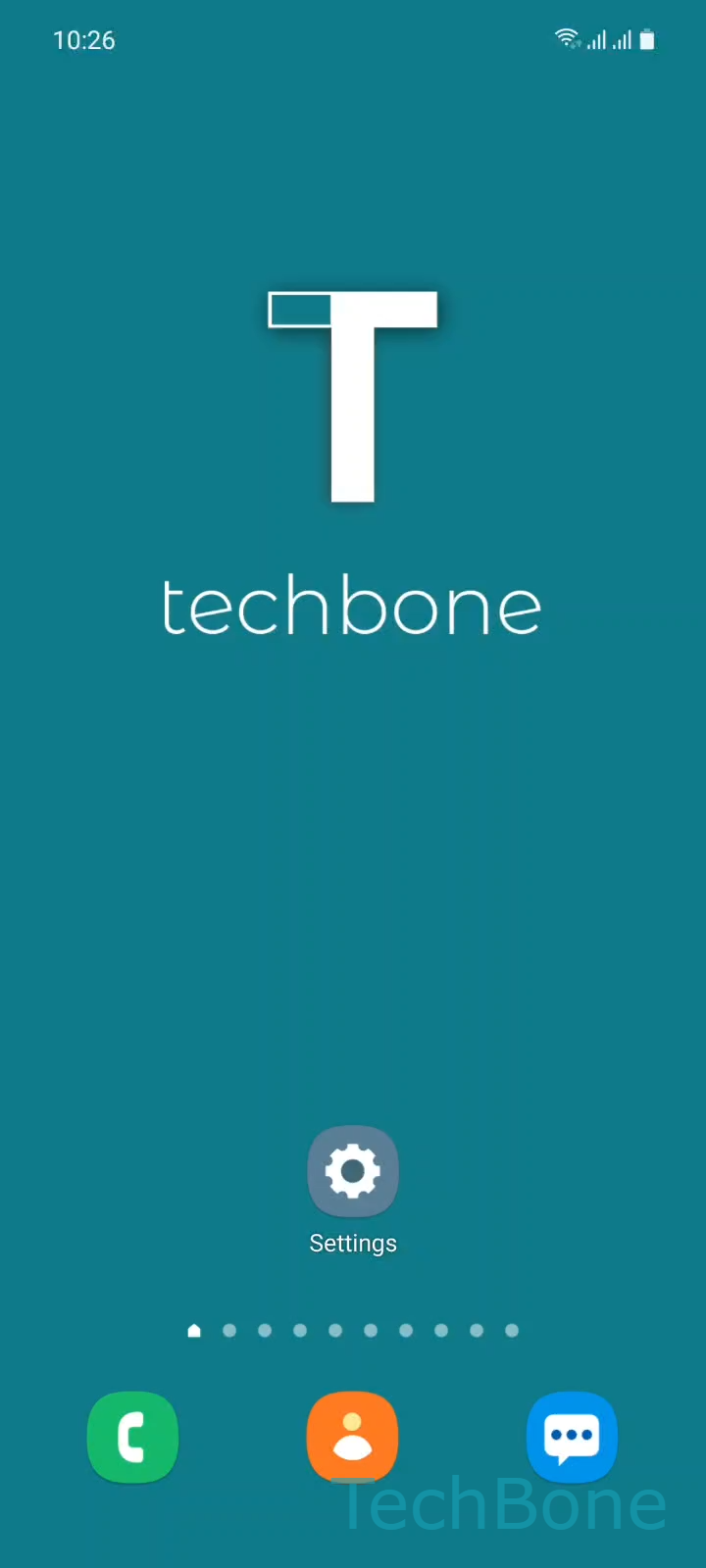
Step 1 of 4: Tap on **Settings**

1

Tap on Settings

Live simulator

Android 11 · One UI 3
Show or Hide Lock Screen Pattern Trail – One UI 3: step 1 – Tap on Settings
Tap on Settings
1 / 4

Scroll or use the buttons for the next step

Feedback

Was the guide correct?

Help others: confirm the path or report a problem.

92

Confirmations

Forum verified this path

Samsung

Show or Hide Lock Screen Pattern Trail auf Samsung

On Samsung phones using One UI, the pattern lock screen shows a visible trail while you swipe, so anyone standing close enough can follow the shape on the display.

This trail is controlled by a single setting inside Secure lock settings, separate from the pattern gesture itself.

Turning it off removes the visible line from the lock screen, but the pattern shape and length stay exactly the same, so you keep drawing the same gesture, just without the trace.

To find the toggle: SettingsLock screenSecure lock settings ➔ switch off Make pattern visible.

Secure lock settings only appears once a pattern, PIN, or password is already active as the lock method, not with Swipe or biometric-only setups.

Hiding the trail is a small but useful privacy step in shared spaces such as offices, public transit or a busy household, where a quick glance is enough for someone to memorize your unlock gesture.

If you want the trail back for practice or convenience at home, repeat the same steps and switch the toggle on again.

Frequently asked questions

Secure lock settings only appears once your lock method is set to Pattern, PIN, or Password. Check SettingsLock screenScreen lock type first and switch away from Swipe or None if needed.

Compatible devices

Tap your device — opens its hub with matching guides.

Android 11 · One UI 3

No compatible devices are listed for this version.