Skip to content
TechBone
Samsung

Samsung: Manage and Edit Edge Panels

If your Edge panel still shows outdated contacts or apps you never open, the panel content does not update on its own and needs manual editing. Positions also stay fixed until you rearrange them yourself, which often buries your most-used contacts at the bottom of the list.

5 min6 steps
Version

Step by step

1 / 6

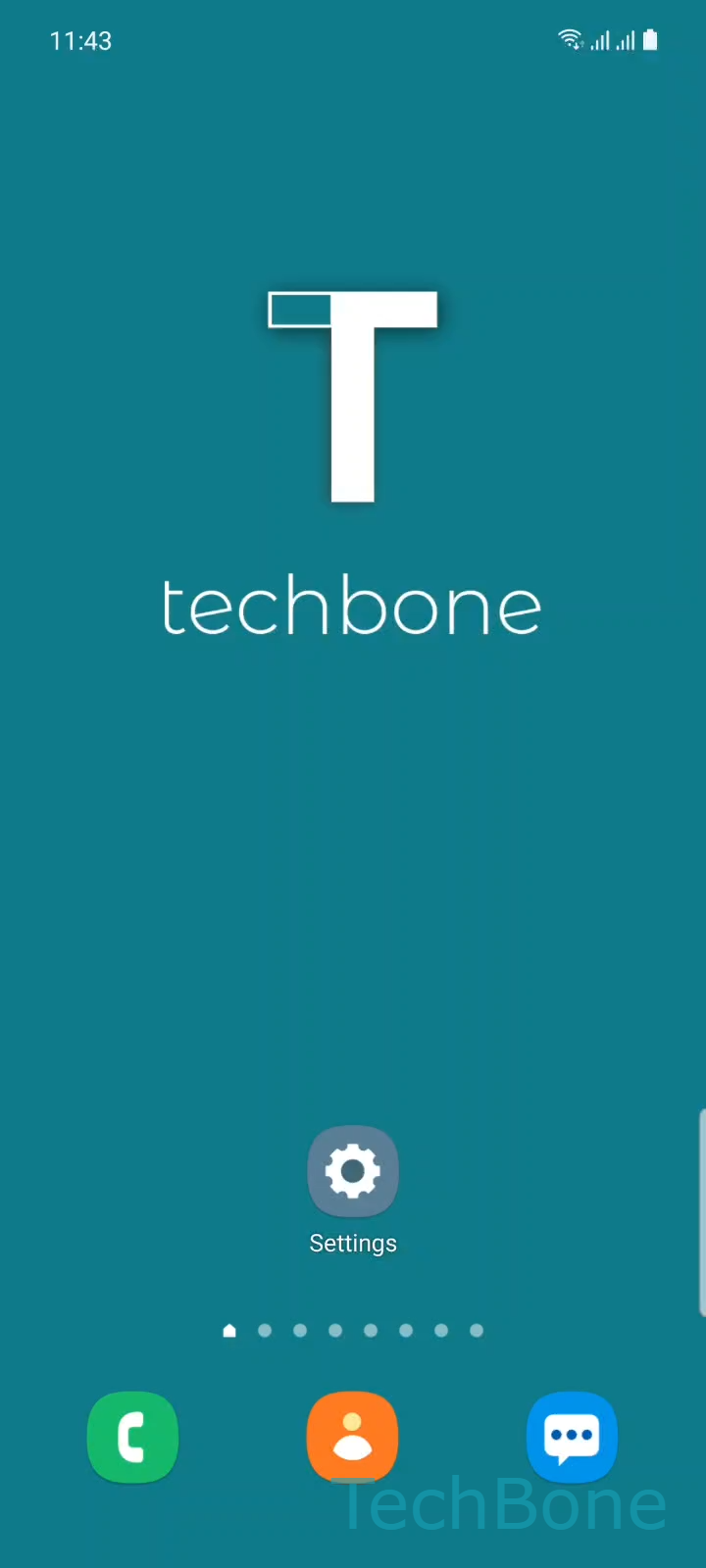
Step 1 of 6: Tap on **Settings**

1

Tap on Settings

Live simulator

Android 11 · One UI 3
Edit and Reorder Edge Panel Contacts – One UI 3: step 1 – Tap on Settings
Tap on Settings
1 / 6

Scroll or use the buttons for the next step

Feedback

Was the guide correct?

Help others: confirm the path or report a problem.

54

Confirmations

Forum verified this path

Samsung

Edit and Reorder Edge Panel Contacts auf Samsung

The Edge panel keeps whatever contacts or apps you added when you first set it up. Samsung does not refresh the list automatically, so removed contacts, uninstalled apps, or new priorities stay unreflected until you open the editor yourself.

Each panel type behaves differently. The Contacts panel, for example, lets you add entries and drag them into a new order, while other panels focus on apps or shortcuts. The editing screen is the same for all of them.

To edit a panel, go to Tap on SettingsTap on DisplayTap on Edge panelsTap on PanelsTap on EditAdd or remove the desired Apps/Features.

Inside the editor you can add new contacts, remove ones you no longer need, and change their position by dragging them within the list. Changes apply immediately once you leave the edit screen, so there is no separate save step.

If a panel is missing entirely, check whether it was disabled in the panel list first. Reordering only affects the panel itself, not your main contacts or apps.

Frequently asked questions

Yes. The path through Tap on SettingsTap on DisplayTap on Edge panelsTap on PanelsTap on Edit opens the same editor for every panel type. Only the available options inside change depending on whether the panel handles contacts, apps, or shortcuts.

Compatible devices

Tap your device — opens its hub with matching guides.

Android 11 · One UI 3

No compatible devices are listed for this version.