Skip to content
TechBone
Samsung

Samsung: Turn Navigation Gesture Vibrations On or Off

Every tap on the navigation bar buttons triggers a short buzz on your Samsung phone, and that constant vibration gets annoying fast if you swipe through apps often. The feedback comes from a separate haptic setting for navigation gestures, not the general vibration toggle, so switching off standard notification vibration does not stop it. You need the dedicated system control instead.

3 min4 steps
VersionAndroid 11 · One UI 3

Step by step

1 / 4

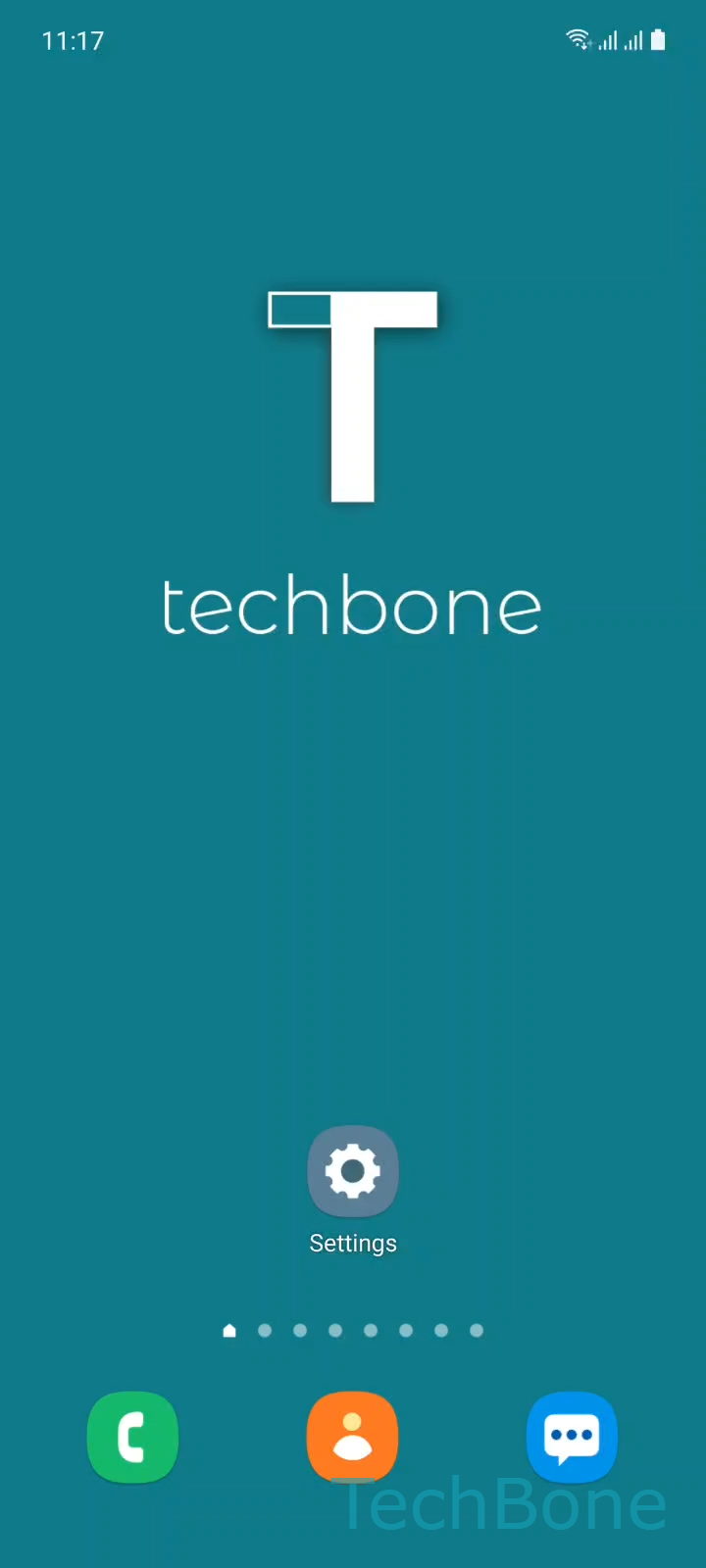
Step 1 of 4: Tap on **Settings**

1

Tap on Settings

Live simulator

Android 11 · One UI 3
Turn Navigation Gesture Vibrations On or Off – One UI 3: step 1 – Tap on Settings
Tap on Settings
1 / 4

Scroll or use the buttons for the next step

Feedback

Was the guide correct?

Help others: confirm the path or report a problem.

29

Confirmations

Forum verified this path

Samsung

Turn Navigation Gesture Vibrations On or Off auf Samsung

Navigation gesture vibration is a separate haptic setting inside Samsung's sound and vibration menu. It triggers a short buzz whenever you tap the on-screen navigation bar buttons, independent of the general vibration setting used for calls or notifications.

If every swipe or tap on the navigation bar feels too buzzy, or you want the buttons to stay silent during a call or meeting, disable this specific gesture vibration instead of switching off all haptic feedback on the phone.

To adjust it, go to SettingsSounds and vibrationSystem sound/vibration control and toggle Navigation gestures.

This setting only affects taps on the navigation bar and gesture feedback. It does not change vibration for incoming calls, keyboard typing, or app notifications, those live in their own separate menus.

If you use full-screen swipe gestures instead of the classic navigation bar buttons, the same toggle still controls the vibration feedback for those gestures.

If your phone does not vibrate at all after enabling this option, check that vibration is not blocked by Do not disturb mode or a muted sound profile first.

Frequently asked questions

No. Keyboard typing vibration is controlled separately under SettingsGeneral managementSamsung Keyboard settings, not by the navigation gesture toggle.

Compatible devices

Tap your device — opens its hub with matching guides.

Android 11 · One UI 3

No compatible devices are listed for this version.