Skip to content
TechBone
Samsung

Samsung: Change the Notification Vibration Pattern

If every app buzzes your phone the same way, you cannot tell a message from a calendar reminder without checking the screen. Samsung phones let you pick a distinct vibration pattern just for notifications, separate from the one used for calls. A few built-in patterns are available, but the option is easy to miss since it sits away from the main sound settings.

3 min4 steps
VersionAndroid 11 · One UI 3

Step by step

1 / 4

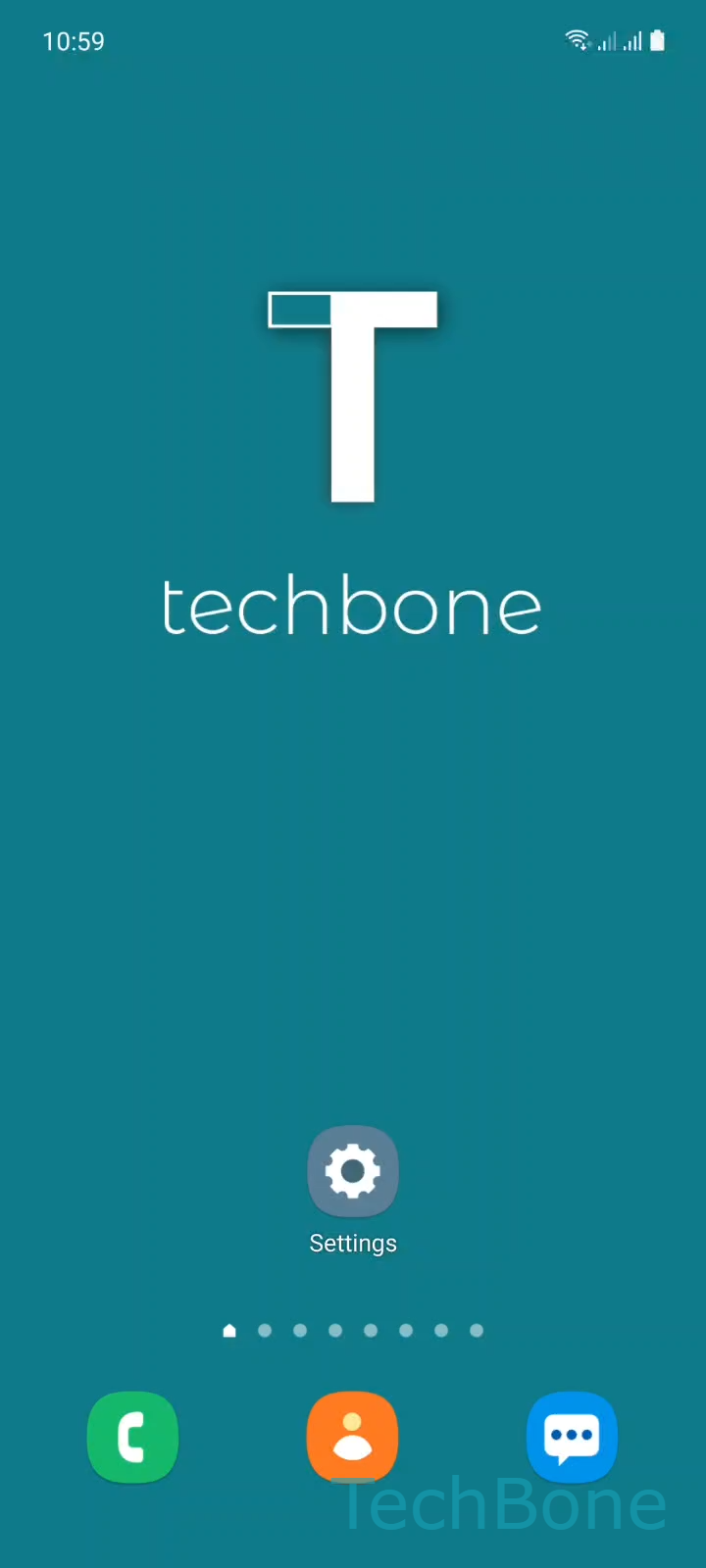
Step 1 of 4: Tap on **Settings**

1

Tap on Settings

Live simulator

Android 11 · One UI 3
Change Notification Vibration Pattern – One UI 3: step 1 – Tap on Settings
Tap on Settings
1 / 4

Scroll or use the buttons for the next step

Feedback

Was the guide correct?

Help others: confirm the path or report a problem.

10

Confirmations

Forum verified this path

Samsung

Change Notification Vibration Pattern auf Samsung

Samsung separates the vibration pattern for calls from the one used for notifications. If you only ever changed the call vibration, incoming messages and alerts will still use the default pattern, which makes them hard to tell apart by feel alone.

To change it, open Tap on SettingsTap on Sounds and vibrationTap on Notification vibration patternSet the Notification vibration pattern.

You can choose from five built-in patterns: Basic, Heartbeat, Ticktock, Waltz, and Zig-zig-zig. Each one plays a short preview when selected, so you can compare them before confirming.

This setting applies system-wide to notification vibrations. It does not override per-app custom sounds if an app has its own vibration setting enabled separately inside its own notification channel.

If your phone does not vibrate for notifications at all, check that vibration is enabled in general and that the specific app is not muted, before assuming the pattern setting is the issue.

Frequently asked questions

Some apps set their own vibration inside their individual notification channel. Check the app's notification settings and make sure it is not overriding the system pattern set under Sounds and vibration.

Compatible devices

Tap your device — opens its hub with matching guides.

Android 11 · One UI 3

No compatible devices are listed for this version.