
Samsung
Show or Hide Notification Icons in Status Bar auf Samsung
Samsung caps the status bar at three notification icons by default. Once a fourth app sends an alert, the oldest icon disappears from view even though the notification itself is still active in the panel below.
This behavior comes from a setting inside the notification management of One UI, separate from Do Not Disturb or app-level notification permissions. It only controls what appears next to the clock, not whether notifications are delivered.
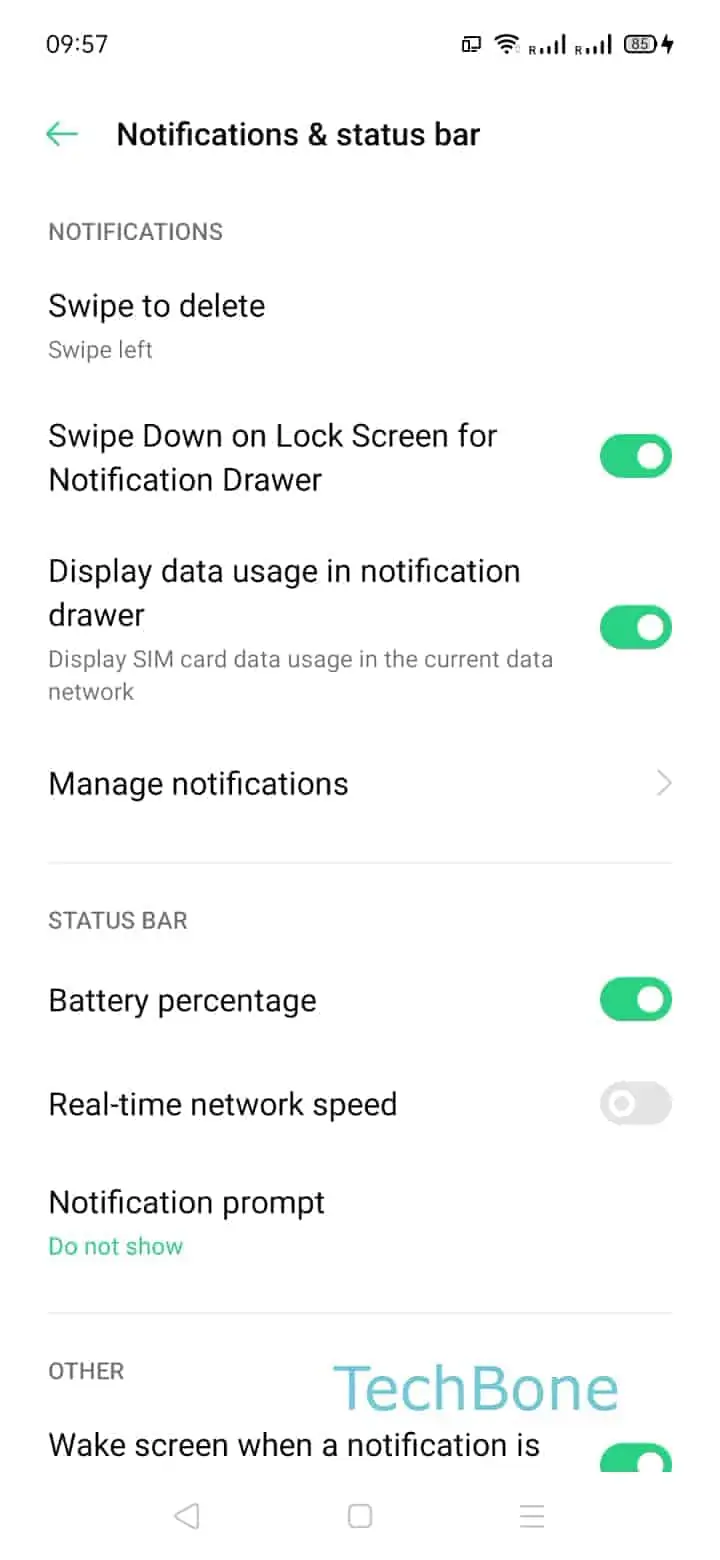
To change it, open Settings ➔ Notifications ➔ Status bar ➔ Show notification icons. Here you can pick between showing a limited number of recent icons, showing an icon for every active notification, or hiding notification icons in the status bar entirely.
Switching to the full icon list is useful if you rely on quick visual checks throughout the day, for example separating messaging apps from calendar alerts at a glance. Hiding icons completely keeps the top bar clean but means you have to pull down the notification panel to see what is waiting.
If notifications are missing entirely rather than just hidden from the bar, the cause usually sits in the individual app's notification permissions or in battery optimization, not in this status bar setting.