Skip to content
TechBone
Samsung

Samsung: Allow or Deny Apps to Change System Settings

If an app suddenly stops adjusting screen brightness, auto-rotate, or sound profiles on its own, it may be missing the Change system settings permission on your Samsung phone. Blocking this permission stops those automatic adjustments but never touches lock screen or biometric security, since Samsung keeps those separate. You decide per app whether it keeps this special access.

5 min6 steps
Version

Step by step

1 / 6

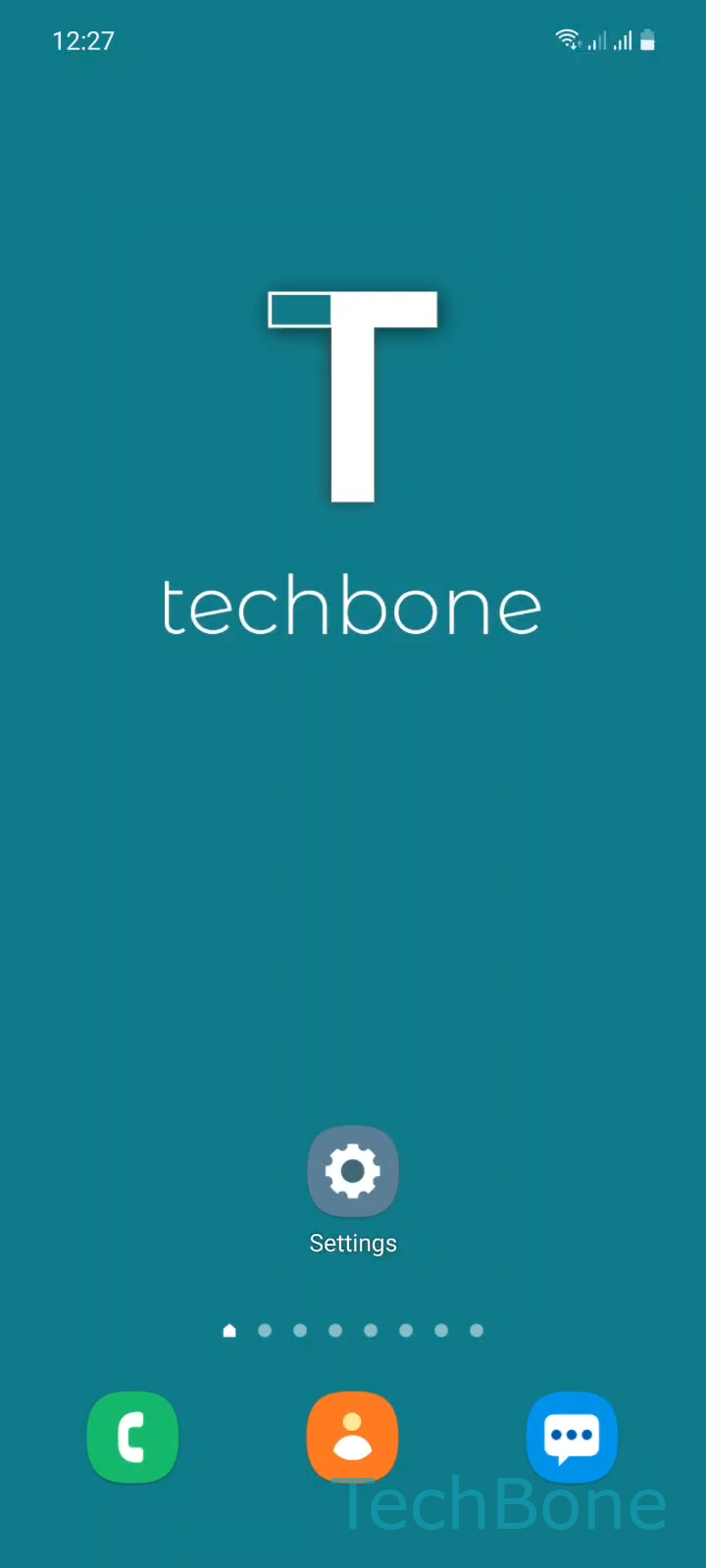
Step 1 of 6: Tap on **Settings**

1

Tap on Settings

Live simulator

Android 11 · One UI 3
Change System Settings App Permission – One UI 3: step 1 – Tap on Settings
Tap on Settings
1 / 6

Scroll or use the buttons for the next step

Feedback

Was the guide correct?

Help others: confirm the path or report a problem.

95

Confirmations

Forum verified this path

Samsung

Change System Settings App Permission auf Samsung

Some Samsung apps request extra system access to adjust settings such as auto-rotate, sound profiles, or screen brightness without asking every time. This request falls under the Change system settings permission, listed as one of the Special access controls in One UI.

To review or change which apps hold this permission, go to SettingsApps ➤ open the menu ➤ Special accessChange system settings. This screen lists every app that has asked for the permission, each with its own toggle to turn access on or off.

Granting the permission lets an app adjust settings that do not affect device security, like auto-rotate, notification volume, or display timeout. It cannot use this permission to change your lock screen, PIN, or biometric setup, since those stay behind separate security controls that this permission does not reach.

Turn off access for apps you no longer trust or that started behaving oddly after a system update. Some apps, especially automation tools and widgets, lose part of their function once the permission is removed, so re-enable it if a feature breaks after your change.

Frequently asked questions

Automation tools, widgets, and brightness controllers often request this permission so they can adjust settings on their own instead of prompting you each time. Without it, the app can only suggest changes, not apply them directly.

Compatible devices

Tap your device — opens its hub with matching guides.

Android 11 · One UI 3

No compatible devices are listed for this version.