Skip to content
TechBone
Samsung

Samsung: Allow or Block Picture-in-Picture for Apps

If a video keeps playing in a floating window even after you close the app, or that floating window never shows up at all, the picture-in-picture permission for the app is set the wrong way. Samsung manages this per app, separate from the general multitasking settings, so one app can float freely while another stays blocked. Checking this permission clears up both problems in a few taps.

6 min7 steps
Version

Step by step

1 / 7

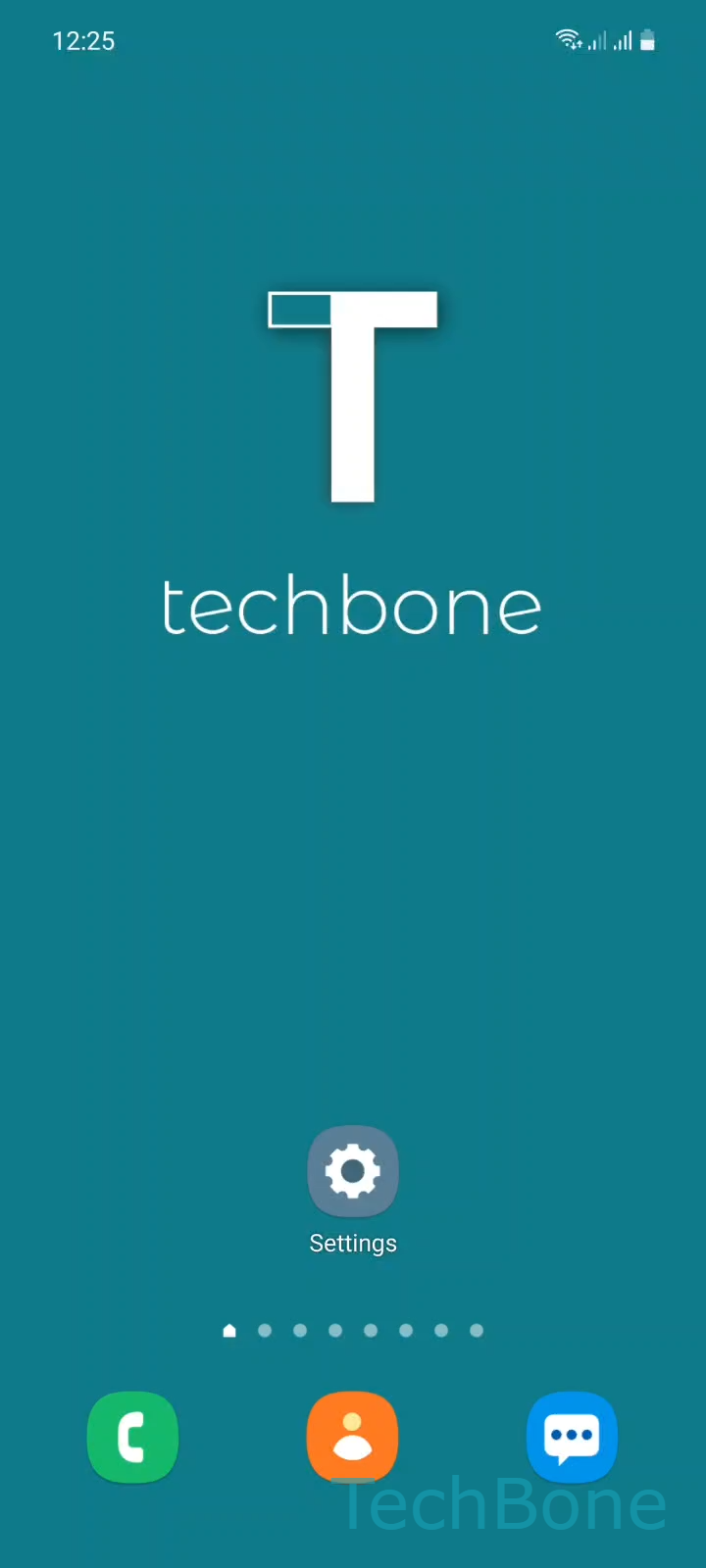
Step 1 of 7: Tap on **Settings**

1

Tap on Settings

Live simulator

Android 11 · One UI 3
Allow or Deny Picture-in-Picture Access – One UI 3: step 1 – Tap on Settings
Tap on Settings
1 / 7

Scroll or use the buttons for the next step

Feedback

Was the guide correct?

Help others: confirm the path or report a problem.

90

Confirmations

Forum verified this path

Samsung

Allow or Deny Picture-in-Picture Access auf Samsung

Picture-in-picture lets a video, call or map keep running in a small floating window after you leave the app. Whether this works depends on a permission Samsung manages separately for every app, not on a single global switch.

If a movie stops instead of shrinking into a floating window, the app's picture-in-picture permission is disabled. If a floating window pops up when you did not want it, the permission is enabled for that specific app.

To check or change this, go to Tap on SettingsTap on AppsOpen the MenuTap on Special accessTap on Picture-in-picture. This list shows every app that supports the feature.

Tap the app you want to adjust, then Choose an AppEnable or disable Allow picture-in-picture. Turn it on to let the app float over other apps, or off to force it to pause or close fully when you leave it.

This setting only controls the permission. The app itself decides when it actually triggers the floating window, so some apps still need their own in-app toggle for the feature to appear.

Frequently asked questions

The system permission at SettingsAppsSpecial accessPicture-in-picture only allows the behavior. The app itself needs its own setting or trigger, such as pressing home while a video plays, to actually launch the floating window.

Compatible devices

Tap your device — opens its hub with matching guides.

Android 11 · One UI 3

No compatible devices are listed for this version.