Skip to content
TechBone
Samsung

Samsung: Turn Pop-up Notifications On or Off for an App

If a Samsung app keeps flashing a banner across your screen every time a message or alert comes in, that's a pop-up notification, and it can get distracting fast. Some apps switch this on by default, others leave it off, and the setting lives separately inside each app rather than in one global switch. Fixing it means finding the right notification category for that specific app.

5 min6 steps
Version

Step by step

1 / 6

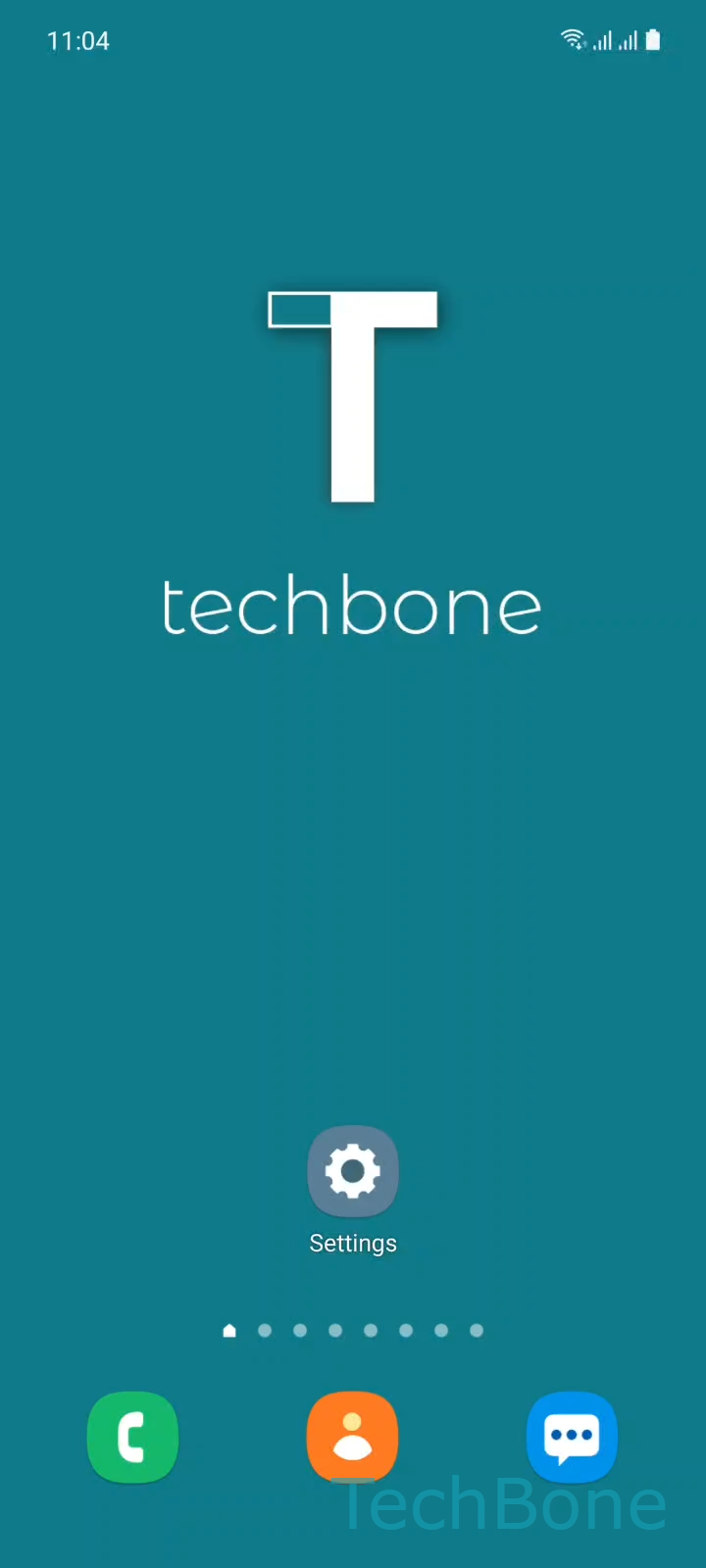
Step 1 of 6: Tap on **Settings**

1

Tap on Settings

Live simulator

Android 11 · One UI 3
Turn Pop-up Notifications On or Off for an App – One UI 3: step 1 – Tap on Settings
Tap on Settings
1 / 6

Scroll or use the buttons for the next step

Feedback

Was the guide correct?

Help others: confirm the path or report a problem.

40

Confirmations

Forum verified this path

Samsung

Turn Pop-up Notifications On or Off for an App auf Samsung

Pop-up notifications on a Samsung phone appear as a floating banner over whatever you are doing, then fade out after a few seconds. Some apps switch this on by default, which gets distracting if you get frequent messages or alerts you do not need to see right away.

The setting sits inside each app's own notification categories, not in one global toggle. That means messaging apps, games, and system apps can each behave differently, and you have to adjust them one at a time.

To change it, go to SettingsApps ➔ [choose the app] ➔ Notifications ➔ [choose a category] ➔ turn Show as pop-up on or off.

If an app splits notifications into several categories, like chats versus calls, repeat this for each one you want to change. Turning pop-ups off does not mute the app: it still shows a normal entry in the status bar and notification panel, just without the on-screen banner.

If your goal is to stop the app from notifying you at all, that is a separate switch higher up on the same Notifications screen, not the pop-up toggle.

Frequently asked questions

No. Sound and vibration are controlled by separate settings within the same Notifications screen for that app. Disabling Show as pop-up only removes the on-screen banner.

Compatible devices

Tap your device — opens its hub with matching guides.

Android 11 · One UI 3

No compatible devices are listed for this version.