
Samsung
Print a Photo from the Gallery auf Samsung
Samsung devices running One UI include a built-in print service that lets you send photos, PDFs, documents and other files straight to a compatible printer without installing extra software. If printing fails, the cause is usually a missing printer connection rather than a broken Gallery app.
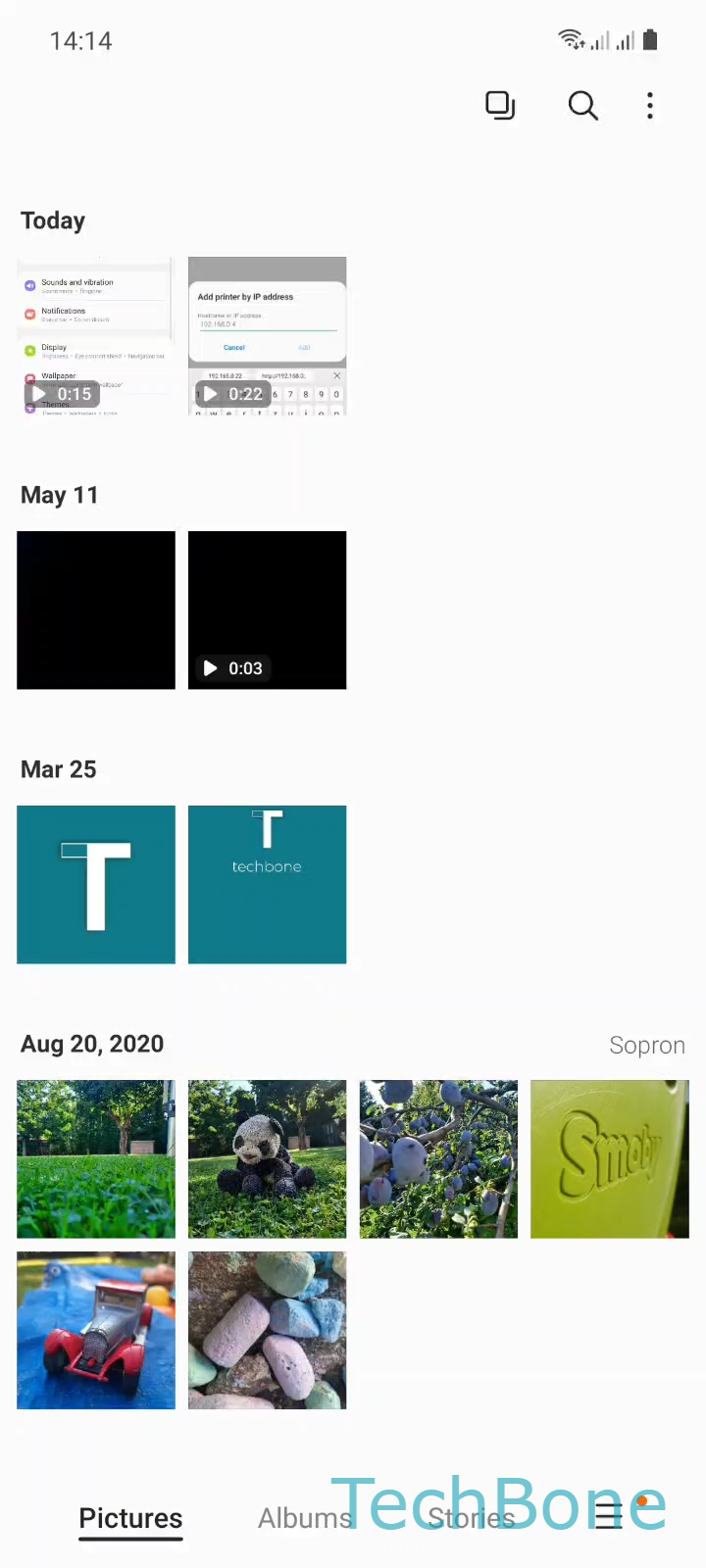
To print a photo, open the file first. From the Gallery, tap Choose a Photo to select the image you want, then Open the Menu to reveal the sharing and print options.
Tap on Tap on Print to open the print preview. From here, Open the Menu again if you need to switch printers, then Select a Printer from the list of available devices on your network.
Once the correct printer is selected, tap on Tap on Print to send the file. If no printer appears in the list, check that both the phone and the printer are connected to the same Wi-Fi network, and confirm the printer supports mobile or cloud printing.
This flow works the same way for other file types, including PDFs and video thumbnails you export as images. If a specific app blocks the Print option, try opening the file directly in the Gallery or a file manager instead of sharing it from a third-party app.