
Skip to content
TechBone
Samsung

Samsung: Rearrange Albums in the Gallery App

If your favorite albums keep drifting to the bottom of the list, Samsung Gallery is likely sorting everything alphabetically instead of the order you actually use. Custom sorting works like rearranging app icons on the home screen, but the drag gesture only takes effect once alphabetical or date sorting is switched off. Until then, moving an album has no visible result.

4 min5 steps
Version

Step by step

1 / 5

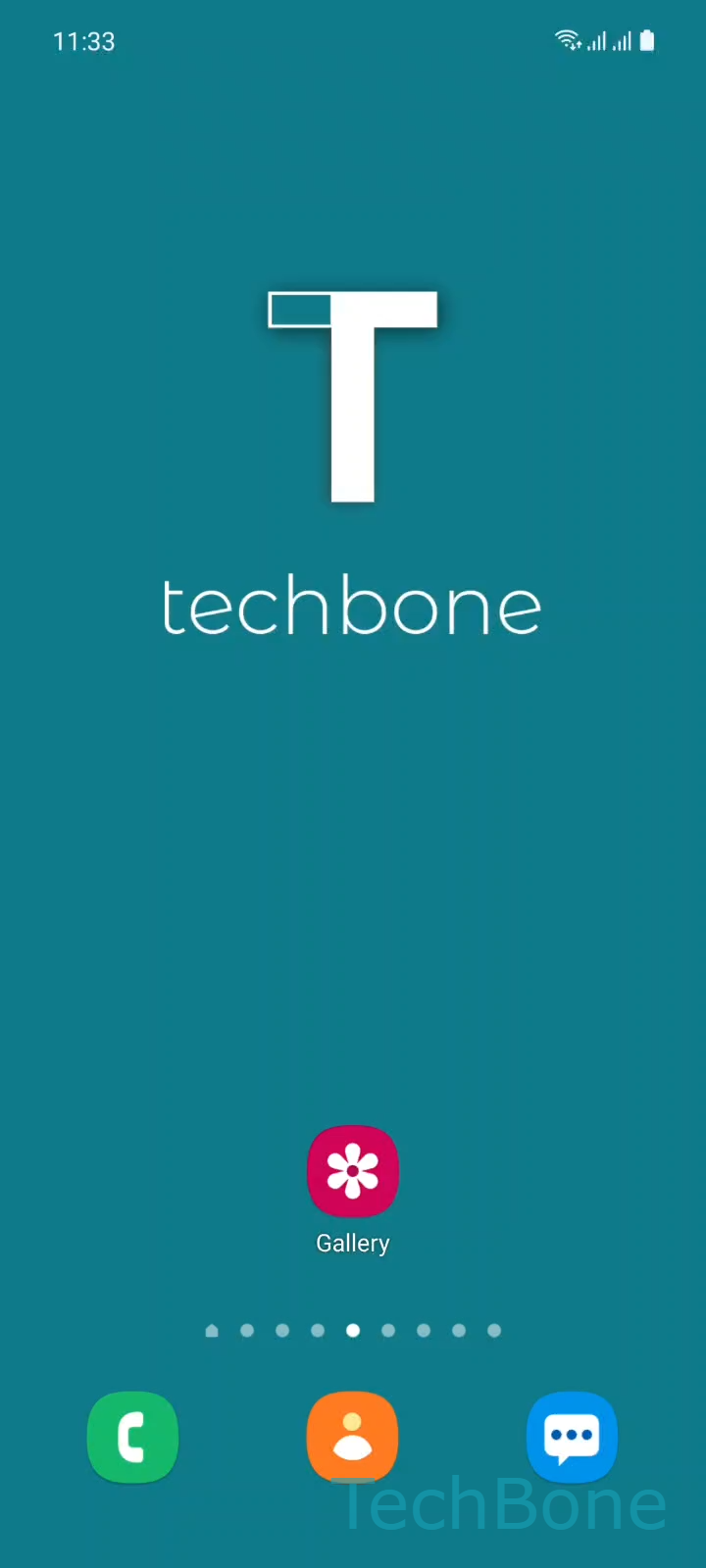
Step 1 of 5: Tap on **Gallery**

1

Tap on Gallery

Live simulator

Android 11 · One UI 3
Rearrange Albums in Gallery – One UI 3: step 1 – Tap on Gallery
Tap on Gallery
1 / 5

Scroll or use the buttons for the next step

Feedback

Was the guide correct?

Help others: confirm the path or report a problem.

26

Confirmations

Forum verified this path

Samsung

Rearrange Albums in Gallery auf Samsung

Samsung Gallery offers two ways to order albums: alphabetically by name, or in a manual arrangement you set yourself. If the app still sorts by name, dragging an album thumbnail will not move it, because the manual order only applies once that sort mode is active.

Once custom sorting is active, reordering works the same way as rearranging shortcuts on the home screen. Press and hold an album until it lifts slightly, then drag it across the grid to a new spot.

Menu path

Tap on GalleryTap on AlbumsTap and hold an AlbumDrag the Album to the desired positionRelease the Album to position it

Release the album once it sits between the two thumbnails you want it next to. The Gallery app snaps the grid into the new layout immediately, and the order stays until you switch sorting back to name or date, or move the album again.

This method only affects the order of albums shown in the Albums tab. It does not change how photos are sorted inside an individual album, and it has no effect on how images appear in the main Gallery timeline.

Frequently asked questions

Dragging only works while albums are sorted in custom order. If the current view is sorted by Name or by date, the app ignores the drag and keeps the alphabetical layout.

Compatible devices

Tap your device — opens its hub with matching guides.

Android 11 · One UI 3

No compatible devices are listed for this version.