Skip to content
TechBone
Samsung

Samsung: Reject an Incoming Call

When a call comes in on a Samsung phone, dragging the icon the wrong way answers it instead of declining it. The red handset works the same way as the green one, just pulled in the opposite direction, and calls that pop up as a small banner while you are using another app need a separate tap instead of a swipe.

2 min2 steps
VersionAndroid 10 · One UI 2

Step by step

1 / 2

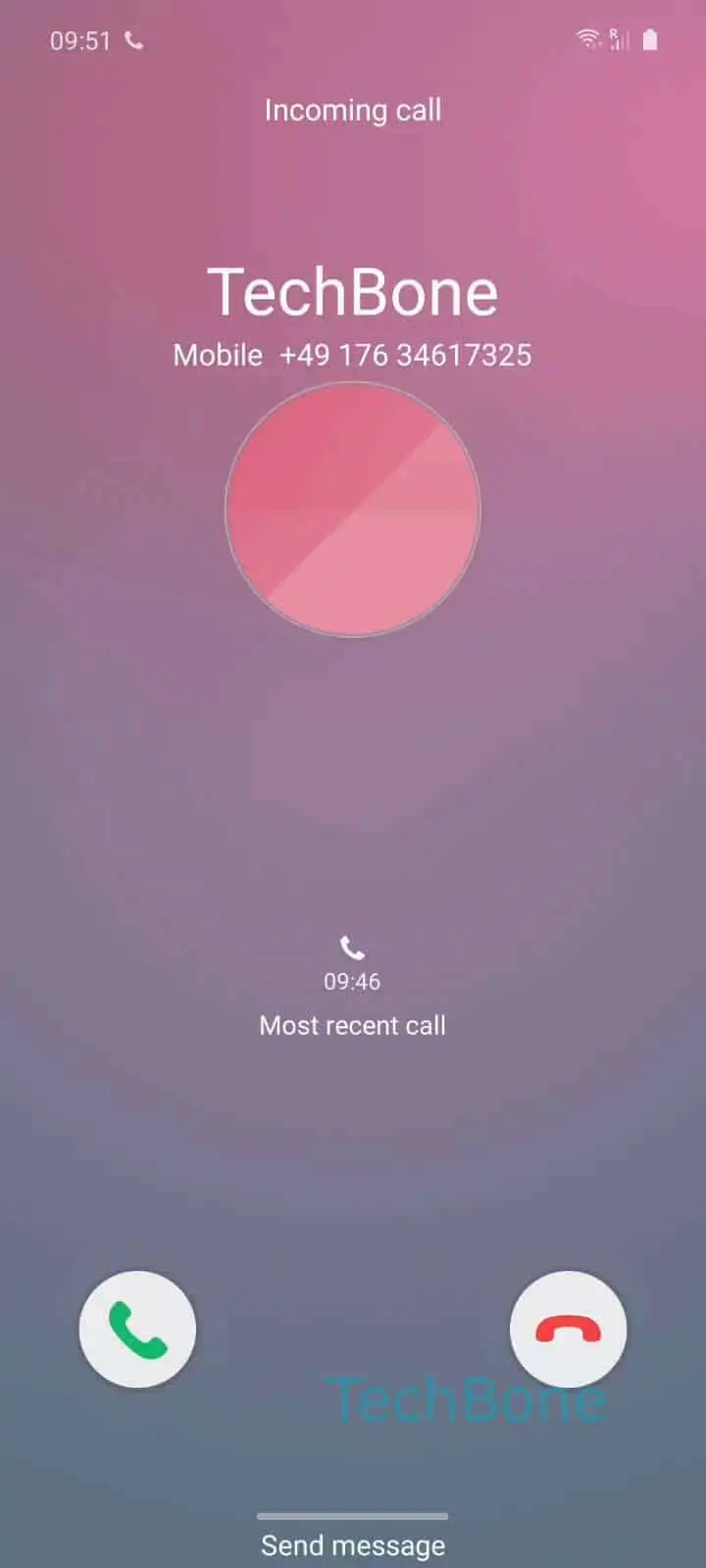
Step 1 of 2: Tap and hold the **red call icon**

1

Tap and hold the red call icon

Live simulator

Android 10 · One UI 2
Reject an Incoming Call – One UI 2: step 1 – Tap and hold the red call icon
Tap and hold the red call icon
1 / 2

Scroll or use the buttons for the next step

Feedback

Was the guide correct?

Help others: confirm the path or report a problem.

44

Confirmations

Forum verified this path

Samsung

Reject an Incoming Call auf Samsung

An incoming call on a Samsung phone shows two round icons: green to answer, red to reject. Both work with the same gesture, so mixing up the direction is a common way to accidentally pick up a call you meant to decline.

Reject a full-screen incoming call

When the call fills the whole screen, press and hold the red icon and pull it away from the center. The exact path is Tap and hold the red call iconDrag the icon outside of the circle. The direction does not matter, only that the icon leaves the ring around it.

Reject a call that pops up over another app

If you are already using another app and a call arrives as a small floating window instead of taking over the screen, dragging is not required. A dismiss option appears directly in that pop-up, and a single tap on it ends the call for the caller without opening the phone app.

Releasing the red icon back inside the ring cancels the reject action, so the phone keeps ringing. If nothing happens after dragging, check that the screen is fully unlocked, since a locked screen can change how the gesture reacts.

Frequently asked questions

The call keeps ringing. The reject action only registers once the icon is dragged completely outside the circle around it, so a short or hesitant drag has no effect.

Compatible devices

Tap your device — opens its hub with matching guides.

Android 10 · One UI 2

No compatible devices are listed for this version.