
Samsung
Remove App Shortcut from Home Screen auf Samsung
Extra app shortcuts on the Home screen usually appear after you drag an icon from the App Overview more than once, or after a widget adds its own launcher tile.
Samsung's One UI treats every shortcut as an independent object. Removing the original app icon does not clear duplicate shortcuts automatically, so each one needs to be deleted on its own.
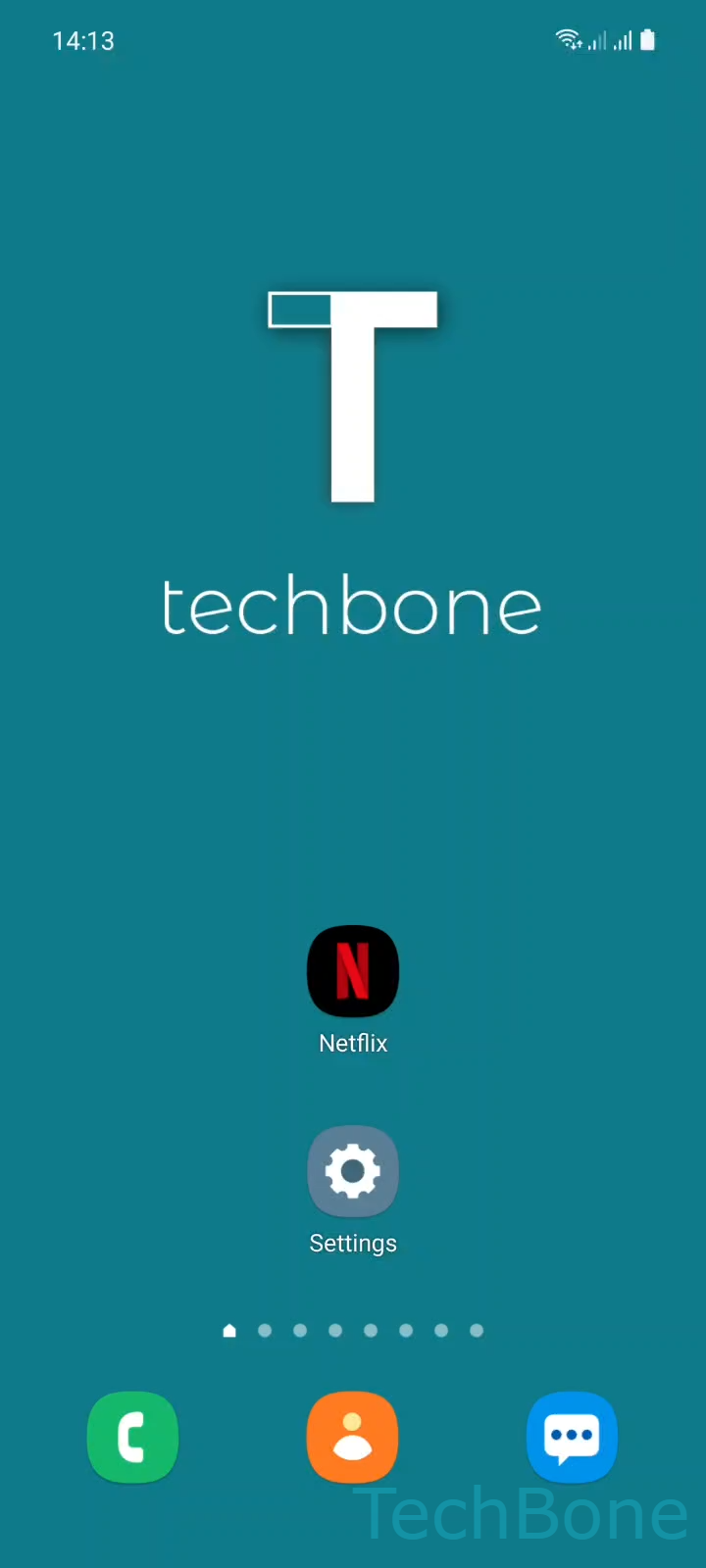
To remove one, Tap and hold an App icon ➔ Tap on Remove. This only detaches the shortcut from the Home screen. The app itself and its data stay installed.
If the same long-press menu shows Uninstall instead of Remove, you are touching the actual app icon in the App Overview, not a Home screen shortcut. Choosing that option deletes the app completely.
The same steps work on any Home screen panel, including Wide screen layouts. If Remove does not show up at all, check whether the Home screen apps setting is limited to widgets only, which can hide the option for regular icons.