Skip to content
TechBone
Samsung

Samsung: Delete Face Recognition Data

If facial unlock keeps failing or you no longer want your phone to recognize your face, the stored face data is still sitting in Biometrics and security. Beard changes, glasses, or a general preference for PIN unlock can make this scan outdated. Removing it disables Face Unlock until you set it up again.

5 min6 steps
Version

Step by step

1 / 6

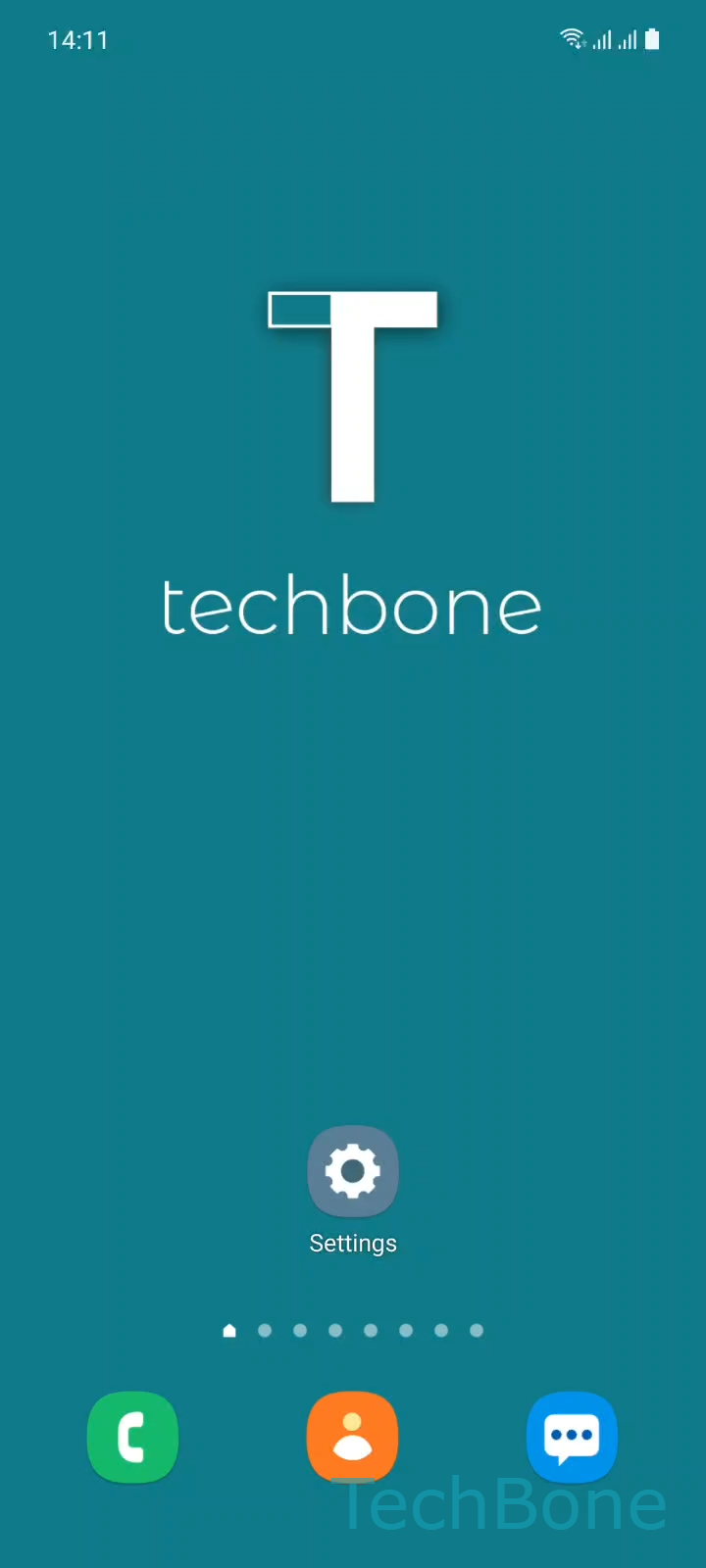
Step 1 of 6: Tap on **Settings**

1

Tap on Settings

Live simulator

Android 11 · One UI 3
Remove Face Recognition Data – One UI 3: step 1 – Tap on Settings
Tap on Settings
1 / 6

Scroll or use the buttons for the next step

Feedback

Was the guide correct?

Help others: confirm the path or report a problem.

62

Confirmations

Forum verified this path

Samsung

Remove Face Recognition Data auf Samsung

Face recognition on Samsung phones stores a biometric map tied to your face under Biometrics and security. If your appearance changed significantly, or you switched to a different unlock method, that stored scan becomes unreliable and can trigger repeated failed unlock attempts.

Removing the face data clears this biometric profile and turns Face Unlock off completely. Your phone falls back to the backup method you set, usually your pattern, PIN, or password.

To remove it: SettingsBiometrics and securityFace recognition ➔ enter your current Pattern, PIN, or PasswordRemove face dataRemove to confirm.

Once removed, the option reverts to a setup prompt, meaning you can register a new scan any time without leftover data from the old one interfering.

If Face Unlock still works fine but you just want extra security, consider disabling it for specific apps or payments instead of deleting the data outright. Full removal is the right move when the biometric match itself is unreliable or when you plan to hand the phone to someone else.

Frequently asked questions

No. Deleting the entry under Face recognition only clears the face scan. Fingerprints and other biometric methods stay untouched unless you remove them separately in Biometrics and security.

Compatible devices

Tap your device — opens its hub with matching guides.

Android 11 · One UI 3

No compatible devices are listed for this version.